Start with the destination, not the extension
Exporting a file so it can be read by your subsequent application is the only useful export. Your video could look like it has no background when viewed with one player, but with another video editing program, it might look like it has a black background. Therefore, decide what you plan to do with the video prior to selecting a video export format.
The best option for a static image cutout is to use PNG format as it has built-in transparency. There are multiple aspects that must be considered when creating animated content such as containers, codecs, and transparency support. A standard file format will only cover one of these aspects.
Scroll sideways to compare every column →
| Output | Motion | Background in this product |
|---|---|---|
| PNG still | One selected frame | Can retain transparency |
| PNG sequence, where offered | Numbered animation frames | Alpha for image-sequence compositing |
| GIF | Animated preview | Transparent areas flattened to cream |
| Browser video | Recorded animation | Flattened background; green can be keyed |
Match the file type to the editing job
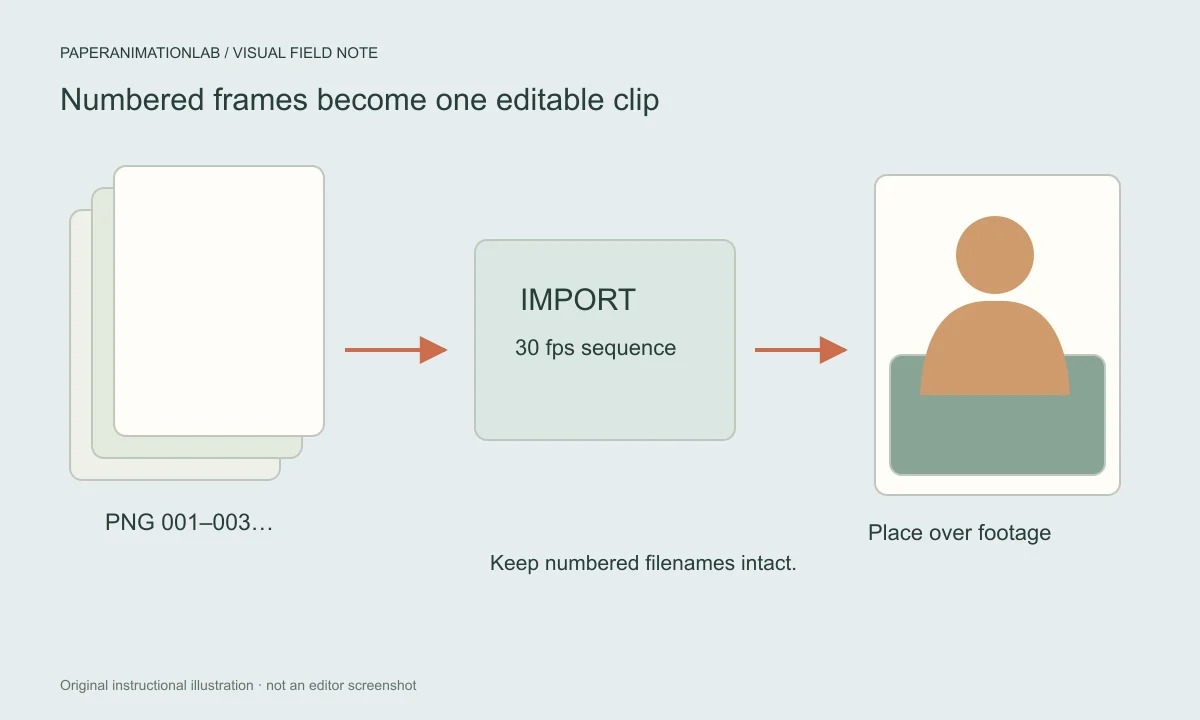
A still PNG is a single frame; it does not capture the motion. A transparent PNG sequence consists of numbered frames with alpha in a ZIP. When you extract the frames and load them as an image sequence at the specified 30 frames per second, you can lay the sequence over your video using a video editor that supports alpha images.
GIFs provide a good preview, but they render all transparent areas as white/cream. Browsers record MP4 and WebM files that will render all transparent areas as white/cream. When you're using a keyer in your workflow, choose a green background in the editor; if the export dialog doesn't allow you to create a transparent sequence for that particular effect, then select the supported solid or green-background option instead.
Use PNG for a still layer
The checkerboard in the editor serves as a visual guide and will not appear in the final product. Download a PNG frame with a clear background if you are looking for an element for a thumbnail, detail of a poster, or a graphic for a slide.
Check the file with a colorful background in the program you are using to create it. This will help determine if the edge of the file is truly clear and not just placed on top of a light-colored background.

Import and check the PNG sequence
Do not change the name of the files that are contained within the ZIP archive upon extraction. Use the 'Image Sequence' option in the editor's import menu to bring in all of the images for this sequence, rather than bringing them in individually. Set the frame rate of the image sequence to 30 frames per second. Prior to adjusting the duration of the animation, make sure to verify the import method used and the frame rate if the video is either playing at the incorrect speed or is presented as still images.
The masks should be placed on both the light and dark areas of the actual video. Prior to scaling the video, review the mask edges at their original resolution (i.e. un-scaled). Scaling can make a clean mask look softer than it was initially. Review the first frame, all moving frames, and last frame to ensure that the entire composition looks good, and not just on the single poster frame.
Treat GIF as a preview format
The color palette used by GIF is small. Its ability to create transparent areas is also far less versatile than the smooth alpha channel of PNG. The use of this method results in a solid background being created behind the GIF output, allowing for better representation of edges without creating a false sense of how good they look.
You can use a GIF as an example of a brief looped video clip or as a quick glimpse into a message. In most cases, a picture with gradations would be more appealing when converted to a video, particularly if you are looking for a bigger outcome.
Use green when you need a dependable keying route
A green background can provide an editor with a color they are able to see and delete. If you use a green background in your image editing software, keep it out of the subject area of the photo. Or, if the photo you want to edit has some green in it, find a different background to work with in the same software program.
The video exporter that is built into your computer will use all of the formats supported by the version of the browser you have installed. There is no guarantee of alpha video. A green screen clip is usually an easier way to start working with transparency than a file that may or may not support transparency.
Troubleshoot background and encoder differences
The preview's checkerboard pattern shows a transparent canvas; however, it doesn't guarantee that all export types include alpha. Be sure to check the export note for the format you have chosen. If there isn't an available encoder in your web browser, consider exporting to one of the supported formats found within the dialog box, or utilize the PNG sequence workflow. For additional information regarding the current behavior based upon browser compatibility, please refer to the browser support guide.
When using green screen footage, remove green from the subject and its borders and then use the exact same color for keying in your video editing software. If a colored fringe appears after you have keyed the footage, adjust the settings on your keying tool. However, if the fringe was there before keying, clean up the mask. The green-fringe guide will help identify where the problem originated.
Test one file in the real project
Import a brief export into the current project to examine how its edges align with the video directly underneath. Halo effects caused by scaling or compression may be visible, which were not apparent during the editing process.
Do not edit the project file as long as you are still testing. When you want to use a different background image, or a smaller shadow effect, then simply adjust those settings, and re-export the image. It is much easier to export the image again after adjusting the settings than to try and repair an un-editable image.