Start with the image you want to reveal
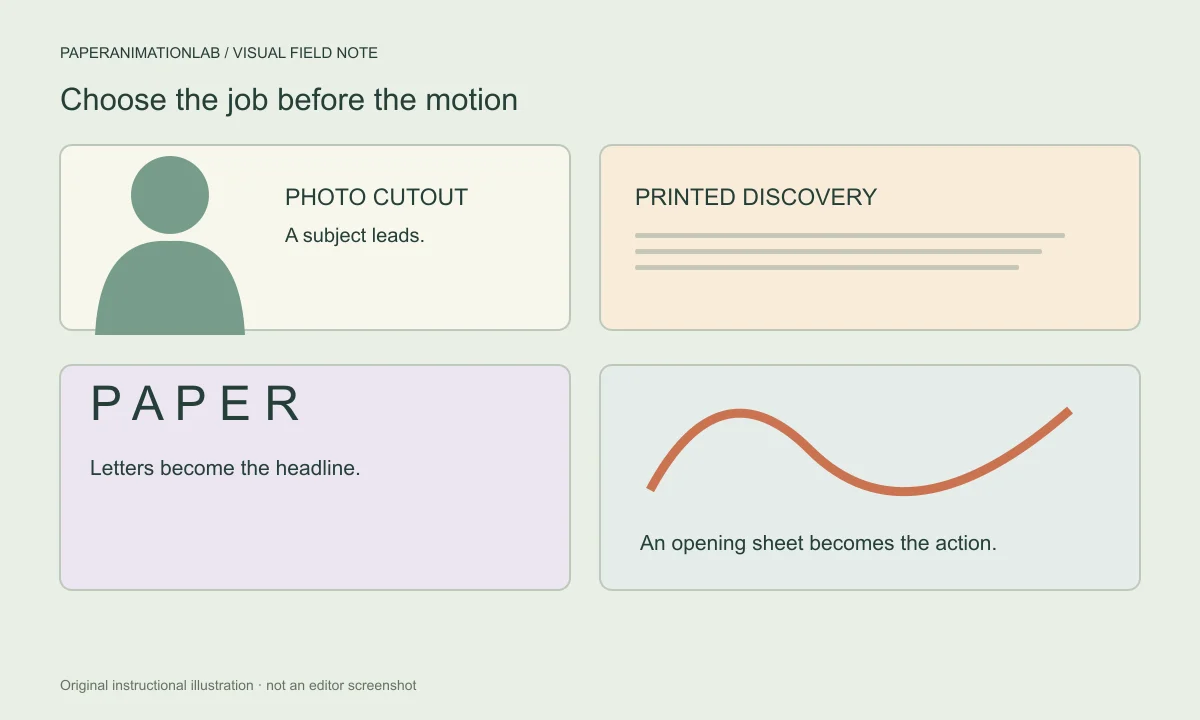
A successful paper animation will generally begin by making a single choice about what you want the audience to focus on. A product, a person's face, a word, or a photo can all be used to tell a story in an animation; however, using them together in a single shot will make the animation more difficult to understand. Decide upon a single main point of interest in the animation prior to selecting how it moves.
Open a sample in the editor and replace it with a JPG, PNG or WebP. A subject that has clear space around it makes positioning easier. Use a transparent cutout if you have one; don't try to cut out a complex background using a color key.
A repeatable first-pass workflow
Make a rough pass in this order: set the canvas ratio, replace the sample, choose the entrance, set ongoing motion, then adjust the paper edge and shadow. Preview after motion, image, and styling have been selected to ensure the sequence holds together.
Use the Photo Paper Cut effect if you have a photo-based scene. Use Photo Crumple if the sheet needs to fold open and closed. If you want to use letters from a magazine, use Magazine Letters to assemble characters; if you want to find words in a document provided, use Newspaper Research. Since each of these methods accomplishes a different goal visually, select based upon what you want your audience to understand.
Scroll sideways to compare every column →
| What the scene needs | A useful starting point | Watch for |
|---|---|---|
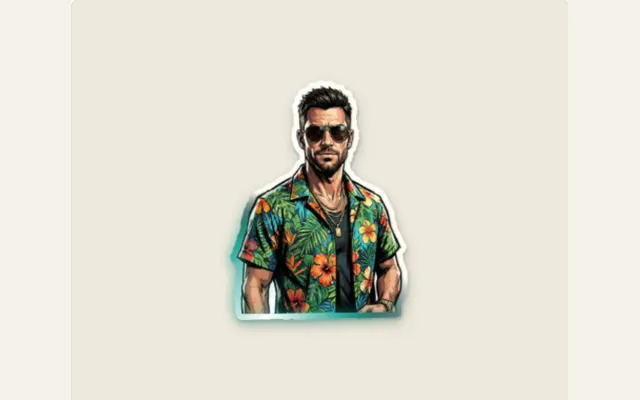
| Introduce a person or product | Photo Paper Cut | A clean silhouette and enough room for its border |
| Find a phrase inside supplied copy | Newspaper Research | An actual matching occurrence and a readable final hold |
| Assemble a short headline | Magazine Letters | Letter contrast at phone size |
| Reveal an image as a sheet opens | Photo Crumple | An open frame that lasts long enough to inspect |
Choose movement that serves the moment
Wobble provides a gentle activity to an image, while still allowing the image to be seen. Paper boil alters both the edges and surfaces of each frame, providing a more hand-made look to the animation. When the entrance to the scene is a part of the story, then either an unfold or tear reveal would be more effective.
Watch how the image looks when viewed by most people. A slight jiggle that may appear energetic on a big screen could disappear when viewed on a mobile device. Increase the motion slowly, and then verify if the viewer is still able to read the content without difficulty.
Build the paper look in layers
Material, border, and shadows go hand-in-hand. When you begin your project you will want to use a smooth piece of paper, put a small border around it and if the picture appears to be 'clean,' you may want to add some texture. If you add too much texture, you could end up covering some of the detail in the picture (especially in a smaller size) or the title.
A shadow should imply a thin layer of paper directly on top of a surface. A deep, far-away shadow will give an impression that the object is suspended above the surface and that it is heavier than what it actually is. It would be best to lower the intensity of the shadow prior to adding further embellishments.
Review the scene at the size it will be watched
Watch the beginning of the video, where there is activity, and the end as it would appear during regular use and on the intended screen size. The thin edge of a piece of paper might disappear when being pulled through horizontally; an extremely quick transition could make it difficult for people to read a product label. If you are having trouble determining what to focus on, consider making either the text or movement simpler.
Render a small test image first, then place it on top of the actual footage. Before you render the entire scene, verify the edge contrast, timing and how the background reacts to the test image. There are several ways to render the test image as explained in the Export Guide. You will find options for still images, animated preview images, web browser-based video, and transparent PNG sequences to help you select a format that is compatible with your editing software.
Export a small test before finishing
Use a brief loop for your first export. PNG produces a stationary image, GIF provides an animation of that image as a preview, and the export options for video will be determined by the encoder used within your browser. The export dialog box will explain the format of the export and its background.
Load the file into your preferred video editing software prior to creating any additional components of the project. While the file will play in the browser, it is just one component of the entire workflow. The file must be compatible with the composition that you create.
Keep a version you can edit
Once you've made progress on your project, save the file. Saving the file allows you to keep the settings you've created, and, if applicable, the local image that was used to open the project. You'll want to store the saved file where it will be easy for you to locate later, rather than depending solely upon the browser's storage system.
The final version of your animated piece should not contain all of the available controls. Focus on keeping the controls that enhance the subject, and eliminate those that take away from it. In many cases, a straightforward cutout, coupled with the proper timing, will require minimal additional controls.