
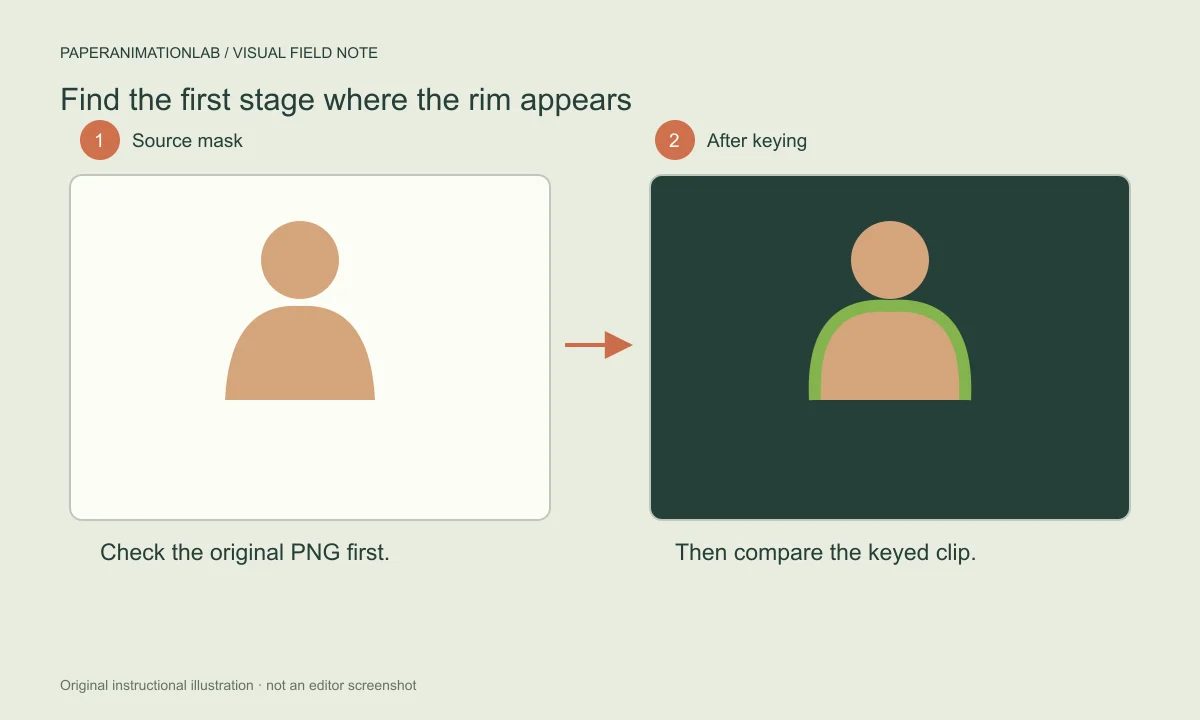
Compare the original image with the exported clip
Open your cutout PNG against a contrasting background. If there are green/gray pixels outlining the silhouette, then the artifact was present in the source. If the PNG is clean, yet you see a colored outline around the PNG after performing chroma keying, the most probable reason is the key color, tolerance, spill suppression, or scaling applied within the video editing software.
Remember to save the original file as well. Compare the original file to a non-keyed exported version, and also compare the two files to the final keyed clip. These three files will help prevent from altering a correctly masked image to correct for a keyer setting, and from making adjustments to the keyer when the original file already contains a halo effect.
Scroll sideways to compare every column →
| Where you see the fringe | First check | Avoid |
|---|---|---|
| Already in the transparent source | Semitransparent edge pixels and old background color | Hard-erasing hair or fine details |
| Only after chroma key | Key color, tolerance and spill suppression | Increasing tolerance until subject details disappear |
| Only after enlargement | Clip scale and resampling | Judging a scaled edge as if it were the original mask |
Look closely at the edge pixels
A cutout edge may contain both the subject and the background it was taken from. If you remove just the obvious green, you will still have many of these mixed pixels left. These will appear as a thin colored border when you place your image on top of a different clip.
You can check a still frame against a dark and a light background. This allows you to identify two types of issues: on a dark surface, you can easily view bright halos; on a light surface, you can identify dark outlines and sharp shadows.
Separate a source-image halo from a video key
If the green exists in the original PNG file of the subject, changing the video key will probably not result in a clean extraction of that area. Before you apply the paper effect to your clip, please make sure to check the quality of the extraction mask. Although a wide border of paper can conceal some problems with an extracted image, it will not compensate for a poorly extracted image.
After confirming that the image is clean in the original PNG file, and you are still seeing green in the clipped version of the image after applying the video key, please verify that you have adjusted the settings for video keying correctly in your editing software. The name of the control that controls video keying varies from program to program; therefore, please consult the most recent documentation for the program you are using instead of assuming that each slider performs the same function across all programs.
Clean a source-image halo without hardening the edge
Refine the mask of the silhouette and eliminate the existing background color from semi-transparent edge pixels. Maintain the anti-aliasing around hair, fur, sheer fabrics, and glass; while you can eliminate the fringe with a hard erase, you may end up with a very rough-looking cutout. When the subject's colors match those of the background, create a mask within an image editing program as opposed to simply eliminating all of the background color.
PaperAnimationLab's background removal tool is designed to work with solid color connections. It will not replace lost details nor will it automatically find every object. The cutout preparation guide provides information about which types of backgrounds are appropriate for use as well as what to check prior to creating an animation.
Avoid pushing the key too far
Increasing the color tolerance will eliminate a larger number of colors; therefore, some of your subject as well as some of your background may be eliminated. You should stop removing the color when you no longer see the flat background, and then examine the finer aspects of your image. Hair, white paper, and reflections will require extra attention.
If your editing software allows for edge softness and spill suppression, you should utilize those features. Changes made to edges should be kept to a minimum and evaluated while watching the footage being edited. A perfect-looking edge on a checkerboard pattern does not necessarily translate to a good-looking edge in the finished video.

Tune chroma key without removing subject detail
Set the keyer to the color that matches your background and increase your tolerance only until the unwanted area of your screen is gone. If you increase your tolerance too far, you could lose some of your green clothing, foliage, or reflections. Be careful with applying spill suppression, so that neutral-colored items and skin areas around the edges of the green screen are not shifted in color.
Do not add a green border accent on a green screen clip. Your keyer might also delete the animation around the edge of the clip. You can use another type of accent, or if there is a transparent PNG sequence for the desired effect, consider using it instead of a green screen clip. The transparent export guide describes which composite method is more appropriate in each situation.
Keep the paper shadow useful
In the paper editor, lower the level of shadow and run another short export. When the final product is placed on top of real footage, you might want to adjust the amount of shadow applied.
If the source material does not contain high-detail elements that need to be clearly visible, then try using a slightly wider plain paper border. A clean graphic edge usually is easier to composite than a combination of hair, texture, and partially transparent shadow pixels.
Compare before you commit
Save a static image of the first version of the issue (the problem), then save another static image of the revised version of the export, both in the same size. These two images allow you to determine if the edges in your image have been improved or if they are simply less noticeable against one type of background.
When saving the corrected project, assign a different file name to it. If the client wants to go back to the previous version, or if the environment around your project changes, you will be able to easily find the correct settings for the better looking project.