Newspaper search
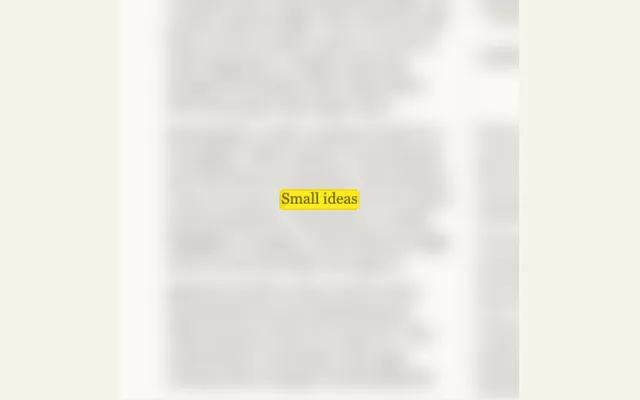
Search for a word or sentence in editable newspaper text. Blur the surrounding print and keep the selected phrase sharp. Choose marker focus, a soft spotlight, lifted cutouts or a locked match cut.
Try this effect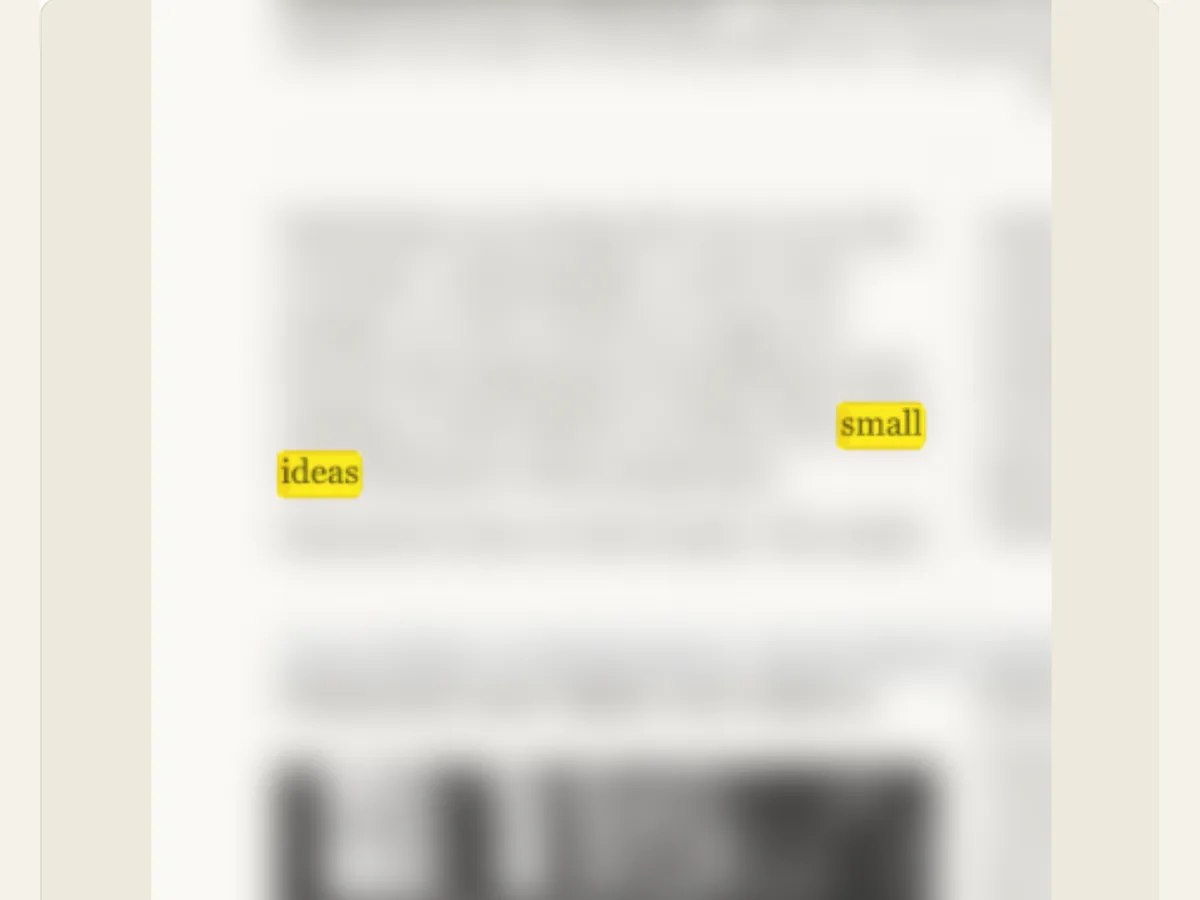
Let the words stand out.
Four ways to keep the target sharp and the surrounding text soft.
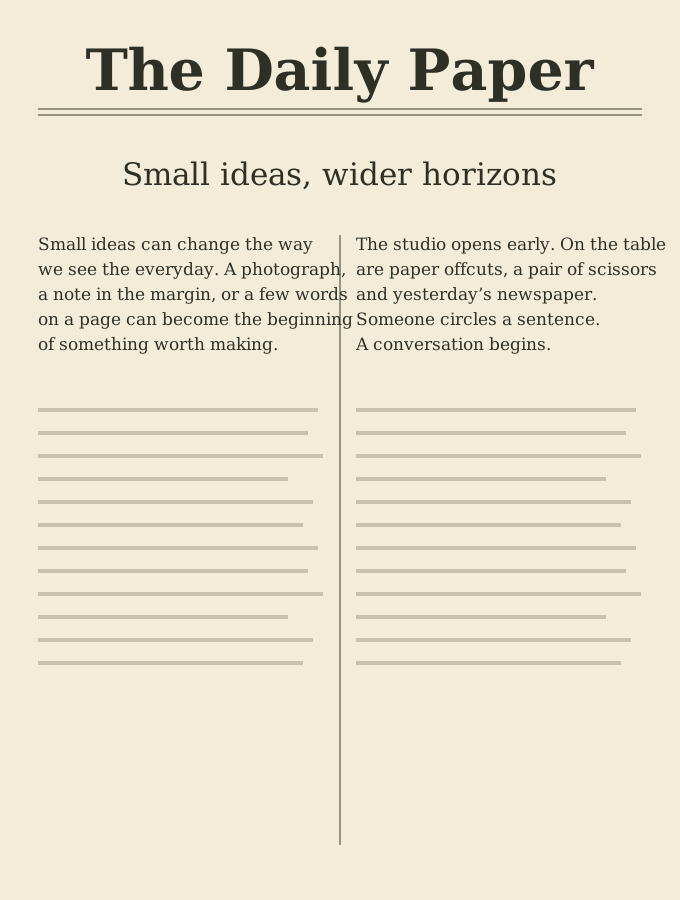
Find a phrase in the article you choose
The search feature of newspapers allows users to locate specific content within the paper. This is done by searching for keywords or phrases. Once located, the user is directed to the exact page where the content is found. To do this, the user enters a word or phrase, then supplies a copy of the article they are interested in. The editor then finds all instances of the keyword/phrase. It will "soften" the printing of the surrounding text while keeping the focus on the user's entered keyword/phrase. This can be used as an example of a search being conducted in a newsroom. It can also be used as part of a media literacy project. Additionally, it could serve as a visual aid during a short video that requires a specific focus on one line of text.
The search that is being conducted on the provided text is a search of the user's editable text in their project, not a web search, nor is it an optical character recognition (OCR) tool. It will not find actual newspaper articles or verify who authored them. A search result for a specific phrase only indicates that those exact words are present in the text you provided. When there is a factual claim made by the project, please refer back to the original source and provide credit for that claim within the context of the text where the claim was found.
Scroll sideways to compare every column →
| Control | Available direction | What it changes |
|---|---|---|
| Article and phrase | Your supplied copy | Determines available matches |
| Marker and blur | Color and surrounding softness | Changes emphasis around the match |
Enter a target and review the match status
Type the word or phrase that will be displayed in the animation; then, look at the status message to see if there was a match, and how many times it was used in the article. If the editor does not report a match, either rewrite the word or phrase, or edit the original source text. Since the full article field allows for up to 4,000 characters, you can either use a small section of an existing document, or create your own custom example to demonstrate the animation.
When a phrase is used many times, the Match Location control allows you to select one instance of that phrase and shows you some of the words that surround it so that you can tell each time the phrase is used apart. There is also an Automatic option available, which can display up to four of the locations where the phrase is found. That way, if you have a phrase that is used multiple times, you don't need to rebuild your scene for each time you use the phrase. Make sure to check your spelling and punctuation, because even slight differences in the way your text is typed can affect how well the search will find it.
Choose the focus style and marker color
Focus Style contains marker focus, soft spotlight, cutout lift, and a locked match cut. Marker Color includes yellow, green, pink, cyan, and orange. Markers provide an annotation of the words on the page; spotlights isolate a small portion of the words; cutout lifts the words off of the softened page; and locked match cuts allow for visual anchoring of phrases. Select a combination that will make the words clearly visible without obscuring their meaning.
The level of background blur determines how much of the original article will remain in view. The smaller the amount of blur, the greater the degree of context you can see. The larger the amount of blur, the more competing information will be eliminated from view. You should use the least possible amount of blur that brings the subject of your focus into prominence. A complete sentence will typically require less blur than a single word. If you cannot understand why the phrase is important, it is possible that the page is too soft. Therefore, either include more of the sentence containing the phrase, or provide additional context in the next frame.
Place the search in a useful part of the page
Page Design allows for several types of layout including mixed, classic newspaper, paper book, hardback, editorial feature and compact journal. Headline Focus will allow you to highlight the top headline, middle story or bottom anchor. Paragraph Spacing may be either compact, balanced or airy. Shuffle Page Designs allows you to generate new page arrangements and determine if the current selection is able to appear within the generated page arrangement.
A layout change may cause other columns and photos on the same page to shift position. However, a layout change will not affect the source article. Select a different matched term (if available) if the selected matched term is positioned at the edge or underneath a photograph; alternatively, adjust the layout so that the term is clearly visible. Avoid suggesting that the computer-generated newspaper is an exact copy of a physical newspaper when writing about facts. The generated newspaper represents a visual representation of your entered text and is not a scan of a physically produced newspaper.
Use the reveal to support a real reading task
A teacher may post a portion of class content, select a specific word, and have her students write about what that selected word means in context to the other words in the same sentence. A video essay may identify a recurring phrase in an authorized portion of text prior to exploring why that phrase is being used. A fictional thriller may locate a clue within an article that is written specifically for the purposes of locating that clue. In all of these examples, the animation will direct your attention towards the item in question, while the rest of the text surrounding that item will provide you with an explanation of how the item is used.
If the material you are using has been copyrighted, if it contains private information about someone, or if it relates to a real person, make sure you have their approval before using only the portions of the material that you need. When quoting a source, provide a reference to the article, and allow users to locate the source itself. While the highlighted portion may help draw attention to a specific phrase in the copy of the document you submitted to the tool, it does not provide any support for the reliability of the source. To read a source fairly, consider the sentence immediately before and after the highlighted phrase, as well as the overall context of the source.
Refine the result from text to camera
The first step is to enter both the article and the target phrase. The second step is to choose one of the occurrences and one of the treatments for the focus. After that, you will need to determine the page design, the position of the headline, and whether or not to use a blur effect. Once you have made sure that the words appear where you want them to be, then you may adjust the camera zoom and duration. This sequence of steps will help you determine if the problem is a lack of matching or if it is a problem with the framing. If you cannot find the exact phrase in the article, make sure to correct the text prior to adjusting anything visually.
Preview at both the full size and at the output size. The markers that appear to be clear on a desktop could potentially block letters on a cell phone. If you are having trouble reading an entire sentence, reduce the zoom level or make the selection smaller. Ensure there is sufficient amount of the page being shown so it communicates that these words were taken from a passage, not just appearing as an isolated slogan.
Choose an export for a citation slide or a moving search
The download panel provides options to save your Newspaper Search results as PNG files, GIF files or files of video format compatible with the browser you are using. If you select to output the Newspaper Search results as a video file, the video will have a solid color (or green) background, with all transparency flattened. If you want to place the video animation on top of other video footage, then you should use the option to create a green screen video. After creating a green screen video, you can remove the green using chroma-keying techniques. In addition, the GIF output option also creates a GIF with a solid color background. Before selecting the final delivery route for your Newspaper Search results, you must first verify what formats of media are supported by your web browser.
A PNG still image can indicate where on a slide you have marked the phrase. The video will show how the camera moves and focuses on that phrase. Once you've opened the file in the new editor, make sure both the text and the context of the text are still legible. Maintain your editable project, including the article copy and selected match. If you're doing a multi-page discovery to research across several pages, use Newspaper Research or Newspaper Page Scan; the Paper Magnifier enlarges a short line, and the search guide helps prepare the passage.
Keep citations and context with the final work
The use of a spotlight will allow for the removal of qualifiers from the user's peripheral vision. Do not utilize the animation to mislead users about a resource by removing words that alter the meaning of a statement. Provide either a hyperlink to the original source or cite it, and make sure to indicate that the provided background was created as a design example. When creating a prop for a fictional project, use fictitious labels and do not imply that the content was produced by a real-world news outlet.
The tool does not provide you with the option to save a source citation nor does it provide verification that you are the owner of the article. It is important to keep these details with the project and to provide an accessible text version of the main idea. The animation allows someone to see a passage and the link to the source and explanation allows them to evaluate it.