
Look at what is actually moving
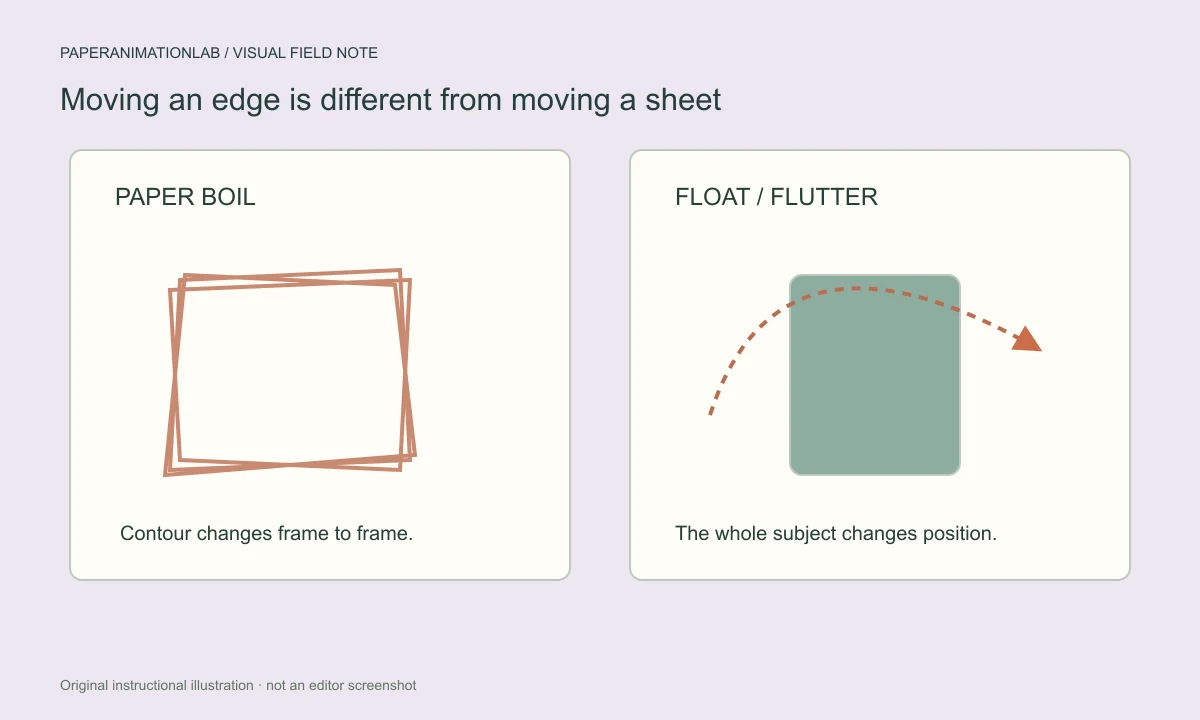
The movement of the entire card is affected by 'Wobble,' while the appearance of the edges and surfaces of the card change as a result of 'Paper Boil.' While both can be indicative of a hand-made animation, they produce very different forms of energy.
A centered image needs to be shaken a little bit to look like it is alive. A collage made of different types of media can use 'boil' to make the layout of the media legible and also to make the background paper appear more dynamic than if it was still.
Scroll sideways to compare every column →
| Treatment | What moves | Use it when |
|---|---|---|
| Paper boil | The paper outline | A redrawn edge is the desired texture |
| Float | The cutout as a whole | The subject needs gentle continuous movement |
| Paper flutter | The cutout with a lighter sheet-like motion | A paper lift supports the scene |
| Stop-motion vibration | The subject in stepped movement | A deliberately handmade rhythm fits the edit |
Identify which part of the cutout should move
'Wobble' is used to describe many types of movement; however, the outcome is based on which layer is changing. For example, if you animate a border it could be static, redraw as Paper Boil, pulse color, or have an ongoing edge light traveling along it. Additionally, if the animation has some form of continuous movement, the subject may remain still, float, flutter or even exhibit a stepped stop motion vibration.
When people are viewing an object and want to read its face, product label or smaller details; keep the subject stable. If you would like to have a handmade outline of your image without moving it; then let the edge move. The animated border guide will explain how these two methods can be used together.

Use the same image for the comparison
The choice can be more difficult to evaluate when changing both the topic and the outcome simultaneously. Select an image; use the 'paper boil' effect; then change to the 'cutout wobble' effect. While evaluating the effects, maintain the same canvas ratio, scale, and materials.
Rather than watching just the first second, watch the entire loop. While something may look good for a short period of time, it can be distracting if it is played continuously while there is a voice-over or a long title.
Compare motion with a controlled test
The best way to isolate the differences between these effects is to use the exact same image, background, crop and duration for every single comparison. Begin by using static paper with still motion; then, without changing anything else, add only paper boil. Next, reset all of your settings and compare this effect with either float or paper flutter, but do not change the borders. Using this method will allow you to see the actual visual effects of the motion effects more clearly than if you were to change the edge, shadow and motion at the same time.
Watch the image size that you are using. The fine edges of your image can be lost when viewed on a phone, and too much movement can take away from what you want to show on a large screen. Repair the source mask first if the silhouette appears jagged. Then use animation to help emphasize the problems with the source.
Keep the amplitude in proportion
A large wobble can cause a carefully aligned label to appear unsteady. A heavy boil can cause fine print and fragile borders to be difficult to see. Begin with the movement control set toward the lower end of its range, then gradually increase it until you can observe the effect on your finished product at its maximum possible size.
A small check on your phone will help determine if the animation appears to be flickering rather than having a paper-like texture. If it does, consider reducing the amount of animation used or using a smoother material.
Match the motion to the information
When a person has to read a word, it should stay on the page long enough for them to understand it. However, if there is a decorative image, it may be able to travel more quickly than the word. If you use both types of images in your composition, make sure the title remains stationary and allows the image to create a feeling of movement created by hand.
An effect doesn't have to be extreme to have impact. You'll know how much of an effect you should use once you stop using it - the image will feel slightly static, but when it is activated, it won't draw attention to itself.
Keep movement proportional to the message
A floating background will provide an elegant backdrop for a portrait or product, without being overbearing. Stop motion vibration provides a more textured handmade appearance and is great for use with a collage; however, if the final product requires a professional, serene finish, then stop motion vibration may be too much. The appropriate degree of movement is dependent upon the size of the subject being depicted and whether or not there is text within the subject area.
Export a small portion of your video to see how the edges look on both bright and dark backgrounds. If the edge blends into the background, you will need to adjust the contrast of the edge. If the video appears to float off the screen, you may want to increase the shadow. The paper depth guide will cover the contact and lift cues that do not require any movement.
Check the exported loop
Export a short GIF or compatible video, and play it back repeatedly. Pay attention to how the final frame transitions into the first frame. When you have created a controlled loop, you should be able to view that loop in a continuous manner with no unintended jumps.
Small surface features may be altered by changing the seed of a saved project. For consistent reproduction of your accepted design use the same seed. Save a new version of the project prior to creating additional versions of the same design.