Magazine letters
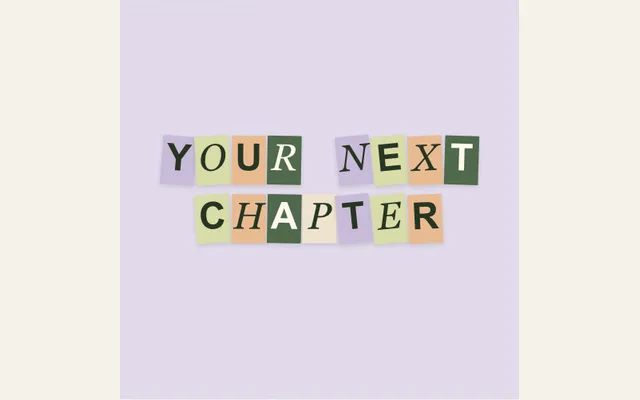
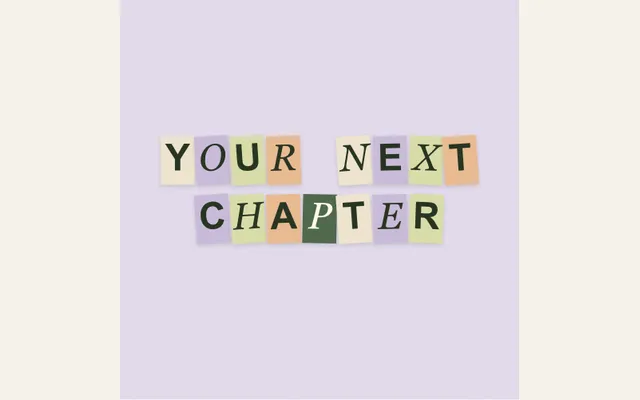
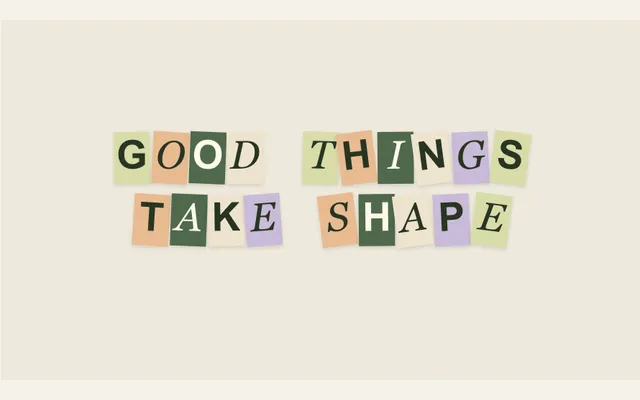
Build a short title from paper-colored letter tiles that arrive one by one. Enter your wording, adjust the overall movement and timing, and check that the assembled phrase reads at its final size.
Try this effect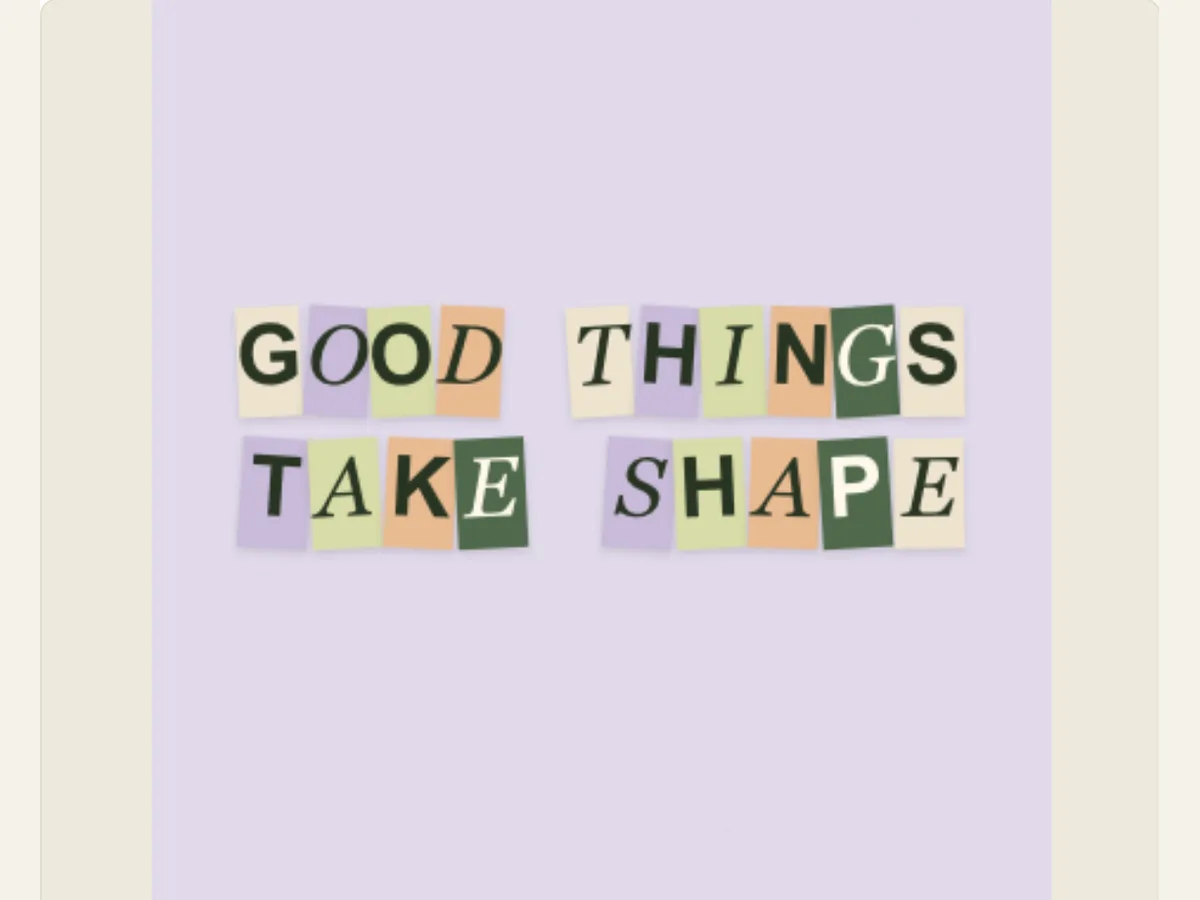
Make a short phrase from individual paper characters
Magazine Letters creates a sequential strip of individual paper-backed letters from a typed phrase. Each letter falls into place at a slight angle and produces a soft shadow. This provides a cut-paper rhythm for a title while reducing the need to manually animate each character. Magazine Letters is suitable for many applications including video openings, creator names, chapter titles, short event announcements and editorial transitions.
The letters were created through graphic design techniques, not by cutting out letters from actual magazines. You should apply this technique to create a paper-letter typography effect, but do not use it to demonstrate that the words were cut out of a specific magazine. When your project requires using an exact brand font or registered word mark, you should utilize the authorized vector graphics. Although the paper-letter technique offers a unique way of creating typography effects, it cannot produce the exact same type used in any single magazine.
Write a phrase that fits the frame
A short phrase can be entered into the text control, which has multi-line capabilities. Because of how the renderer operates, character size is determined by how much space they take up on the canvas. Therefore, a longer phrase will likely result in smaller characters than a short title. First, write down the words you want your audience to remember and then create a second title card for all of the supporting information. Before you begin to adjust the position of each word, check to see if the line breaks look natural. If there are any unnatural line breaks, it is much easier to fix the copy than to fix the animation.
Proofread your campaign slogan or name to make sure that the capitalization and punctuation are correct, then compare what is shown to what you have provided. The layout will position the letters you type into the display area. However, it will not verify whether the letters form a valid trademark or check the spelling for you. Using a brief and compact short phrase will allow for each letter tile to appear large enough so that someone viewing the composition on their phone can read it easily. Additionally, a short phrase will prevent the final composition from appearing as though each individual letter tile is a part of a paragraph.
Scroll sideways to compare every column →
| Control | Available direction | What it changes |
|---|---|---|
| Message | Editable words and line breaks | Sets the reading order |
| Movement and duration | Animation strength and timing | Sets arrival and reading pace |
Let spacing and material shape the paper feel
The editors' movement control allows for the adjustment of the intensity at which characters enter and exit, and the duration of each entry/exit event. The shared paper controls allow for selection of a smooth, kraft, newsprint, or crumpled type of paper, as well as adjustments to the grain of the paper, the rough edges on the paper, the strength of the shadow that is cast by the paper, and the size of the image on the paper. Smooth papers will result in cleaner type; kraft or newsprint papers can produce a warmer, collage-like feel; stronger shadows will provide greater separation between the letterforms and their background.
Increase the texture only to the point that the text on the paper can be read. A high degree of grain can decrease contrast on smaller characters, and a very pronounced shadow can make nearby characters seem too close together. If a word is difficult to read, either change the line breaks or select a less active material prior to increasing movement. The individual characters generate visual interest as they appear, so selecting a more subdued paper texture typically creates a more finished looking title.
Use the staggered entrance as a pacing device
The individual characters will appear with a slight delay as opposed to all being revealed simultaneously. The result is a reading rhythm that can create the illusion of a hand-made title from a short name. An editor may choose to utilize the animation prior to introducing a speaker; a small business may choose to reveal a collection name prior to presenting product footage; a music project may choose to use it to introduce a track or chapter.
A phrase that contains many characters requires more mental assembly on the part of the viewer. Provide sufficient time for the final arrangement to settle and be readable. When you need to create a rapid-paced scene, reduce the length of your wording as opposed to decreasing the amount of time before the letters begin to blur. A clear, final hold will allow the sequence to serve as a title sequence rather than an abstract animated sequence that has no legible ending.
Examples for a creator intro and an event card
A podcast host can show a brief version of their show's name in warm colored paper prior to beginning each episode. A design studio may present a project's title on top of a newspaper sheet, followed by presenting either drawings of the completed project, or the actual completed project. An event organizer may provide an event's name along with its location/date or venue on a subsequent card. All three examples employ the use of letterforms to provide additional personality while retaining sufficient space for a legible, stable frame.
Maintain consistency of materials and shadows for a series so that the titles of different episodes appear as if they are related. Vary the words used in the titles, and perhaps add or change only one accent color per episode. Save every episode as a separate file, so that any future changes will not overwrite the previously approved version. When a high degree of uniformity in typography is required, render the company logo separately and employ Magazine Letters solely to create an additional title or provide descriptive text.
Compose for the final aspect ratio
In order to ensure your design looks great on both the viewing device and in your preview, select an appropriate aspect ratio for the destination. For example, if you are designing a portrait canvas, there is more space available for multiple rows of text than there is for one long row of text. On the other hand, if you are designing a square canvas, it will allow you to create a balanced title card. If you are designing a landscape canvas, it will provide you with a good option for creating a video introduction. It's important to keep all of the characters in your design away from the edges of the canvas. Also, make sure that the last row of your text falls into the safe area after being cropped by the platform.
Adjust the amount of movement and length of time each character is on-screen based upon when all of the characters have been displayed. If each character appears too fast, decrease the rate of appearance, or allow more time for the entire sequence to take place. If you believe your animated sequences are moving too slowly, either remove some of the text that you were going to display, or decrease the amount of time that each character will appear before being replaced by the next character. After you have completed creating your video, review the video at least one time at the standard playback rate, and do not judge the video based solely on still images. The staggered effect of the letters appearing should appear to be intentional, and the final completed line should be readable on the first viewing.
Download a still title or a moving wordmark-style treatment
The export panel allows you to export a PNG still, a GIF, and a browser-compatible video for Magazine Letters. A video can be exported using either a solid or a green background for chroma keying; however, the video will lose any transparency information. The GIF format also uses a solid background. You should use a PNG still if you want to create a completed title image, whereas if you want to show the letters being entered one by one into the text box then you would want to use a video file. The types of video files that are available to you will vary depending upon what your browser supports.
Check out the title that has been downloaded into your app, as well as what resolution it should appear at. Be on the lookout for cropped accents, punctuation, or narrow characters once they have been scaled. Then save your project so you can go back and edit the text and paper settings. If you want to have a more random effect, take a look at Cutout Letter Assemble; Stop-Motion Cutout Collage uses both titles and scraps; and Letterpress & Hot Foil creates a stationery-style look for monograms. You can also refer to the Magazine Letter Animation guide for an example of a workflow.
Keep the typography accurate and accessible
Branded phrases must be spelled, spaced and capitalized correctly. Animated paper tiles do not represent a verified logo, and therefore cannot be used to indicate support from the company. Licensed fonts/artwork should be utilized if the required typeface is necessary for the project. If a final video clip is posted without sound, the text should appear in the caption or post so that users can view the content of the message.
Rapidly flashing letters, or letters with a moving pattern which are difficult for the eyes to follow, should be avoided. The built-in staggering feature allows for gradual revealing of letters, however; you have the ability to determine how much movement will occur and how long each letter will stay in view. A complete phrase should remain in place for at least one second and then viewed on a smaller screen. Additionally, clearly typed letters, adequate contrast between the letters and background, and an accurate description of the treatment provided by the animation will provide greater usefulness than simply providing textures.