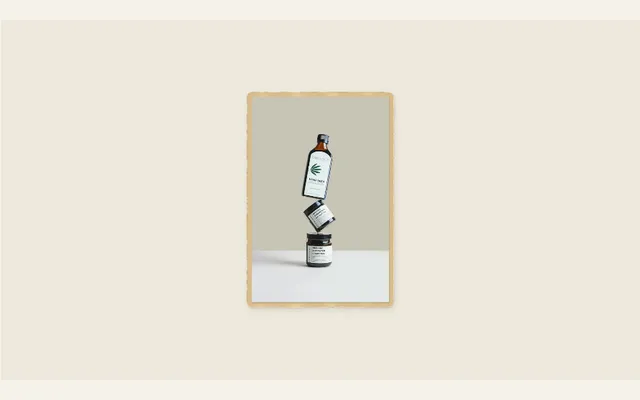
Photo paper cut
Cut out your photo subject with an authentic torn-paper magazine border. Animate with 3D paper fold-out entrance, continuous flutter and glowing edge lights.
Try this effect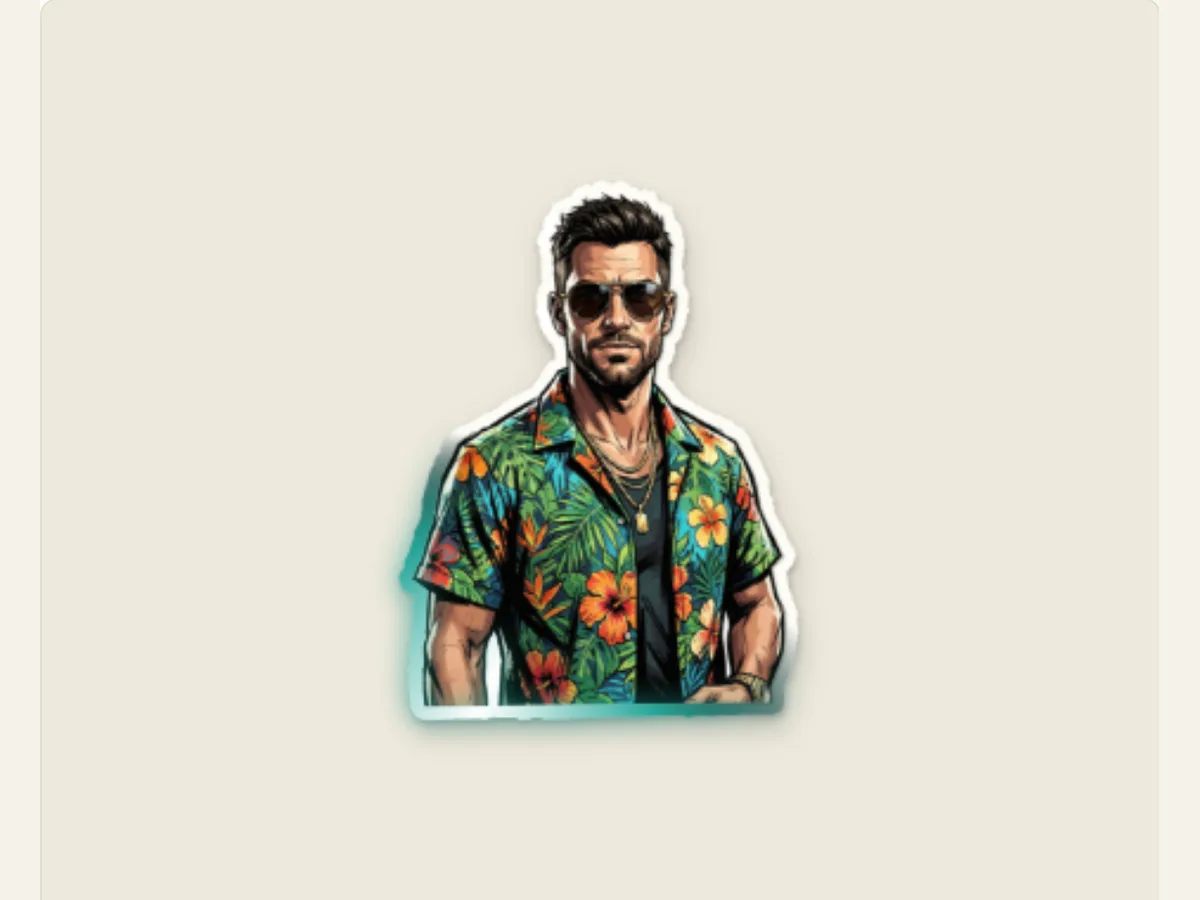
Lift a subject off the page with an animated paper edge
Cutout portraits and products provide videos with a much more "hands-on" point of interest than standard image fades. Photo Paper Cut separates the subject of the video from the surrounding background. The separated subject is then surrounded by a paper edge that can be manipulated in various ways, such as folding, fluttering, or vibrating. Photo Paper Cut is an excellent option when introducing oneself as a content creator, highlighting a specific product, creating a transition on a moodboard, displaying a short-form title card, or creating a composition where you need your uploaded subject to stand out from its original surroundings.
The cutout is a modified visual treatment; it's not a picture of someone being physically cut from paper. Background removal may miss some hair, glass, thin fabric, or other elements that are similar in color to the source. It would be wise to check your subject's edges before you rely on them in your deliverables to your clients, and to create a more polished version if you find yourself missing key components of the original image. The effect will work best when both the cutout itself and how it moves within the composition help convey the intended message as opposed to attempting to compensate for poorly prepared source images.
Prepare the upload before selecting the motion
Pick a picture that has a clear subject and has good contrast with the background. For example, a portrait with some space around the shoulders will be easier to separate from the background than a person who overlaps with other items that have a similar color. The editor provides a simple-to-use option to take out the background from your photo; however, if your original photo was complex, then you may want to use a separate image editing program to either take out the background or make changes to it before uploading a transparent PNG version of the photo. Also, make sure to keep the original photo so that you can look at what the program created as an edge and fix any areas where something might have been missed.
The first step in checking your work is to review the hair, glasses, hands, fabric edges, and all other transparent objects. This will tell you if the cut out needs to be redone. You should never apply an animated edge until you can clearly see the outline of the subject. Applying extra lighting or movement may mask a poor job of extracting the subject, but it will not correct it. When working with products that have very fine logos or thin handles, ensure that they are visible when displayed on a smaller device (i.e. mobile phone) prior to proceeding to paper design.
Scroll sideways to compare every column →
| Choice | Alternatives | Difference on screen |
|---|---|---|
| Entrance | Window, centre fold, float or fan | Controls the arrival |
| Animated border | Static, boil, pulse or travelling light | Controls the continuing outline |
Choose an entrance that fits the subject
The entrance to your project can be designed in several ways: with a folding-out window, a center folding-out, a floating-into or fan-unfolding movement. You could have a window that looks like it has come through an opening in the paper, a central fold-out which provides symmetry to the reveal, a more relaxed float-into, and a more dynamic fan-unfolding entrance. How do you decide on the right option for your project? Think about the shape of your project. If you are creating a tall portrait then a vertical entrance would be appropriate. However, if you have a small product then a simple float or fan may be a better choice.
Ongoing motion is a way to have the cut out stay still, drift in place, flutter in place as if it were on paper, or to have a stop-motion like vibration. The cutout vibration controls how much vibration there is in the cut out. The motion speed is rated on a scale of 1-10. These settings are controlling different properties. The motion type is what type of motion occurs. The motion speed is how fast that motion takes place. The vibration is how irregular that motion is. Although both of these examples could use the same borders, the gentle drifting portrait will appear much different than the highly vibrational sticker.
Design the border as a moving detail
Animated Border has multiple options: static, paper boil, color breathing, and traveling edge light. If you select a color treatment for your border accent, you may choose among white, teal, coral, or charcoal. Paper Edge provides three different options for cutting methods (deckle fibers, clean-scissors cuts, or layering papers). Paper Border Width can be adjusted from four to forty. Every option will affect the weight of the silhouette; therefore, do not treat each control as an option that must always be turned on.
A deckled edge gives a hand made feel to your product images, while a clean cut will help define the outline of your product image. Layering paper will create a visually thick border around your product. A moving highlight will draw attention to the borders of your product image, however, a bright accent may pull focus away from your product image's eye, label, or other small details. Run motion to preview what the effect looks like and see if the edge stays connected to your product image, as opposed to appearing to move independently from your product image.
Set the photo finish after the cutout is clean
Photo Finish has multiple options for color processing including: Original Color, Printed Editorial Finish, and Monochrome Finish. When you are looking for accuracy of products or skin tones, use Original Color. If you want to create an editorial style collage, try using the Printed Editorial Finish. To give your portrait a unified appearance with a softer color palette, consider the Monochrome Finish. While each finish will change how your image looks visually, none of them will restore your original source image or show what type of printing process was used to produce your final print. If you need to demonstrate products or clients, make sure to show the differences between the original image and the processed image to illustrate that the color processing was done deliberately, rather than being mistaken as the actual product/client.
The width of the paper border and the quality of the finish should be adjusted together. For example, a very wide white border against a light-colored photo will likely result in loss of contrast, and a dark border against a black or charcoal-colored background will probably blend in with the background. You might also want to consider changing the color of the canvas background if you find it is causing issues with how the image appears. When you're ready to make a decision about whether or not to include a cutout as part of your design, take a look at the image as a silhouette at the final social media crop size. An image that has lots of detail when viewed at full resolution, may have little detail other than a bright outline when viewed at the smaller size. Therefore, try to view the image in context as much as possible rather than relying on just one large preview as your sole means of evaluating its quality.
Example: a maker introduces one hero object
A ceramic maker may use a transparent cutout of a completed cup, choose a clean-scissor edge, employ a restrained fold-out entrance, and include a soft moving light in teal. The clip could start with a paper background, bring the object to the front, and stay on that object’s form while the name of the product is displayed around the video. If the most important detail is the ceramic glaze, a stationary or slight border will prevent the edge from being competitive with the surface.
The intro to a creator can include a photo, an unevenly cut border, and a slight movement that indicates the image was hand-assembled. If you want to create an energetic feel for your edit, you can use stop motion to give it a rough editing pace, however, you must keep the speed slow enough so the viewer can identify the person in the photo. When you are experimenting with both calm and energetic treatments for your projects, be sure to save both versions. It is better to make small adjustments to each version and compare them against each other rather than making multiple adjustments at once (e.g. adding flutter, vibration, and various animations) on one version.
Keep the movement legible in an overlay
In order to make sure the effect works properly with the video, select a workflow for the background prior to deciding on the final color accent. If an editor wants to export individual frames of transparency for certain effects, they have the option to do so using PNG frames, or they can export a video with a green screen behind it for use in compositing via chroma keying. An extremely bright edge light could cause visual bleeding into a green key color; if so, consider using a different color accent or exporting as an image sequence instead. Be certain the subject will be placed such that it will not overlap any subtitles, faces or product details in the shot that lies directly below.
The project-level duration and motion control will allow the fold-out to land on a cut or musical beat. Preview the effect on a still taken directly from the edited version when possible. If the edge of the cutout is jittery at a smaller scale, try lowering the vibration and/or trying a different (smoother) motion type. Motion control is just as much about having a controlled amount of contrast and timing, as it is about the number of effects used. The last frame of the cutout should stay readable long enough for the viewer to know exactly what the cutout is representing.
Export the cutout as a still or editable motion layer
Photo Paper Cut's export panel provides options for PNG, GIF, video formats supported by browsers, and a transparent PNG sequence ZIP file format at 30 frames per second (fps), which includes an alpha channel. This format allows the user to preserve transparency in individual frames when importing them into programs capable of importing numbered images. Video exports are flattened, meaning they remove transparency. Selecting a green background enables you to remove the background during editing. GIF exports also utilize a solid background and are most appropriate for previewing or posting where the background will remain visible.
A PNG still image may be used as a thumbnail or within a larger graphic, while a video or sequence can contain the opening and/or border animation. After importing the PNG image, inspect it to verify that its outline, colors and position will appear correctly at the desired resolution. Save your project so that you can make changes to the subject matter, edge type and/or motion if necessary. To assist with preparation, read Prepare an Image for a Paper Cutout; you may also wish to compare the crumpled-sheet reveal found in Photo Crumple or the scrap composition created in Stop-Motion Cutout Collage.
Check rights and edge quality before sharing
Use an image that you own or can use with permission. Be careful not to create a false representation of a person/object in a setting that was never there; background removal will significantly alter what a person/object looks like in the final product. If the end result of your project is a prototype, mark it as such so that people do not view it as actual documentation. Save the original image as well as the edited version for future edits or if someone asks you to remove the image.
The final version of the cutout needs to satisfy three conditions: the subject must retain its appearance, the borders need to move in an organized manner, and the final image must accommodate all necessary text. When one of these criteria cannot be met, then the affected area of the image should be modified before continuing with additional animation. This page illustrates a browser based effect and its parameters; however, there is no guarantee that it will provide a high-quality segmentation for each image. A well-prepared image and an accurate preview are essential components to ensuring a dependable result.
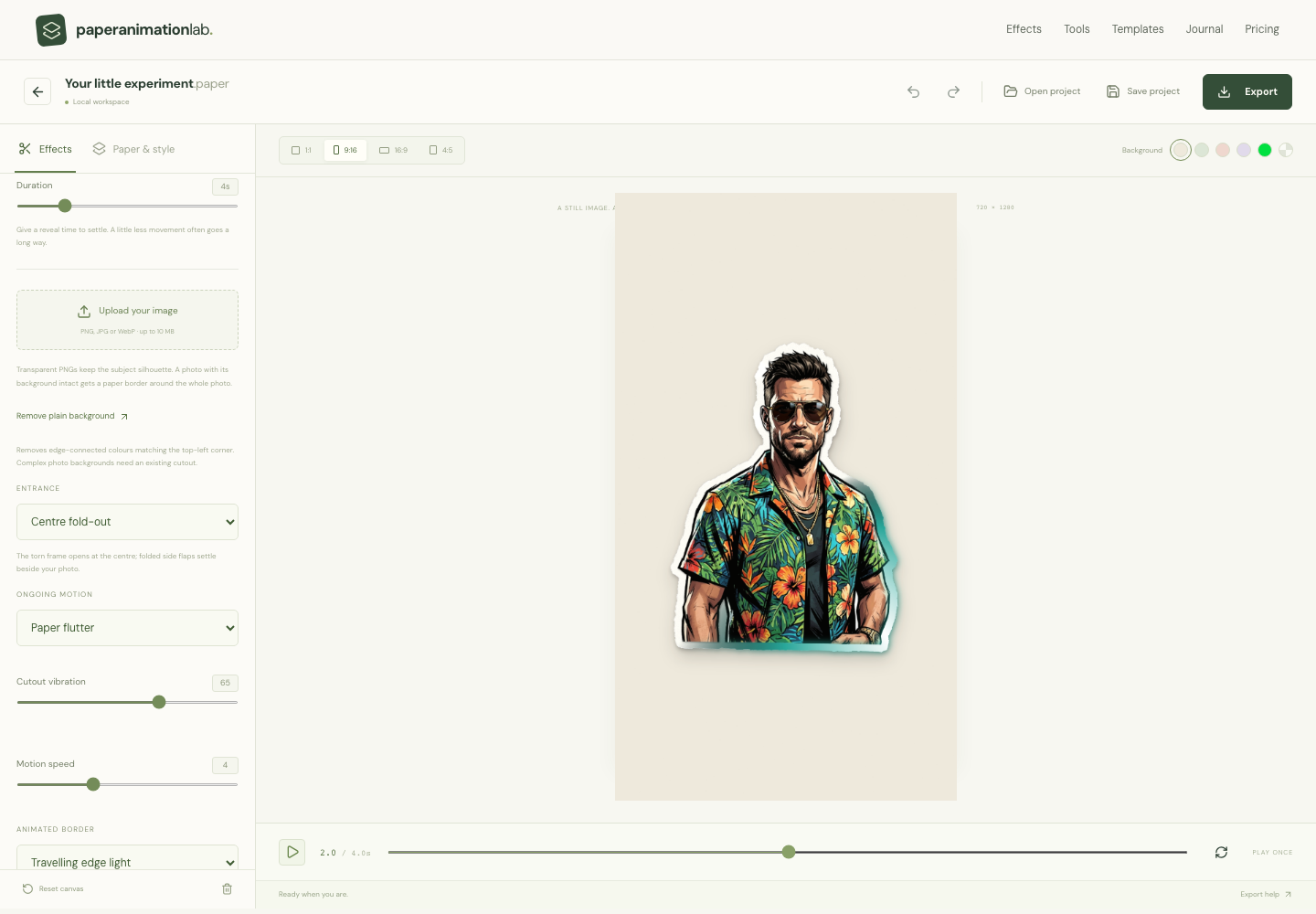
The screenshot shows the actual fold entrance and animated border settings alongside the live portrait preview.
- Photo cutout entrance
- Animated paper border