Newspaper page turn
Animate printed pages turning from right to left with a curved paper edge and a moving shadow. Adjust the page turn speed, edit the article and download the animation.
Try this effect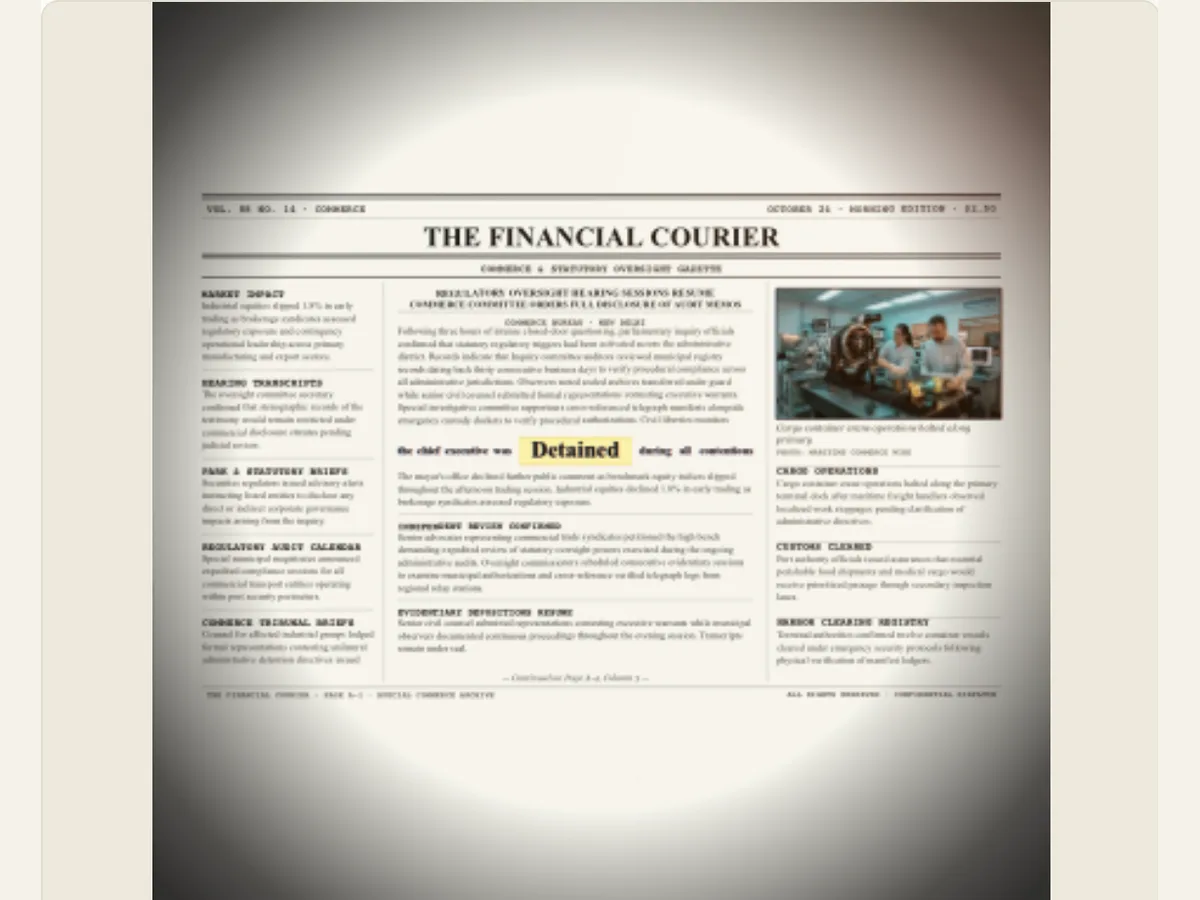
Turn through several broadsheets instead of flipping one sheet
A page turn can take a viewer through several different newspaper layouts until it settles on a single focal point. Paper Page Turn uses three to eight pages with a curved edge and a moving shadow, and then displays a small word or line at the center of the display. This effect can be used to display a headline, link together editorial sections, create a paper based title sequence, or create a fictional research environment.
The phrase remains in view throughout the process of changing the design of the newspaper; however, the searching does not look at the editable article to locate the specified phrase, nor does it pull up images of original newspapers. Images of pages and photographs are elements of the design and are not verified clippings. If you need to find a specific phrase in the provided copy use either Newspaper Research or Newspaper Search. By separating these two processes, we can avoid having a visual page-turning experience confused with a source search or an archival search.
Set the number of turns and choose the rhythm
Cuts in Sequence can vary from 3 to 8 pages. Short sequences will reach the end of the text quickly, whereas long sequences provide users with the opportunity to spend time browsing. Page Turn Speed provides five different turn speeds (measured, steady, quick, fast, rapid) and the option to set your own speed. This control allows users to decide how they want the pages to appear when they are viewed. Do they want the pages to feel as though they are reading in a calm manner, or do they want them to feel as though they are quickly searching through a pile of documents?
A quick turn will be effective for a brief introduction to your group of friends on social media if you choose a very brief statement. However, with longer titles or presentations you will likely have to use a slower, more deliberate turn and a long pause at the end. After making changes to the number of pages, preview the entire animation. If the final product seems too repetitive, consider altering the layout of the presentation or reducing the page count prior to speeding up the turns; changing the speed alone does not provide sufficient variety visually.
Scroll sideways to compare every column →
| Control | Available direction | What it changes |
|---|---|---|
| Cuts in sequence | Three to eight | Sets the number of designs |
| Newspaper photos | Visible or text-only | Changes the page composition |
Choose whether photographs appear on the pages
Newspaper photos may either be visible or hidden. If newspaper photos are turned on, then when you turn pages in your newspaper, you can have editorial image blocks included. When newspaper photos are disabled, only the text of each article will be displayed. This means there is less visual distraction around the text and any phrases that you have selected. You should choose which of these options to use depending on what kind of project you are working on. For example, if you want to create a larger layout for your newspaper using a series of photos, then turning newspaper photos on may be better. However, if you are looking to create a transition that focuses heavily on a particular phrase, then disabling newspaper photos might be a better option because a background image would distract from the main phrase.
The photo used in the design is a representative example and is not intended to provide factual proof of anything unless it originates from an authorized, verified source. This generated page is a visual representation and can utilize the included imagery. When creating a factual explanation, either provide an appropriate attribution to the image source, or find a replacement for the image that has been approved and was acquired in a manner which allows for tracing of its origin. The image toggle changes the appearance of the page, however, it does not affect the validity of the information presented on the page.
Set zoom depth and the circular viewing area
With Zoom In Depth, there are several preset options (full page, standard, focus, and macro), and you can adjust the Camera Zoom Depth anywhere between 50 and 260. The full page view shows more of the layout; the focus or macro presets bring the center phrase closer. The Black Circle Aperture is adjustable from off to a small circular opening. It provides the page-turn effect of a viewfinder, however it does limit the amount of print around the page-turn that remains visible.
The best way to determine the minimum amount of zoom needed to make the phrase readable at your desired final image size is to use the lowest zoom that will allow the phrase to be read. If you use too much zoom, you risk cutting off some of your page's content, and/or causing a small motion to appear jerky. Using a narrow aperture (i.e., a large f-number) also reduces the amount of context around the phrase, so make sure that you are using an aperture that emphasizes the phrase, rather than just hiding the surrounding layout. Finally, when comparing the final static shot of each page, and the transition between pages, pay attention to how well the curved edges and shadows are displayed — they should remain visible while still allowing the phrase to be seen clearly.
Write a focal phrase and customize the paper layout
Select a brief term or phrase to begin editing the surrounding newspaper article. The fixed visual anchor will be your selected phrase and the newspaper article's copy and layout will create the context. You can choose from various Page Design options including mixed layouts, classic newspaper, book, hardcover, editorial features and compact journals. There are three Paragraph Spacing settings available: compact, balanced and airy. If you want to change up the arrangement of pages in the same sequence because they look too uniform, try using Shuffle Page Designs.
The design of your page should provide sufficient space around the main focal point, and you want to be careful about having a very high contrast photo directly behind a long string of text. If a phrase is broken up into multiple lines, try to either break the phrase down into smaller segments or select a layout that allows you to have more open space. When writing for public distribution, make sure you are using either original or licensed content. Don't use a real masthead when the content of the article is fictitious. Make sure each page has visual variety so that each time someone turns a page they aren't looking at a totally different style.
A transition from a headline to the next scene
The documentary title sequence will transition through numerous editorial pages, display a brief chapter phrase in the center of the screen, and finally transition to an authorized archival image. It is possible that the creator of a video essay may utilize this technique as a means to connect sections of their video essay. In this instance, the phrase would identify what is about to be discussed. Fiction trailers will often utilize a search of simulated broadsheets as an introduction to their final title. Regardless of which method is utilized, the movement of the page is an introduction and is not the evidence or source material.
If you have a large paragraph of text for users to read, avoid using a rapid multi-page turn. Instead, present the paragraph within a single stable frame, or provide a link to the original content. The multi-page turn is more effective when used with a short line of text that will stay visible while the surrounding visual elements continue to move. Provide an explanation of facts in the following shot to allow for a smooth transition from one shot to another.
Balance turn speed against zoom and blur
First, you should change how many pages you can see at once, and how fast you can turn the pages. Then you can adjust the zoom level of your camera and the opening size of your lens. After you feel like your camera isn't shaking as much, you can also change the background blur on your camera, and how you want the pages to look. By changing only one thing, then watching the video over again, and comparing what you saw this time to what you saw last time; this will help you determine if a sentence is difficult to read because your camera was too close to the page, you turned the page too quickly, or if the text on both sides of the page was too sharp.
The amount of time the entire sequence takes should be considered. If you have a long series of pages, you will likely need more time to turn and hold. On the other hand, if you are doing a shorter edit, you may want to use fewer pages. When reviewing your playback, make sure that it is displayed at the aspect ratio you plan on publishing it. If you have any important details located near the edges of the frame, they could be lost if you decide to crop to a portrait format. Therefore, try to position the phrase and any important credits within the center safe area.
Export the page motion for an edit
The Export Panel allows you to create your project as a PNG, GIF, and most importantly, as a video that can be viewed in all major web browsers. For each of these options, you have the ability to render the background of your project either as a solid color (e.g., black) or as a green screen so you can use it in a chroma-keying compositing workflow. However, the video produced by rendering your project will not support alpha transparency. Similarly, the GIF produced by rendering your project will also be rendered on a solid colored canvas. Prior to submitting your delivery plan to an editor, make sure you know what video formats your specific browser supports since the video encoding that is supported will vary from one hardware platform/device to another.
Still PNGs are useful for illustrating the last sentence of a slide or storyboard; videos allow for page turning within a timeline. Exported files can be played back in their intended locations to verify the correct timing, positioning of shadows and phrases. If you anticipate changing either the number of pages or the wording of your content, save your editable project. To locate multiple occurrences of a search term using a selector, consider using Newspaper Research; Newspaper Text Cut maintains a cutout phrase across several pages, while Newspaper Search identifies where a search term appears in article copy.
Use page styling without implying a real archive
The layout of a newspaper may appear as if it was taken from a printed record even though both the text and images used were created. Creative writers should use fictional titles for their publications and avoid attributing any sample copy to an actual news organization. If a page is meant to represent a factual source, then the author, publication date, image rights and background of the page must be verified. A clipping cannot be established as authentic through the animation, nor can the exact wording be confirmed to have been published in a specific edition.
When the viewer is aware of the difference between an illustration and a documented source, the page turning effect is best utilized. Accuracy should be used in providing captions, source links, and an easy-to-read version of the text of the video clip used for supporting a fact based argument. By utilizing these methods, you will allow the motion of the page turn to create atmosphere, yet still provide the audience with a direct link to what they may verify.