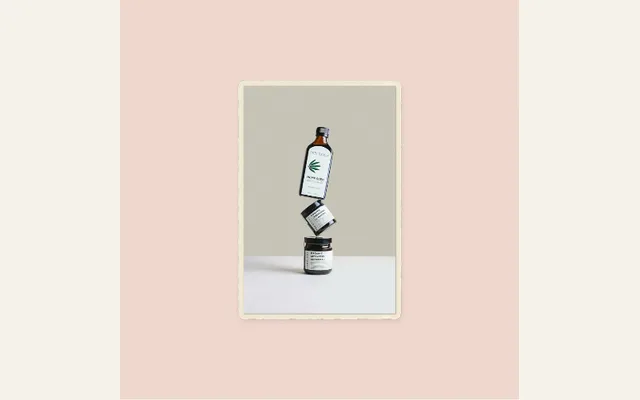
Photo crumple
Uncrumple your uploaded photo as one creased sheet, then compress it again or hold it open. Adjust the speed, strength and paper finish, and export transparent frames for video overlays.
Try this effect
Make a photograph behave like a sheet of paper
A image has different emotional significance once it is perceived as being folded, handled and opened again. Photo Crumple produces a compressed version of an uploaded image as if it were a printed sheet and then opens up to reveal the entire area. It is intended for a memory sequence, as a bridge from one scene to another, as a hand-crafted transition, or as a short video overlay where the physical page participates in the motion.
This is an animated version of what you provided me with, which was a still photo. I did not take a video of someone crumpling up a piece of paper. This method employs a "continuous sheet" method to represent how paper is compressed, folded and opened. While this method can provide a more physical feeling transition than just zooming into an area, it does not represent all characteristics of a real piece of paper, nor does it retain any creases from the original photo. Therefore, please view the animation on the final video first to determine if the movement is appropriate for your project.
Choose how the sheet opens, closes or holds
Paper Reveal provides three sequence options: a crumpled sheet that opens and closes, an uncrumpled sheet with a held-open frame, or a printed sheet that is then crumpled. Each option has a purpose: the opening and closing crumpled sheet can be used as a recurring transition or loop; the held-open frame option allows the viewer to see the content of the image once it is revealed; and the printed sheet crumple option focuses on the act of squeezing the paper. Select the best sequence depending upon what you want to occur after the paper is revealed. If the viewer wants to examine the image closely, they will most likely prefer a held-open frame over a continuous cycle.
When you choose to use the "printed sheet" option for selecting your print-sheet sequence, Crumple Motion will provide you with options for either a paper ball, twist-and-release, or accordion-squeeze. Crease Memory lets you determine the level of visible markings that remain on the folded portion of the paper once it has been opened. Please note that this control is only available when you select the printed-crumple mode. It does not apply to the hold-sequence. Higher levels of Crease Memory can give your printed sheet a more handled appearance; however, selecting lower levels of Crease Memory can allow you to retain more detail within faces, product labels, and/or archival images.
Scroll sideways to compare every column →
| Control | Available direction | What it changes |
|---|---|---|
| Paper reveal | Open-and-close, hold or printed sheet | Determines the ending |
| Printed crumple style | Ball, twist or accordion | Changes printed-sheet collapse |
Prepare a photo for folding without losing the subject
Upload a high-quality (high-resolution) version of your photo so that the photo will still look like the actual photo after being bent. Generally, a subject in the center of a photo tends to maintain its quality better after compression than a small detail in a corner. However, sometimes a cropped product label or face is the focus of a photo. When possible, remove any unwanted background from your photo before uploading it to the site. If you cannot do this prior to uploading, then after the photo is uploaded, use the background removal feature provided in the editing tools to help you clean up the background. Make sure to keep the original photo files so that you can create an animation from them again using different crops if necessary if the first crop did not include all of the essential edges.
Photo Finish has three options for printing (Color, Editorial, and Monochrome). After positioning your photo, select which print option you want to use. You will then see the movement within the print instead of just seeing a static picture. A black and white portrait would work well if you are creating a sequence of pictures for an event that will be remembered; however, if you are looking to have a product or family photo look as natural as possible, then original color would be best. The print treatment called editorial alters the look of the print, therefore it cannot be considered a genuine historical print process or a way to restore the original photograph.
Tune cycles and paper edge for the viewing context
Crumple Cycles governs the number of times the sheet compresses during its compression sequence. The range is 1-4 depending upon which mode was selected. One cycle is typically adequate for a transition, while numerous cycles may be appropriate for a deliberate loop but will potentially delay the story if the clip being used has a short duration. Paper Border Width varies from 4-40 and alters the quantity of visible edge surrounding the photograph. A larger border width enhances the paper cue, while a smaller border width provides more space within the photograph.
When you are ready to cut, you can use the cycle count as a guide. When the effect will run as a single looping post, then a repeat could be beneficial, however if the next scene is ready to start, then a repeat may seem like overkill. If the borders extend into your subject, try reducing their width or select a crop that provides more breathing space. Finally, your opening should provide enough of the image so that the movement is rewarded and does not appear to be a small picture in a large white area.
Use transparent frames when the crumple needs to sit over footage
Video overlay lets you select between: transparent, green, cream, sage, pink and lavender. Transparent is designed for use in PNG-sequence workflows. Green can be used with video exports. A transparent sequence enables the movement of paper over another clip, and does not result in the baking of a single color into each frame. Be sure to check the quality of the edge of the paper or photo relative to the background footage, particularly if the paper or photo has colors that are similar to the green screen you plan on removing.
The crumpled sheet may appear on top of a scene for the start of the transition and then open up to reveal the photo. An opened version will allow the viewer to see a product detail or memory, and when you are ready to close out of this transition, the sheet will disappear into the next shot. When editing either a commercial or documentary project, use the transition when it enhances what is happening on screen; do not put it over a person's face, lower-third, or disclosure that is required. The way you choose your background selector will affect how the final composited image looks, therefore, view the image in relation to the actual edit prior to exporting.
Example: move from a portrait to a present-day scene
The family portrait could open like a folded sheet, hold for a short period of time, and then close back up, prior to transitioning to the current day in that same area. The static portion of the sequence allows viewers to identify those in the picture, and the minimal frame around the image creates an impression of being printed, but does not overwhelm the rest of the shot. A music video may utilize a faster single-frame compression technique to move from a still photo to a performance shot.
A product developer can use this type of movement to show a printed advertising campaign between close up shots of packaging. This movement is used to make a transition using paper, and the use of finish control allows the shot to blend into the overall visual direction of the product. Regardless of which method you choose, the shot will always be the primary content. If your user wants to view a caption or examine a tiny detail, provide them with an additional still frame when the sheet opens up, instead of relying on the highest compression level of the animation.
Adjust settings in order and preview the entire cycle
Begin with the proper order of operations, select a photo finish and establish the border thickness. In printed-sheet mode, choose the crumple type and establish the crease memory. Establish the number of cycles and establish the background for the composite. The sequence established above allows you to easily determine what caused changes in both realism and readability. Quick speed or motion changes cannot correct an image crop that conceals the subject; therefore, make adjustments to the photo first, and then utilize global project controls to adjust the timing.
Preview the first frame to the last freeze-frame or closing shot. Watch for a consistent sense of a single page of content, and that the image is easily viewed at the beginning of the video, and that the video has a clear end point for editing. If the video is extremely short, it may appear to "snap" instead of "bend." Also, excessive use of loops may transform a transition (such as revealing a new element) into an ongoing cycle. Always save your project prior to experimenting with different modes, so that you are able to revert back to the mode which is best suited for your footage.
Export a still, a video or a transparent sequence
The effect works with a static PNG, a GIF, a browser-compatible video format, and a ZIP file containing numbered 30 frames per second (fps) transparent PNG images. A sequence is best used if your editing program allows you to import individual image frames and you require the paper texture to be placed on top of other video content. Video formats will lose their transparency during rendering, therefore, if you plan to deliver MP4 or WebM files, select the green background and use chroma keying techniques to remove the green area. GIF files also render using a solid color background; therefore, GIF files are typically more suitable as a preview of a short repeating loop than as a composite element.
The still PNG may be used as documentation of the opened photo or as a Campaign Tile. The Video Export will preserve the motion of the crumple. After importing the clip into your editing software, verify that the paper edge and last frame are correct. Save the Editable Project along with the original image so that another editor can modify the number of cycles or hold on a reveal. Refer to the Photo Paper Cut when creating a Cutout that has a moving edge. For more detailed information about the workflow process refer to Paper Crumple and Reopen. Refer to export formats for Compositing Notes.
Make sure a dramatic fold still serves the image
The fold is the transition, not the subject. If the sheet moves so quickly that the viewer can't see what's in the photo, either decrease the number of cycles or increase the amount of time that the sheet is in an open position. If the paper border seems too thick, thin it down. If the crease texture is hiding a label or a face, use a different type of finish or crop. Making these slight changes will usually yield better results than using yet another motion effect on top of an already busy composition.
When the image is personal or licensed, use the original image file only for projects in which you have been given permission to use the image. The crumpling treatment alters the way the image appears, however, it does not alter the image's source or license. If an animation can be viewed independently of its associated text description, make sure to state clearly that the animation is not depicting an actual archival object (unless it is) so that viewers understand this as well. A project's visual language can create a sense of touchability and the description can provide accuracy on how the image was created.
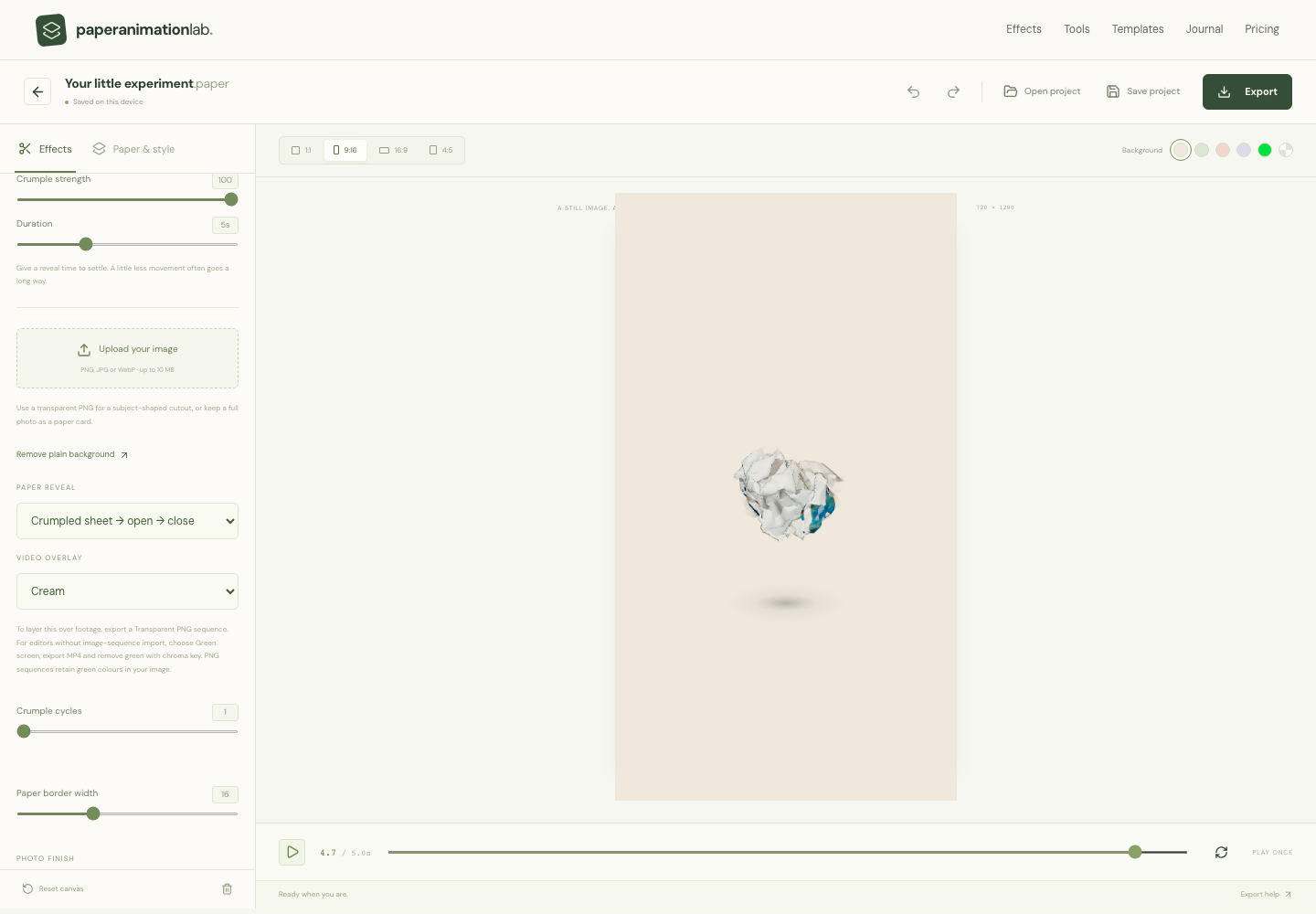
Choose whether the sheet closes again or stays open, then adjust the crumple strength and number of cycles.
- Paper reveal sequence
- Crumple strength