
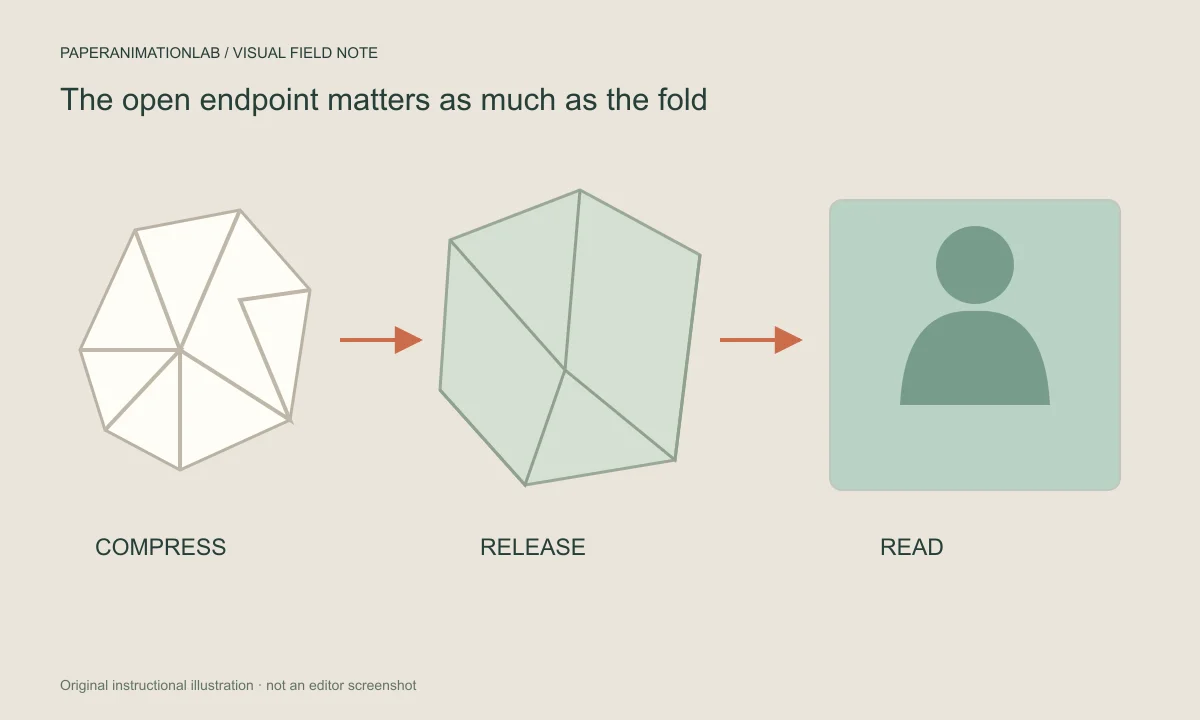
Choose the sheet that matches the scene
A news paper fold is a way to compress the content of a newspaper by folding it. It allows you to see the entire content of a single sheet of newsprint, even though the content is spread across several pages. This form of compression is commonly used in advertising and marketing campaigns. It can be particularly effective when you want to show off multiple products or services at the same time.
Another common form of compression is a photograph fold. In this case, instead of using news print, you use a digital file of a photograph. You then print this file onto a piece of paper, and fold that paper into a similar fashion. When you unfold the paper, the image is still visible, bending around the creases in the paper.
Scroll sideways to compare every column →
| Intended ending | Photo reveal choice | Review point |
|---|---|---|
| An image left open | Uncrumple and hold | The settled open frame |
| An opening followed by a close | Crumpled sheet → open → close | The transition back into compression |
| A printed-sheet squeeze treatment | Printed sheet crumple | The selected ball, twist or accordion motion |
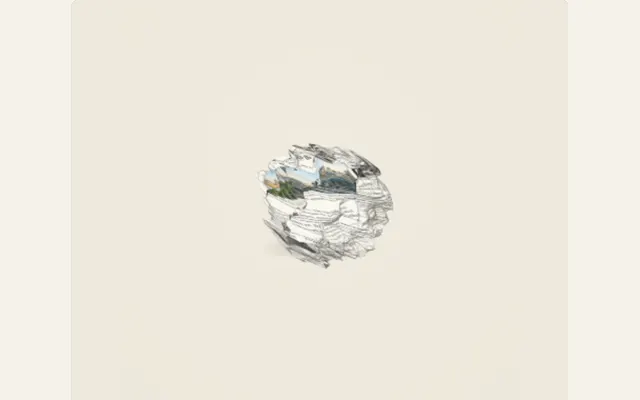
Choose the sheet and final state first
The first option, Photo Crumple, will take a user-uploaded image and use it to create a single long strip of paper that will open and close. The second option, Newspaper Crumple, will keep the column headings and major headlines visible as the user moves through the paper. For the photo-effect options, the user can choose from: Crumpled Sheet -> Open -> Close, Uncrumple & Hold, and Printed Sheet Crumple. Users should select their desired end point prior to altering the cycle number.
Printed Sheet Crumple also has several other treatment options including Paper Ball, Twist & Release, Accordion Squeeze, and Crease Memory. These treatment options allow users to customize how they want their printed sheet to look. They are optional additions to the basic open-and-hold process. Users may want to try each option individually so that they can observe the differences in each option.
Set the collapse and opening
Paper crumple strength determines the speed at which it can close. Paper Reveal uses either an open-close pattern, Uncrumple and hold, or printed-sheet style for the photo effect; the printed version also has ball, twist, and accordion options. Uncrumple and hold leaves the open image displayed on-screen, rather than beginning another closing process.
Crumple cycles determines how many close-open patterns are included in the animation, and duration defines the total length of the video. One cycle provides the paper with additional time to open; adding additional cycles will cause the opening/closing processes to occur within the same time frame. Hold maintains visibility of the last opened sheet.
Keep important details readable through the folds
The faces, labels and headlines of your design must be clearly visible as the sheet opens. You may need to move these elements away from the corners of your design; otherwise, the folds will appear visually busy. When the central area of your design disappears during compression, you have two options: either decrease the amount of pressure being applied to your design, or move the location of the object in your design prior to beginning another round of compression.
In those modes which use repeated close-and-open motions called crumple cycles, Crumple Cycles is used to control how many times the close-and-open motion is performed. Duration determines the total length of the video clip created. Using more cycles without increasing the total duration of the video means each cycle takes less time to complete. If you wish to reveal a clear image at the end of the reveal process, then select Uncrumple & Hold and provide a brief period of time for things to settle down before continuing with the next step.
Keep the folds readable
When the newspaper closes, a short heading (or central topic) is easier to identify. If you cannot see the central point after folding the paper, you may need to reduce your crumple value, or position your content prior to creating more texture. By keeping the central topic off of the edges of the paper, you allow the folds to cross over the entire area of the paper.
You can create the newspaper effect using your own article text and computer-generated page layout templates. The templates used to create these effects are design-based paper products, as opposed to scans of actual newspapers; therefore, you can write with your own words without making it appear as if you were reporting on events that have occurred. You also retain editing capabilities on your article until you render the final version.
Choose the ending the edit needs
The opening and closing of each sheet is done through the photo sequence, however Uncrumple and hold will allow you to view the photo after it has been displayed. This is achieved by changing the final frame of the video but not the original image.
Crumpling the printed sheet reveals Paper ball, Twist & Release, Accordion Squeeze and Crease Memory. Since these options define how the folded sheet is treated, use this method if you wish to control the type of crumpling that occurs rather than having the photo remain on screen after the last frame.
Composite the exported paper over footage
After you have exported your frames to a transparent PNG sequence via the export menu, download and open the zip file; maintain the frame number names on each frame; then import the frames as a 30 fps sequence. Put the imported sequence directly above the video footage you are editing in a program that supports transparency. If you prefer to edit using a green screen or other chroma-keying workflow, the photo crumple tool has an option to add a green background to your exported images.
Browser-recorded videos and GIFs will make all transparent areas cream colored, even if they looked like a checkerboard in the preview. Do a quick test of the exported sequence in the editor where you plan to use it to ensure it is playing back at the correct rate. The transparent export guide covers the import steps and background limits.
Place the animation over footage
If you are going to use your exported PNG sequence in an editor that allows you to import numbered image frames, you will have the ability to keep the transparent background for compositing. If the editor you are using does not allow you to import image sequences, you should use the Green screen export option, and export either MP4 or WebM if your browser has support for either of these encoders, then use chroma key to remove the green from the footage.
MP4 and WebM exports do not include transparency; therefore, if you want to export with a transparent background, you must create a PNG sequence. It is also recommended that you save your project, as well as the export so that you can make adjustments to the fold style or timing at a later date. You should also run a quick test in the destination editor to ensure that the sequence aligns properly with the footage.