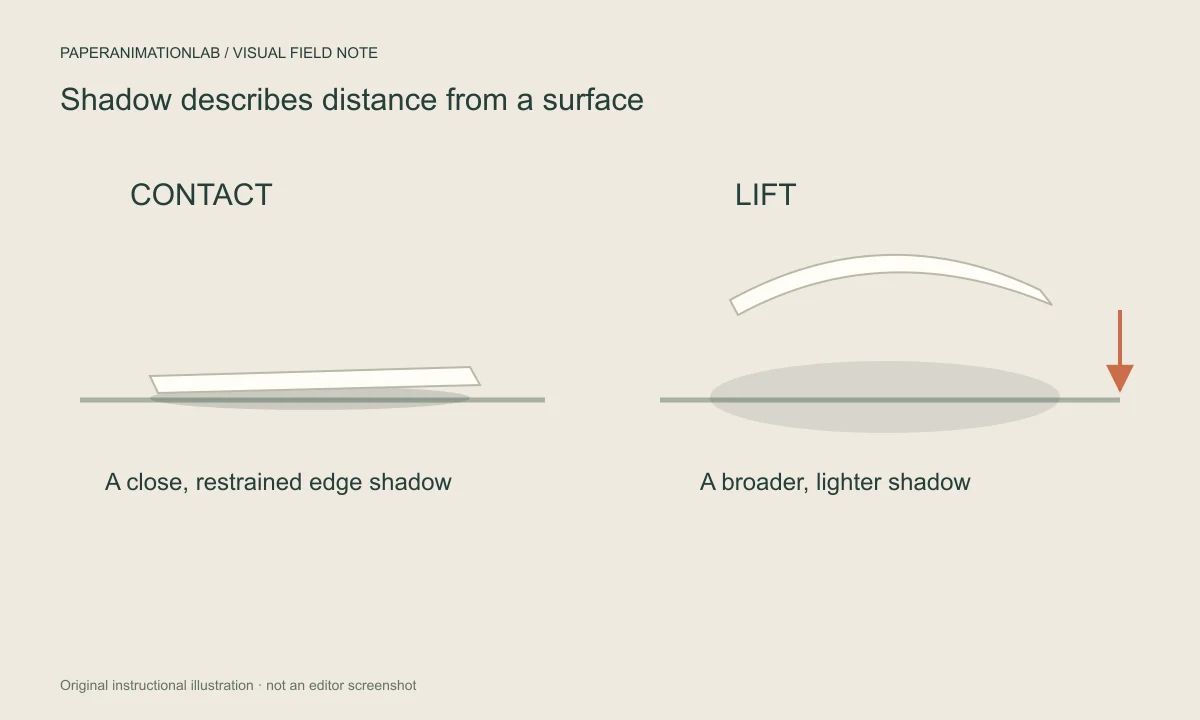
Think about the distance above the surface
The shadow produced by a thin piece of paper sitting slightly off a surface will be different than that produced by a larger object that is suspended in space. This shadow provides the viewer with an idea of how much distance exists between the two surfaces. If you would like the paper to seem closer to the surface, begin with a small, soft shadow.
You may wish to use a darker shadow for contrast purposes; however, this type of shadow will cause the paper to appear heavier. When you find that the shadow is too dramatic, reduce the strength of the shadow first. Next, determine if there is still a clear separation between the edge of the paper and the surface behind it.
Use shadow to explain paper position
A close, soft shadow indicates the paper is in contact with the page or table. A wider, softer shadow indicates the paper has been lifted off the page/table. A dark, hard shadow will make thin paper appear as if it is a rigid card, therefore start with enough shadow to define the edge of the paper.
Establish the shape of the paper prior to increasing the intensity of the shadow. An irregular shaped source edge may result in an irregular shaped shadow, which would appear as a rendering defect. Refer to the photo preparation guide on how to clean up the cutout prior to making the depth pass.
Scroll sideways to compare every column →
| Visible result | Likely adjustment |
|---|---|
| Thin paper feels like a heavy card | Reduce shadow weight before adding texture |
| Cutout seems detached from the scene | Reduce the lift cue or distant shadow |
| Edge disappears on a pale background | Improve edge contrast or a restrained contact shadow |
| Shadow contributes little on dark footage | Check the paper border contrast instead |
Match the edge to the material
A crisp white card with a clean edge and a slight shadow will look good. A torn kraft paper card can be a bit more ragged than a crisp white card since it is obvious that the shape of the paper is not uniform. If you use a very rough texture on a very clean edge, you may provide your viewers with inconsistent visual signals.
When using the preview feature in your program, view the animation in the same size as you plan on publishing it. An edge that appears delicate when viewed large, may completely disappear when the animation is scaled down to fit on a smaller layout.
Keep multiple layers in the same scene
The layers of paper should appear as if they are illuminated by the same light source. If you randomly create dark shadows on each layer, your composition may resemble a collection of unrelated stickers. Before you add more significant motion, select a consistent background and adjust the overall depth.
The parallax effect offsets paper layers at varying speeds. If you have a title or an item that is centered in the design, keep the speed of these offsets low. This will allow the depth to enhance the design instead of causing it to separate.

Match the shadow to motion and material
The folding motion changes the position of the sheet as it opens, so the use of shadows is helpful in showing this displacement. A static cutout with a moving border light does not need much change in shadow. Folds in a crumpled scene create contrast, therefore the addition of a heavy drop shadow may cause the moving paper to appear as a separate object.
First determine the initial entry point of the sheet and its subsequent motion before reviewing the entire clip. When the image appears to be floating when the sheet flutters, decrease the amount of lift shown by the cues. When the resting sheet blends into the background, either increase the edge contrast or provide a contact shadow. The fold-out guide demonstrates how to evaluate each state of the sheet.
Check what happens while the paper moves
A shadow on a still image may appear too large as the image is revealed. Play the entrance, the full open frame and the loop transition. The paper should not appear to move significantly faster or further away from the surface as it moves through the first half of its movement.
Compare the lower-shadowed version of the image to the version you prefer. If adding more depth does not assist the viewer in understanding the scene, then the less complex version would be the best option.
Make a quick light-and-dark background test
Compare the same frame over a light and dark background. The very faint shadow on the light background may completely disappear. The shadow on the dark background will probably not be added to much, but the edges of the paper might require more contrast. Change only one thing at a time to avoid having your paper look too stylized.
Evaluate both a moving frame and a still frame. Exporting scales down images, which can cause soft edges to become less visible. Additionally, exporting compresses files, which may also cause some of the thin edges to be less defined. If you are going to use this image in compositing and you need a clean background, refer to the export guide and export as a transparent PNG sequence if that option is available.
Judge the result on its final background
A pale shadow may disappear into the darkness of the shot, and a dark shadow may appear to distort the design of a lighter area. Export a small sample of your work, and view it in the context that it will ultimately be placed. The most important thing is how well the final product appears in its intended setting; do not worry about how dramatic the editor preview looks.
Save your project file so that you can modify the shadow as needed, rather than starting over with the animation. Minor adjustments to the depth and edge thickness of shadows are common when the rest of the design elements change.