Choose a cutout or a printed photo card
Decide on what the edge of your image will be. If you use a transparent PNG, it provides a ragged edge for the photo to appear to have been cut from a sheet of paper. Using a JPEG or WebP will provide a complete rectangle around the image, making it appear to be mounted. The type of file you use to create your image affects the way the edge appears, as well as the shadow that is cast by the image, and how much of the surrounding environment is visible.
Choose an image with a well-defined focal area, and high contrast between the subject and its surroundings. Larger pixel count will allow you to crop the image, however, it cannot restore motion blur or detail lost due to cluttered backgrounds. Remove any excessive transparency from around the edges of the image, so that the visible part of the image takes up as much space as possible in the canvas, without having the editor need to enlarge it too much.
Scroll sideways to compare every column →
| Source | Preparation | Expected outline |
|---|---|---|
| Transparent PNG | Check small gaps and semitransparent edges | The subject silhouette |
| Photo on a flat background | Try plain-background removal, then inspect its result | A silhouette if the color separation is clean |
| Photo in a busy scene | Prepare a careful mask in an image editor | The refined mask, including small details |
| Full-frame photograph | Crop the print deliberately | A rectangular photo card |
Give the subject a little breathing room
A tightly-cropped image has little space for the edge of the paper. Hair, leaves, and other details of your product may extend to the edge of the file, so if you use a thick border you will be clipping off these details. You should select an image that has some empty space around the main focus of your image, or you can zoom out within your editing program.
Before you apply any effects to your image, make sure to examine the original. It is impossible for motion to repair lost corners or blurred outlines. Often times a smaller and clearer subject can produce a more believable cut-out than a larger and poorer quality cropped version.
Use the right kind of background removal
A color key deletes pixels that match a specified background color. The color key works best when applied to a relatively uniform wall, studio backdrop, or flat illustration. The color key does not work like an AI subject mask and does not remove hair from a detailed scene with reliability.
In a trusted image editing software, create a transparent PNG file from your complex image. Try to use as many 'soft edge' pixels as possible. Soft edges will allow for the natural transitions that occur with hair and fabric, whereas a 'hard' edge will stand out after adding shadows.
Inspect the mask before animating it
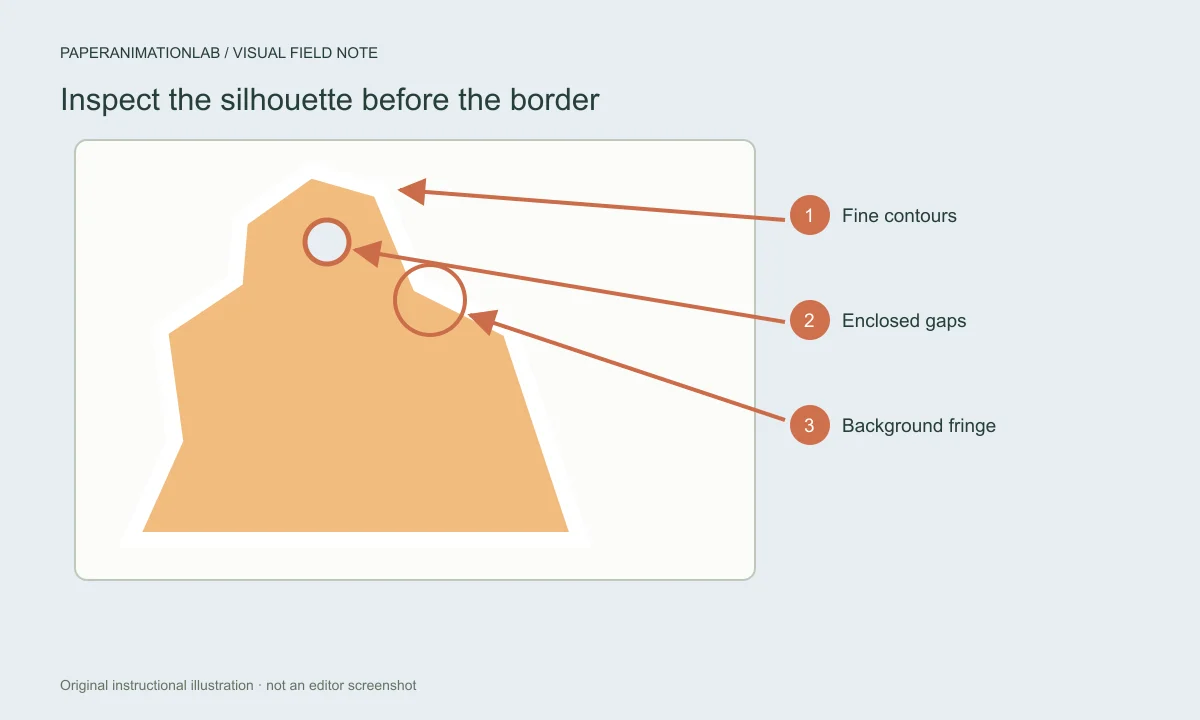
The plain-background removal tool was developed to remove a single-colored, solid-colored background. This tool is not a subject detector that uses artificial intelligence to find the main subject. Therefore, some types of backgrounds such as detailed backgrounds, similar colors, thin hairs, or translucent objects will require a mask to be created using another program like Photoshop. Do not use the 'hard-erase' technique on the silhouette; rather, use the natural antialiasing of the original photo. Inspect hair, glasses, stems and small product corners at 100%.
When you use the Static paper option to view your image prior to selecting an animated edge, make sure you do not add a wider border to cover up any pre-existing colored pixels around the subject. Instead, correct the source. To learn more about how to tell the difference between a source halo and a chroma key artifact, refer to the green-fringe troubleshooting guide.
Keep the source within a useful size
When you export, large images require more time to be decoded, and they consume more memory. If you are creating a small social asset, it's generally easier to prepare your image so that it is close to the final size you want to use, rather than using a large original photo taken by your camera. In addition, our editors limit the size of input images so that we don't accidentally create a memory spike.
The conversion of a photo that is in either HEIC format, or in a format that isn't supported, to a supported format such as JPEG, PNG, or WebP needs to occur prior to importing the photo into the system. Changing the file extension of the photo will not convert the photo. Instead, you need to use the image export option within your photo application.
Crop for the final video frame
Select the correct aspect ratio prior to placing your cutout. Landscapes will require additional horizontal space to include captions or other subjects while portraits require additional vertical space to accommodate title(s) and platform controls. Also, make sure that all faces, labels and thin features remain inside of the crop area and there is enough room around the edge of the print to create a border.
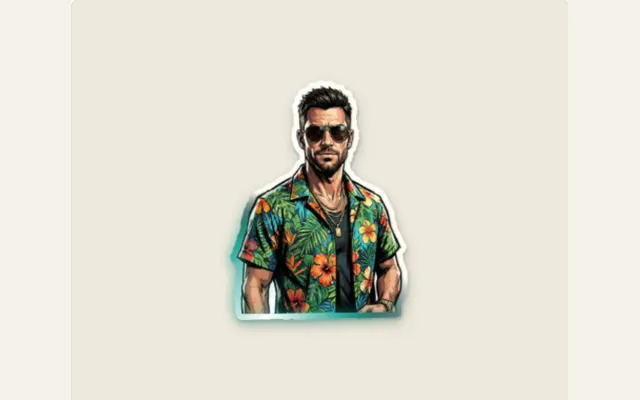
Preview the cutout on top of the background image that you are going to put the cutout on. When you preview your cutout, you should consider what type of background you are putting the cutout on. For example, if you have a white cutout, and you put it against a white wall, the edge of the cutout may disappear. If you put a black cutout on a white wall, the cutout may look like it has been separated from the background. After you have cleaned up the edges of the cutout, you can use the animated border guide to help you choose the type of edge you want for your cutout, and how much movement you want the border to have.
Check the border before the movement
Begin with a stopped motion and slowly grow the paper border. When you're ready to export, check for narrow spaces and small details at the scale you will be exporting. If the edges appear cluttered, make sure to shrink their widths before you begin growing the roughness of the borders.
The objective of using a white edge to separate the subject from its background is to create a visual separation between the two elements. Cream-colored edges are better suited for use on kraft paper because they blend into the texture of the paper. The primary objective when creating a cutout is to create a cutout that makes sense, rather than outlining every detail.
Save the clean version separately
You should keep a copy of your completed image and the animation project so you can easily apply another type of effect to the image if you choose to do so, without having to re-clean the image. Additionally, you will be able to reuse a transparent PNG for other projects like thumbnails, slides or layered compositions.
Once you have exported, you should check your work on a white as well as black background. This simple test will show you if there are still any left over halo effects and/or clipped edges of pixels, which can be hard to notice when viewed on your editing screen.