
Start with an image that has room around its edges
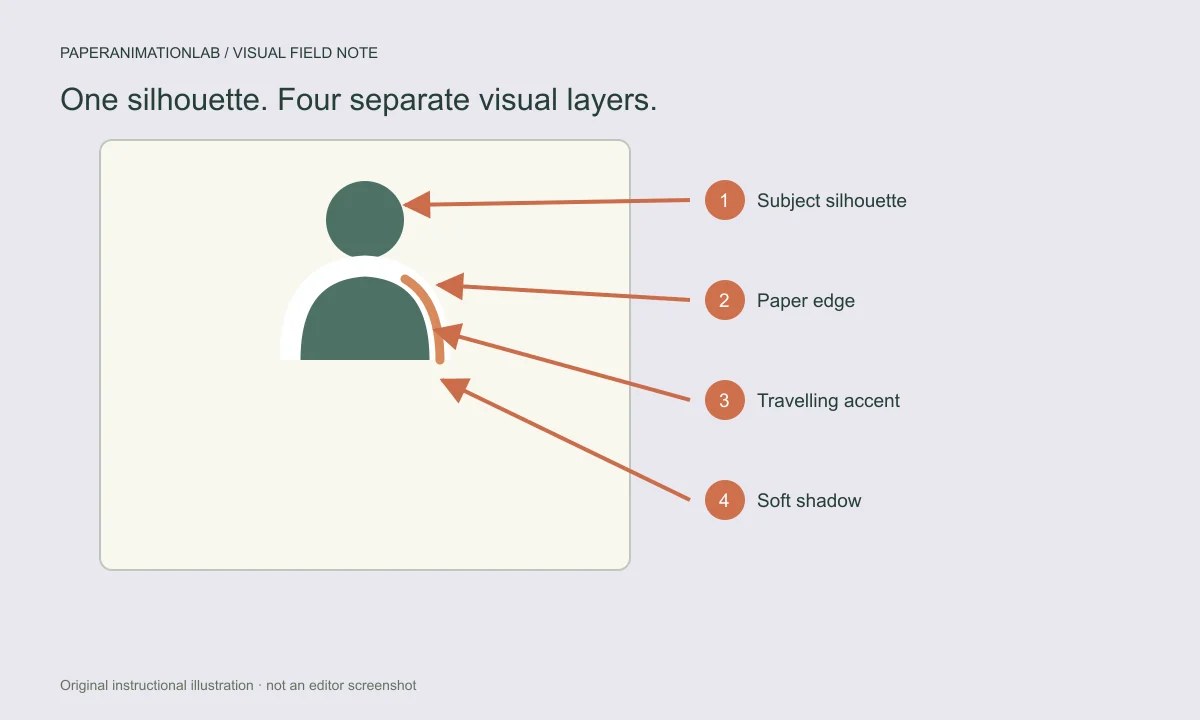
A PNG with transparency allows the animated border to conform to a portrait, object, or illustration. However, if you are using a whole photograph, the border will be added to the outer edges of the rectangular shape, giving it a print-card appearance, but this does not create isolation of the subject or object. The silhouette is particularly important around the edges of hair, thin stems, and small product corners.
The color-remover feature removes colors that are connected to the upper left corner of the image. This feature functions most effectively when applied to a uniform background; however, images that have many details and/or flyaway hairs require a cutout created in an image editing program as a simple color key cannot produce clean separations for all edges.
Choose an edge style and width
The ragged look of deckled-edge paper suggests that you have made a torn out clipping. Using clean scissors will allow for a precise outline. Layered paper creates a stack effect on the edges of your cutout. Transparency allows for the outline to follow the subject of the photo, whereas a full-sized photo has a rectangular print border. To maintain visibility of hair, product corners, and other small details, begin with a moderate-sized width.
Because the border will follow the outline of the subject, creating a clean silhouette is important. Plain-background removal works best when there is a continuous, single-colored background rather than a complex, automated mask. Before creating motion in your images, make sure you prepare all of the detailed outlines in an image editing program, and review the steps in the photo cutout preparation guide.
Scroll sideways to compare every column →
| Control group | Examples | Changes |
|---|---|---|
| Paper edge | Deckled fibres, Clean scissors, Layered paper | The material outline |
| Animated border | Static, boil, breathing color, travelling light | How the outline behaves over time |
| Ongoing motion | Still, Float, Flutter, Stop-motion vibration | How the subject moves after arrival |

Choose the edge and its movement
Paper edge provides options such as deckled fibers, straight cut by scissors, and/or multiple layers of paper. Paper border may remain stationary; however, it can also animate in several ways: create Paper boil (a bubbling effect), change colors (pulse), and/or create a traveling light effect that follows the outline of the subject. A cleaner transparent edge will provide a more stable path for the animated treatments than an irregular edge.
The accent color is used with either the pulsing effect or traveling highlight. Paper border width determines how thick the border is created around the cut-out area. For example, a light-colored border can help separate a subject from dark footage, while a charcoal-colored border may be easier to see on a pale background. Accent colors should always be compared to the final destination since they can appear differently depending upon whether they are displayed on paper or electronically (video).
Select how the border moves
Animated Border has three options: Paper Boil, Breathing Color, and Traveling Edge Light. Paper Boil will continually draw the outline of the cutout. Breathing Color will change the color of the accent. Traveling Edge Light will create an option for a highlight to move along the outside of the cutout. If you want the cutout to be animated but keep the border still, use Static Paper.
There are four accent colors available: white, teal, coral, and charcoal. Consider how the accent color will look against the actual background. For example, if you use white on bright video, the white could become hard to see. If you use charcoal on a pale scene, the charcoal could overwhelm the scene. It is best to view a sample of what the final product will look like (a moving frame) before completing your project because as the camera moves, the edge may blend in with the rest of the image.
Keep the entrance and the border in balance
The fold-out window opens the torn frame from its center, allowing the two side flaps to settle on each side of the image. Fold-out windows (e.g., center, float-in, and fan unfold) are less complex methods for entering an image than still and static paper which does not move once it has entered. Entrance methods control when an image enters; border methods control how long images will continue to move after they enter.
Both paper flutter and stop motion vibrations are continued after images have entered, thus the edges of the images can remain active throughout the entire composition. If your subject appears too blurred, you can reduce the vibration of the image or select a still finish prior to changing the border color.
Separate the entrance, ongoing motion and outline
Entrance controls the arrival method of your cutout: fold-out window, center fold-out, float-in or fan unfold. Motion of the cutout can include still, float, paper flutter, or stop-motion vibration. These motion controls are separate from the border animation controls, therefore you can have a static object with a moving border.
Do not combine strong border pulses, traveling light and high subject vibration at once, unless there is a specific reason for all three. Select one primary form of motion and reduce the amount of motion of other forms until the face, product or phrase becomes the main focus. The paper shadow guide provides a means to complete the appearance of depth without increasing the amount of motion in the scene.
Use movement and border effects separately
Motion is a continuous process, as is the animation of your border. Therefore, you may select either Still (the subject will remain in one position as the edge of the paper continues to move), or you can have the edge of the paper continue to move while the image remains stationary.
The setting Cutout Vibration controls how much the image moves when it flutters or is in stop-motion. If you lower this value, then the subject will be easier to read, even though there is still a moving light at the edge of the paper that causes the paper border to appear to be in motion.
Check the cutout against its final background
Preview the edge on a similar background as the video or design on which you plan to put it. An edge that looks sharp on cream may disappear when placed against a light-colored wall. A very thick drop shadow can make a paper cutout look like it is detached from everything else. Look at a moving shot in addition to the initial shot of the video to find any edges that might have disappeared into the background during the animation process.
Make sure to save your work so that you can continue editing the image and border properties. PNG files allow for transparency, whereas video exports are done with either a solid color or a green screen. The type of export depends on what types of video formats are supported by your browser. You can learn more about how to use each export option in the Export Guide.