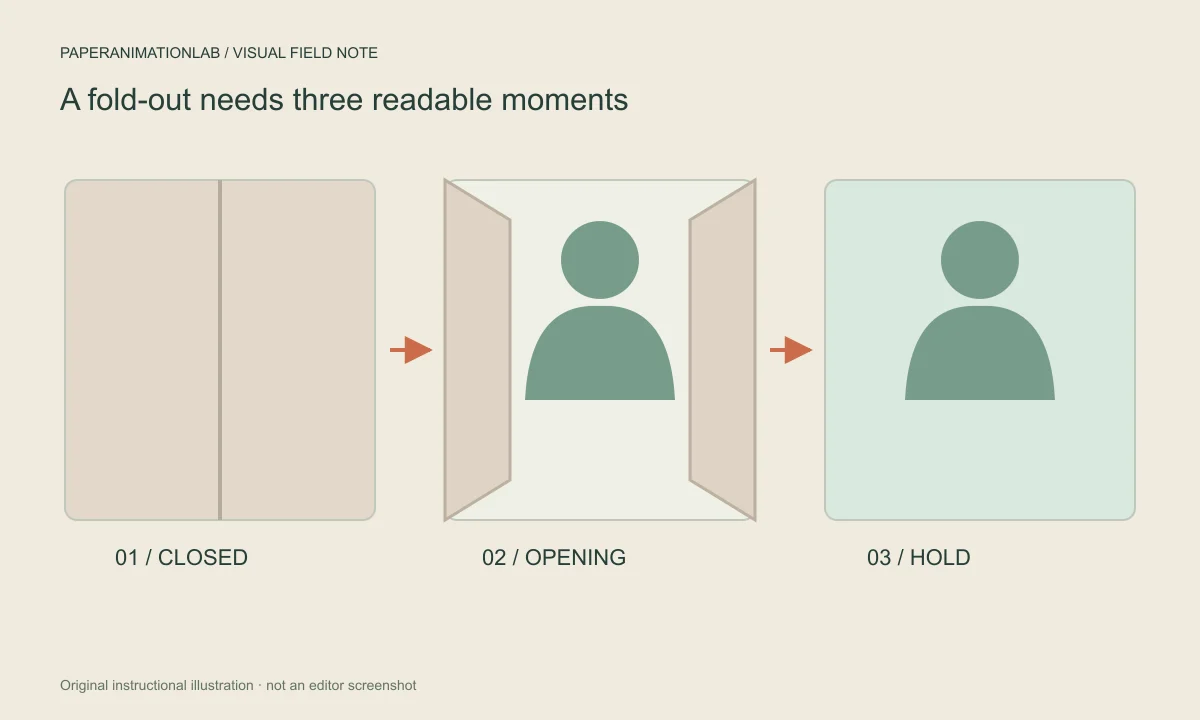
Decide what the opening should reveal
When you have a single distinct image within your paper unfold, this type of animation is very effective. An image such as a product, an invitation or a portrait will give the movement some meaning. Begin by making sure your final unfolded frame reads clearly prior to creating the fold.
To achieve a paper unfold effect, use either the kraft product reveal template, or open it up. Then change out your sample photo, select an aspect ratio that will allow room for your card to slide, and the motion settings used for both the preview and download are identical.
Choose the entrance that fits the reveal
Photo Paper Cut provides for several types of folds including: Fold-out window, Centre fold-out, Float in and Fan unfold. Folds are used if the opening is a part of the overall story (such as to reveal an image of a person, product or travel location) and can be created using paper frames. Float in is a softer option than the other types of folds, as the image will appear without a visible fold.
Compare how you'll enter the scene using the same image and canvas before changing the way you have continuous movement. The way you enter determines how your cutout appears in the scene. How you continuously move after the cutout is placed in the scene determines what will occur. By keeping those two decisions separate, it will be easier to make sure that the reveal is intentional rather than being continuously active.
Make room around the card
The folded portion must have an apparent silhouette. When the image covers each edge of the canvas, the opening appears to be a different type of crop, as opposed to a sheet of paper being moved. Scale back so that both the side edges and the shadows can be clearly seen.
Test your composition in its completed aspect ratio prior to making adjustments to fine tune. A horizontal product photo can be placed within a vertical canvas, but there will be some spacing required if you plan on adding a title as well.
Scroll sideways to compare every column →
| Entrance | Visual intention |
|---|---|
| Fold-out window | Reveal a subject between opening paper flaps |
| Centre fold-out | Make the central opening the main action |
| Fan unfold | Introduce the cutout with a fanned arrival |
| Float in | Use a simpler entrance without an opening-paper emphasis |
Compose for the closed and open frames
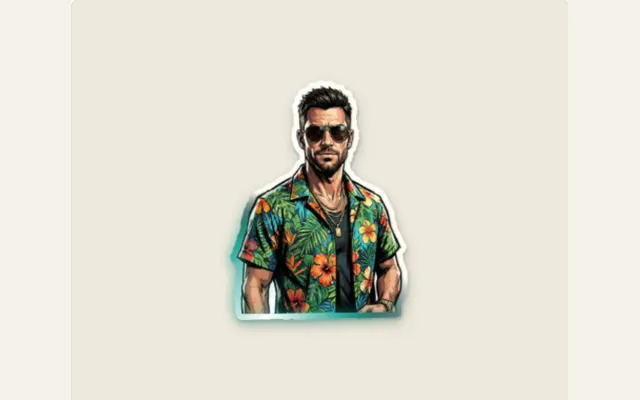
Make sure to provide enough space on all sides of your subject so that when the paper is unfolded, it will clear the side flaps. Try to place faces, product labels and short headlines as close to the center of the visible area as possible. If you are working with portrait layout, try to use a compact composition. If you are using landscape layout, then make sure to have plenty of room for both the subject and the folded panels.
Take a look at the very beginning of the animation, the midpoint of the animation as it starts to open up, and then the entire opened up version of the animation. If you have any major parts of your artwork that are being covered up by a flap, or if they are hanging off the edges, either adjust where those pieces are placed or make the artwork less complex prior to adjusting the rate of movement. The photo preparation guide goes over how to create transparent cutouts, check for cropping, and determine whether you need to create silhouettes.
Choose the material before the speed
Kraft provides the card with a soft and somewhat textured look. Smooth paper allows you to focus on the design of the card and a crumpled material adds texture to the surface. It is important that the texture remains visible so that the user can see the details of the product labels or faces on the card.
The shadow should be increased just enough so that it provides an explanation for the lift of the card. In many cases, a softer shadow will appear more natural during the final open frame, since the card has stopped hovering and is now resting on the surface.
Keep the fold, shadow and final hold readable
To keep the visual reference to the fold, start with a slight border and shadow. An excessively large or far-away shadow will give a thin piece of paper a solid appearance. Before you begin to add texture, if the edges of the paper blend in with the background, then increase the contrast between the two, or select a different type of edge for the paper.
After the panel settles, you should have enough time to read your product label or phrase. Export a small sample of your work so that you can view it on top of the final footage. If possible, a transparent PNG sequence will be the compositing method of choice. Both browser recorded videos and GIFs flatten any transparency that existed in your original files. For additional tips on how to finish checking your work, see paper shadows and depth and the export guide.
Leave a readable hold at the end
A short opening of a reveal followed by a quick closing doesn't give a viewer enough time to grasp what they are viewing. Use the duration control and repeat the whole loop. The movement has a pause/settle period that allows you to read the picture prior to the loop repeating.
The entrance point of the reveal is determined when you are putting the reveal over a separate video prior to the export process. It is best to have the key word or product mention at the start of the video, instead of having it appear later in the video.
Choose an export for the next application
If you're creating a single shot of video (a standalone clip), use a solid color as your backdrop. Select green as the solid color if you intend to edit out the solid backdrop using a chroma-key effect in some other editing software. A PNG file captures only one frame of video; therefore, this format is ideal for previewing the open project without having to export another full-motion sequence.
When saving the project, make sure to include the image and all other setting adjustments. After testing the project in a timeline, if the timing needs a slight adjustment, open the project again and adjust the duration rather than starting over with a brand-new design.