Put the phrase inside the article
A search animation only operates if the article that is being printed has the words being searched for. Go to the Newspaper Research Preset. In the Newspaper Article section, delete the existing text and replace it with your own. Then type the word or phrase you are looking for into the 'Find This Word or Phrase' box. Once you do so, the Match Status box will confirm whether the word or phrase is included in the article prior to conducting the search.
The search ignores case and repeated spaces, so small variations in capitalization will not prevent the search from being successful. If the status indicates that there are no matches, you can either modify the phrase or include it within your article; the animation cannot create a discovery that is not present in the original text. Your use of punctuation is also taken into consideration during the search process. Therefore, if you wish to find an entire sentence instead of just one word, be sure to utilize punctuation.
Write the article around a phrase worth finding
Use only your own writing or other writing for which you have received written authorization. This search looks at the article that you enter into the search bar, not in a news database and not whether the word was ever published in a newspaper. Ensure that your target phrase has meaning when it stands alone as the ultimate focus of the article will emphasize it more than the surrounding columns.
The viewer will find the phrase within your article by watching each page turn if you select Newspaper Research. A different function is served with Text Match Cut; it allows for the movement of a small phrase between various design layouts of the broadsheet. Message assembly with individual characters is done with Magazine Letters.
Scroll sideways to compare every column →
| Control | Changes the search target? | Changes presentation? |
|---|---|---|
| Article and target phrase | Yes | The printed copy also changes |
| Match location | Selects the occurrence | Sets which passage is revealed |
| Page design and paragraph spacing | No | Yes: layout and visual density |
| Background blur and marker | No | Yes: final focus and emphasis |
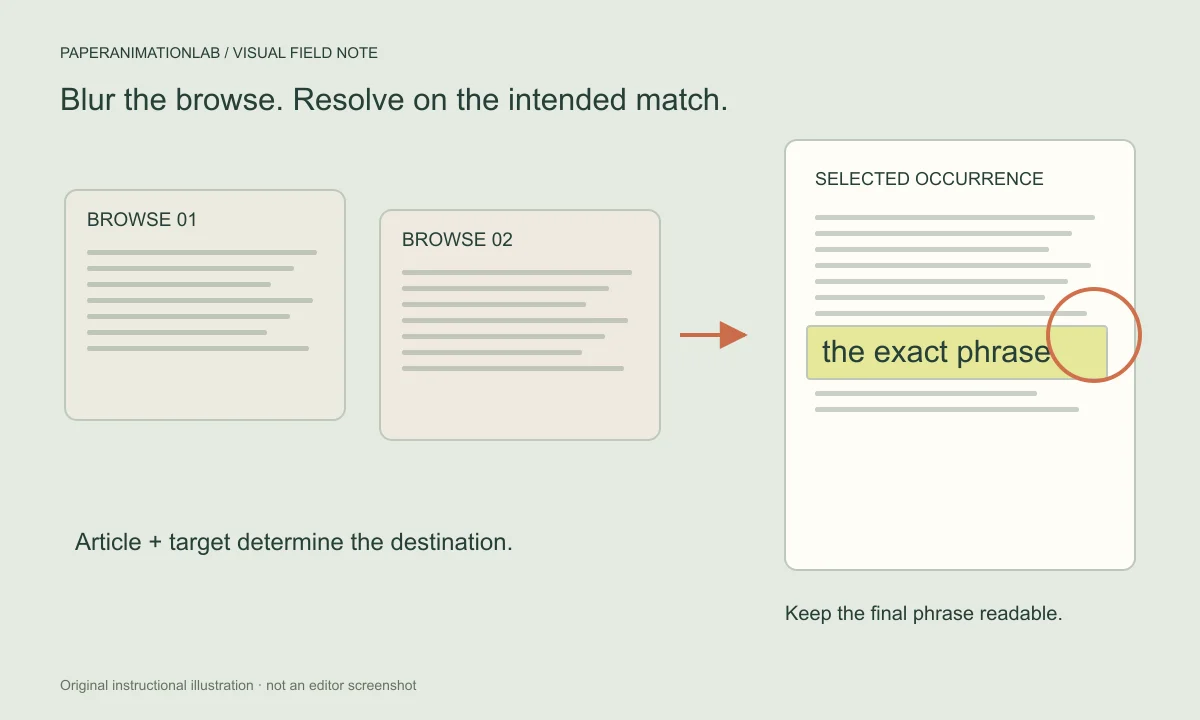
Choose which occurrence the camera finds
When the phrase is used more than once, you can decide whether to use the first instance of the phrase or to use a particular use of the phrase using Match location. In addition, the editor will display surrounding words in the drop-down menu so that you may pick a passage that best works for your story, such as if a person's name appears both in a headline and within the article itself.
In addition to wrapping across many print lines, the focus of a long sentence will continue past the line wrap. Shorter sentences are much simpler to read when there is a short camera motion, but longer passages allow for a longer pause. Matching happens before creating the layout of the page, so line wrapping will not affect which occurrence has been chosen.
Separate a search mismatch from a design choice
If the editor indicates that there was no matches, then you should compare the article and target text on a character-by-character basis. Searching will ignore case and repeated spaces, however, searching will find all instances of punctuation and a partial word does not count as a match. If a phrase occurs multiple times, then Match location will allow you to choose which instance of the phrase you are looking for by providing you with the surrounding words to help you identify the correct instance.
Page design, Paragraph spacing, Shuffle page designs, blur, and marker color change presentations will not affect whether or not your matches are correct. Make sure to confirm the match prior to styling the layout. This will help you save time if you find yourself liking how a page turned out, even though the selected phrase was wrong.
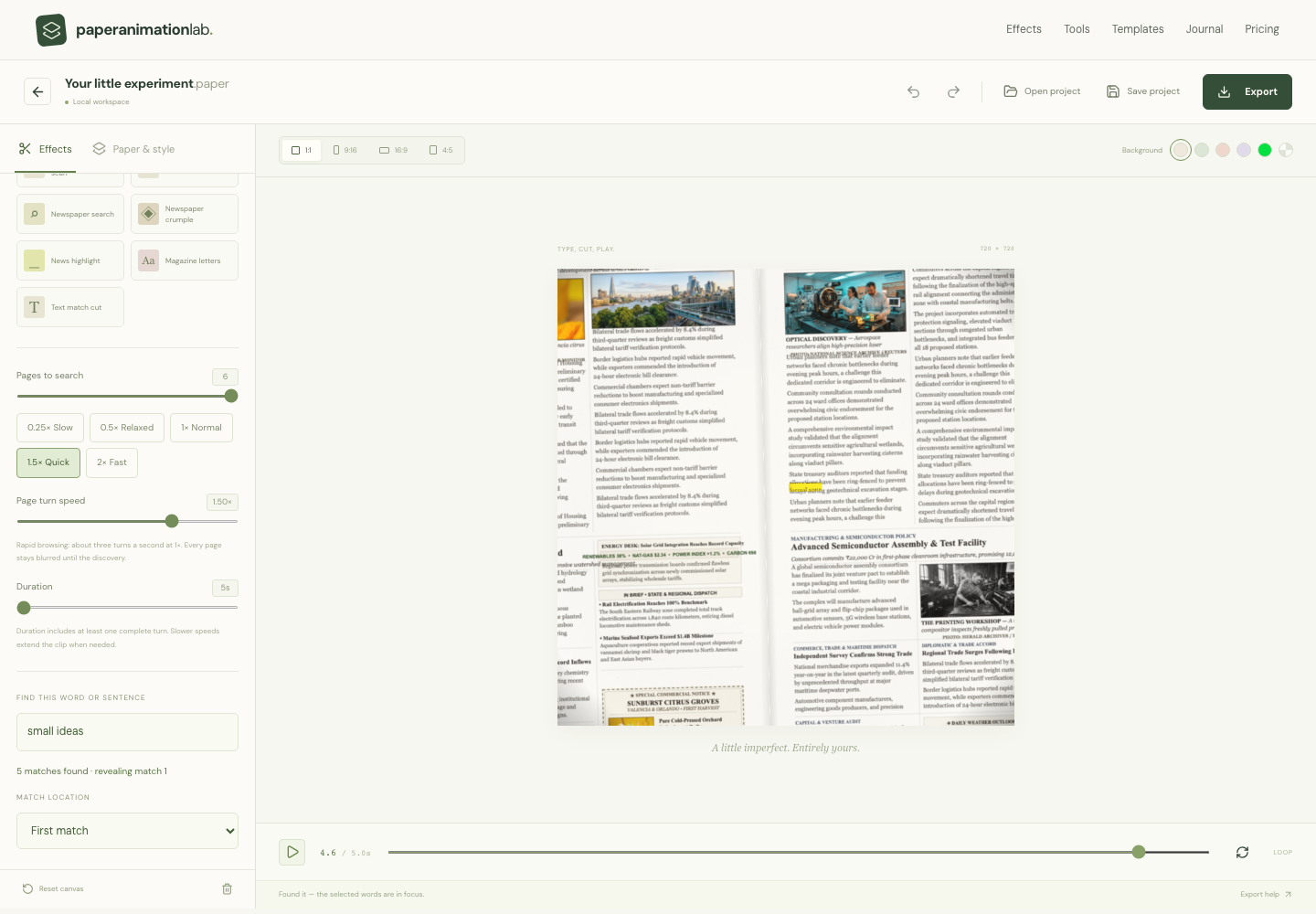
This real editor view pairs the blurred-page search settings with the article, target phrase and selected match.
- Pages to search
- Page turn speed
- Match location
Set the blurred browse and reveal pace
Pages to search controls the sequence from two to six pages, and Page turn speed has a range of 0.25× to 2×. The browsing sheets will remain blurred until the target is found, then the editor may use the last zoom to focus on the selected words and leave the rest of the text blurred. If you choose a slower setting, the editor can lengthen the clip so that all of the turns and the discovery process can finish cleanly.
The way you want to format your pages and use paragraph spacing can alter the overall look of your document. However, using the Shuffle page designs option can vary both the number of columns and the shape of the articles on different sheets. Both the Background blur option and the Marker color option allow you to focus on the area you have chosen, keeping it legible while obscuring the surrounding content. Shuffling alters how the content appears visually, but does not affect the article text or selected match.
Set a pace viewers can follow
Pages to search sets the sequence from two to six pages. Page turn speed ranges from 0.25× to 2×. If you want to make a quick find use fewer pages, but if your search experience helps build the narrative then use more. A slower rate can allow for a longer clip allowing for the transitions and final zoom to complete.
At all times prior to when the target is displayed, please maintain the blurring of each page (including its headline). Once the target is displayed, use Background blur and a different marker color to ensure that the phrase can be clearly read, while still keeping the surrounding print soft. After completing the entire sequence, review it at normal speed so you can verify that the last phrase remains on screen long enough for viewers to read.
Fix a phrase that does not match
If you can't find an exact match of the phrase within the entire article, look for a letter-by-letter comparison of the phrase to the article, including punctuation. Search ignores case and repeated spaces, but a partial word does not count as a match. Only matches found within the current article will appear on the match menu.
Resetting the sample article will revert both the sample text and the desired article to a previously created example. If the status indicates a match, you can select the location of the article once more, in the event that there are multiple occurrences of the same phrase within the article. At this point, the animation will complete at the location you selected.
Save a project before exporting
A project file stores the article, target phrase, match location, page count and speed. This allows you to adjust the timing of the search later on without having to build a brand-new search sequence, and keeps your customized article accessible each time you open the project on a different machine.
When you require a single image use a PNG, but when you are creating a moving image use either a GIF or a video format supported by your web browser. A slower turn with more pages will result in a longer clip, so review the entire sequence prior to incorporating it into an edit. The export guide indicates both the frame size and the background behavior of each export format.