
Write the sentence before choosing the platform
The Comment Reel effect will generate a sample feed of comments from the sentences and other comment template information you provide. The reel will not link to your social media account, nor will it pull in actual comments. This means the comments on the reel are samples only and do not represent any public interaction.
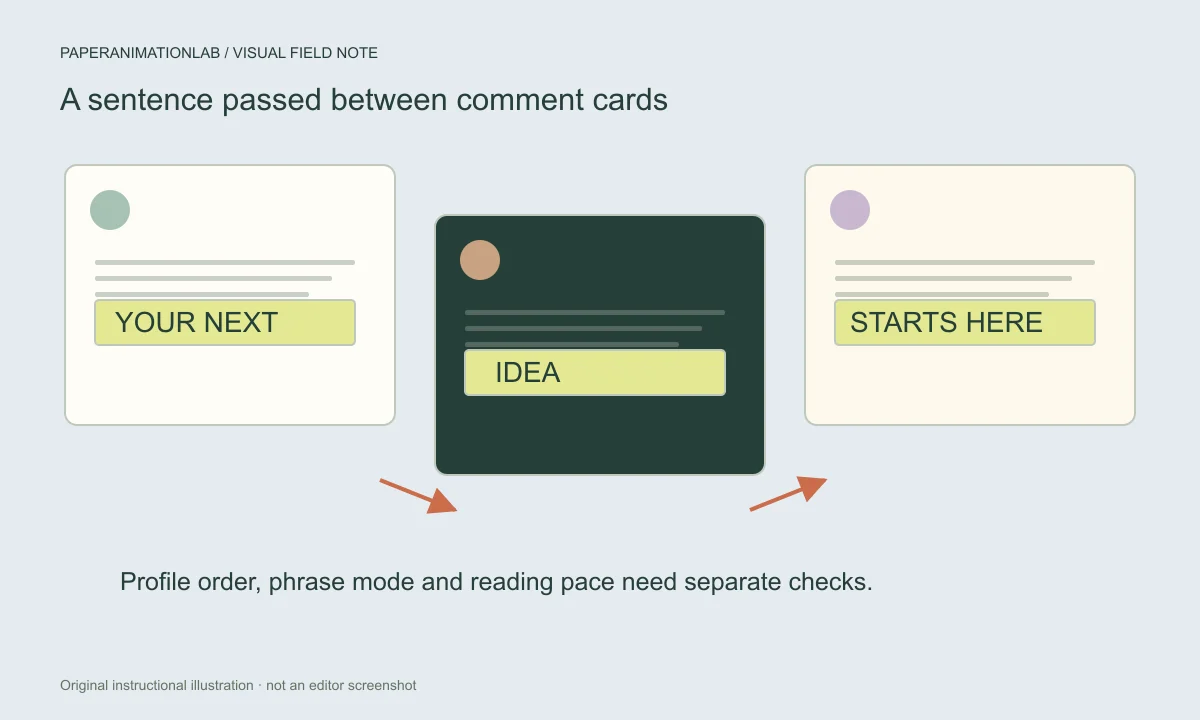
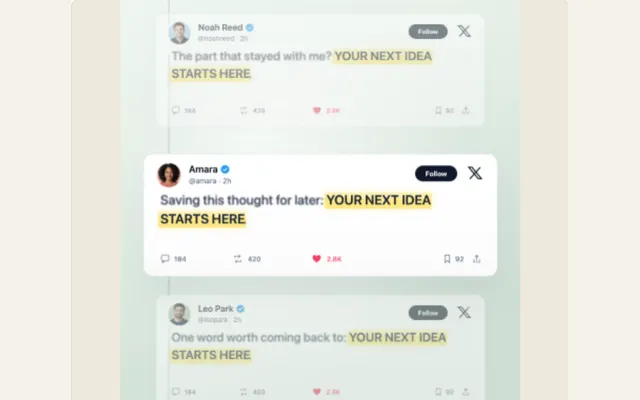
You may edit the comment templates after they have been added to the reel. You can choose whether you want to restyle the cards based on Twitter/X, Instagram, or YouTube styles. You can also decide if you want the first card in each comment to be a complete phrase or just a single word. If you use a complete phrase, then the phrase will remain highlighted in all cards until you change the phrase. If you use a single word, then the sentence will appear as a series of comments. In addition to revealing the sentence, the single word option will allow you to see how the sentence looks in different platform styles.
Make the wording work at reel speed
Begin by making a decision as to whether the entire sentence will repeat on every card, or if the individual words will appear separately on subsequent cards. The complete sentence in each comment is a repetition of the target, while the individual words in each comment build up to the target as they are added to the comment stream. Short copy allows for a smoother transition between each comment, and avoids having to pause the video to read the comments.
This sample content was created as part of the editable feed. It does not allow you to link your social accounts, bring over existing public posts, or confirm that someone has left a positive review. If you want to demonstrate how this feature works, use fictional examples. Also, be sure to ask permission before including anyone’s name, image, or statements that could suggest they endorse what you are showing.
Add profile photos and names in the same order
Enter the name of each person who left a comment on its own line and upload up to 12 profile pictures. The program will automatically match the profile picture with the corresponding commenter name in chronological order, and crop each profile picture into a circle. The provided sample images represent fictional people. If you replace a profile picture, only that profile will change, and the comment will remain intact.
You can customize what surrounds each comment by using a template, and use {word} to indicate where a matching word is located. Please only use names and images of individuals that you have permission to use or are actual people when the video represents actual people; although the generated feed provides evidence that someone made a statement, it does not provide proof that they actually said what was posted. Fictional identities should be used to illustrate conversations and not used to represent comments made by actual customers.
Scroll sideways to compare every column →
| Decision | Choices | What to inspect |
|---|---|---|
| Platform appearance | X, Instagram, YouTube | Card shape and line wrapping |
| Highlight mode | Full phrase or one word at a time | The complete sentence remains understandable |
| Reading pace | Relaxed, Quick, Rapid | Enough time to register the text |
| Profile order | Names and uploaded photos | Each portrait matches the intended name |
Match names, portraits and comment templates
Enter commenter names on separate lines, then add profile photos in the same order. The editor matches them to names, and allows up to twelve uploaded portraits (built-in portraits are sample illustrations). Use authorized images, and confirm the order of your uploads so that the avatar displays with the correct name.
Adjust any surrounding comment text to complete the sentence. The {word} placeholder identifies where a matching word can go into a template. Review each card for spelling and context; even if the highlight animation is correct, a mismatched word can alter the intended message.
Pick a quick transition and reading pace
The quick scrolling, sliding from side to side, and zooming in/out changes how the cards move; the visual appearance of the card is modified by the paper, ink, or minimal threads used; the reader speed is determined by whether they select relaxed, quick, or rapid. All of these controls allow you to edit the title of each comment and sample comments.
The same sentence can appear to be read faster if the card is entered at a slower pace. Short lines of text are best for fast-paced reels; long copy must remain visible for longer periods so that the audience has enough time to read it. If you find yourself unable to complete the sentence, switch to Quick or Relaxed and review the entire sequence once more.
Choose a transition and set the reading pace
Quick Scroll, Word Lock, 3D Deck Flip, 3D Cover Flow, Spring Bounce, Stagger Pop, Side Slide, and Matched Zoom Controls Card Movement. The use of paper cards, ink cards and minimal thread changes the visual design. There are relaxed, quick and rapid pace options to alter how readers view the sentences and number of cards.
Viewers can preview the content at a standard rate and determine if they will be able to complete each sentence. When cards seem too hurried, users may want to either shorten the amount of text used, or use a slower pace prior to changing the transition. Using a fast movement should only occur when it attracts the reader's attention to the words, while still allowing them to read the words.
Adjust the pace without losing the sentence
Relaxed, quick and rapid are used to calculate the time needed to read a sentence and the amount of comment cards. The editor keeps all words in order as you move through profiles.
A quick setting is best for short sentences, while a long sentence will require more reading time. If you feel that the preview is moving too quickly, review your sentence and comment templates before reducing the time used to display them. Slowing down allows each profile to appear longer on-screen.
Export the sequence for a video edit
Choose a portrait, square or landscape canvas that is appropriate for the location. The studio gradient or project background results in a finished card. Transparent and green backgrounds can be used when compositing. Because the ratio determines how much of each comment can fit onto a card, determine the ratio prior to fine-tuning the line breaks.
An animation plays through once and remains on the last card. Export either a GIF or a video format that is supported by your browser. After downloading the file, open it in the program that you intend to edit with. A single frame will be exported as a static PNG. An animated export will contain all transitions between comments.