Paper flight map
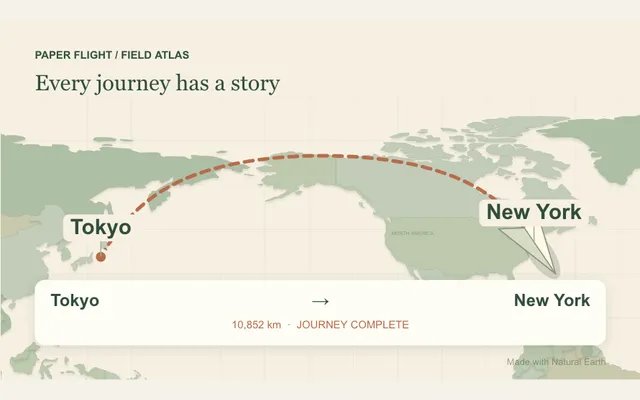
Fly a folded-paper plane between cities on an illustrated world map. Follow the curved route, choose a map palette and aircraft, then reveal the complete journey.
Try this effect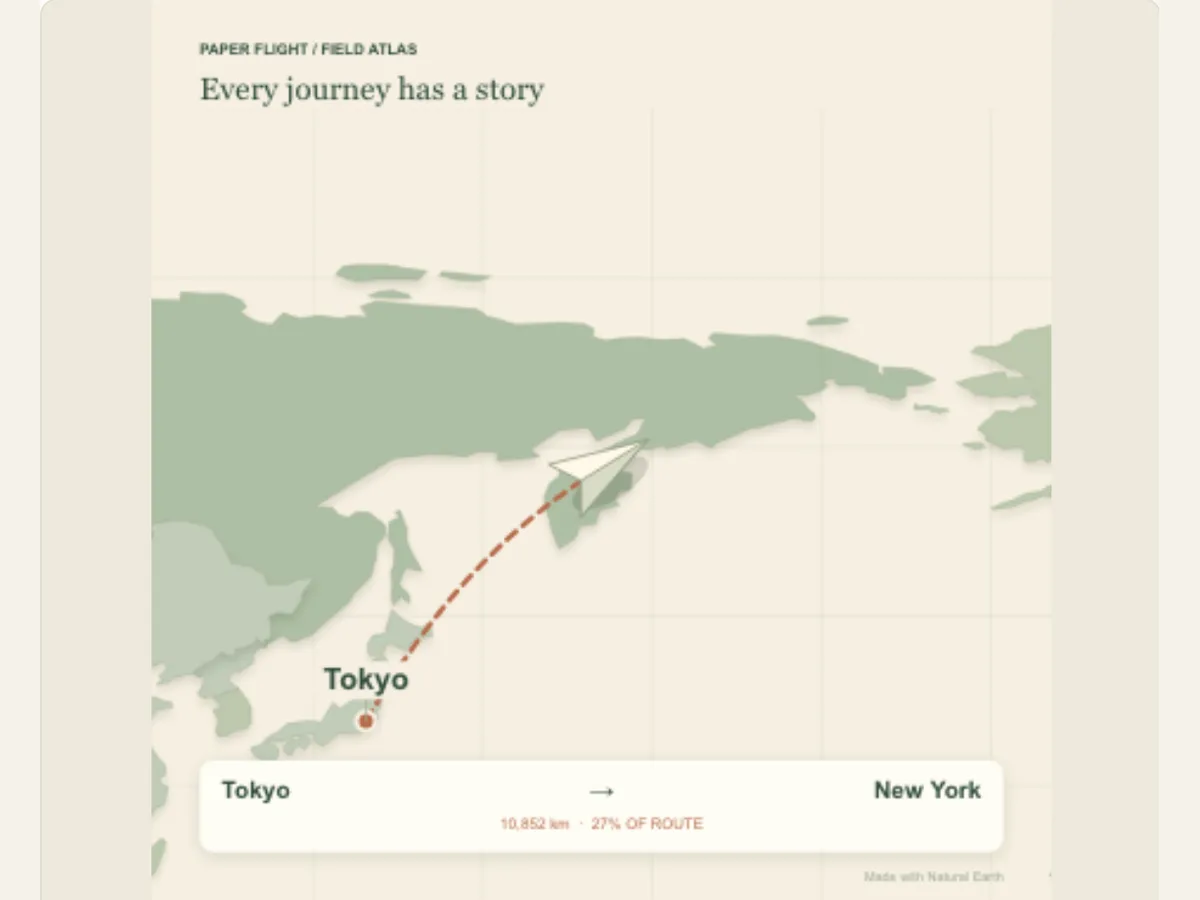
Give a journey a clear beginning and destination
A travel story often requires an efficient method to illustrate both its point of origin and its target location. Paper Flight Map utilizes a paper airplane flying from one city to another on a specifically created map. This route may be used as an introduction to a travel video, to help the viewer understand the sequence of events during a multi-city travel plan, to initiate a fictitious travel sequence, or as a visual link between two different locations in a presentation.
The route is a drawing (animation) of the route; it is not a live flight tracking tool, nor is it a live aviation map. It does not display scheduled flights, aircraft positions, no-fly zones, weather conditions or airline operations. While city-to-city routes can be used to help tell stories about travel, they are not intended to be used as actual flight planning or navigation tools. To provide the user with accurate travel information, you will need to check the most up-to-date data available from your chosen airline(s) or other official sources and present this separately from the decorative route.
Set departure and destination before choosing the map view
Departure and Destination allow you to select two cities from the pre-populated list, and the reverse pair button changes the order. First confirm the names of the two cities and the intended direction of travel. When you make a change to one of the cities, the preview will start again from that city so you can see your route from start to finish. If you plan on creating multiple routes (a series), create a separate project for each step rather than changing the city after exporting the data and thinking that the previous exported file will update itself.
The title of the Journey should be no longer than 80 characters. It is best to give the trip/episode a name rather than giving it an entire itinerary. Titles like "Northbound, stop one," will let people know what they are watching, but other details such as dates, hotel information, and link to book accommodations should be on a different card. If you are using a location that may be unfamiliar to most of your viewers, it is recommended to have a reliable resource to help verify spelling and pronunciation.
Scroll sideways to compare every column →
| Control | Available direction | What it changes |
|---|---|---|
| Camera | Follow plane or whole journey | Sets route visibility during travel |
| Route pair | Departure and destination cities | Sets illustrative travel endpoints |
Choose a map palette and camera behavior
Map Styles offer Atlas, Blueprint and Night palettes. Follow Plane will keep the aircraft as the primary reference, while Whole Journey displays the entire route at one time. A follow view may create a more immersive experience for the movement of the aircraft, however; it can obscure the larger picture of the route if it's too long. An Overview would be best for viewing both the beginning and end points of a journey. It's recommended that you preview both views using the same cities prior to changing either the Title or Aircraft.
You can have a folded paper airplane (a paper airplane) or a paper airplane (a paper airplane) for aircraft, and you can use a dashed line or continuous ink for Trail. A small paper airplane can fit a light illustrative map; the paper airplane option would probably work well for a modern travel opening. A dashed route suggests a planned journey, while continuous ink seems like a drawn narrative path. Neither represents an actual airline track. Choose words and camera style that make the illustration's purpose clear.
Use the route as a scene transition, not an itinerary database
The opening of a destination video for a creator would typically begin with him/her traveling from their hometown to the location they are going to explore, followed by either street or landscape footage. A school presentation may be created as an example of a fictional expedition, and a event organizer may create a travel series that takes place in various cities. The map provides a compact transition, and a caption or narration can provide the necessary factual information once the route arrives at its destination.
When you are planning to take a real trip, verify that both of your city choices are correct, as well as all of the other travel-related facts (e.g., if there is a direct flight, how long it will take, etc.) that you found in the animation. The animation does not know if there is a direct flight, how long a trip takes or what airlines fly to those destinations. You should never assume that because you see a moving airplane that you have booked a ticket, nor should you assume that the airline featured in the animation endorses your travel plans. A current travel itinerary should be obtained from a live source, whereas the paper map may provide background for your travel story.
Keep the labels visible while the plane travels
Choose your city combination, map design, viewing angle (camera), type of airplane and route line. Next, create a title. Review the complete animation so that you can determine if the aircraft covers up any part of the city name or goes off screen. A wider view allows more of the surrounding geographic area to be seen, while using a zoomed-in camera provides more action but less background. If the route and title are in competition with each other, consider shortening the caption or changing cameras rather than making both so small that they cannot be easily read.
The editor's global duration and movement settings define the rate at which the journey is displayed. When showing a route across multiple regions, it will require more time than a short trip from one city to another, as the viewer needs to be able to identify each of those two locations. For a simple reel, simplify the title and allow the airplane to fly faster; for an explainer video, have the airplane stop at its destination. Viewers should see the clip in its original size (crop) to ensure that they can see all the labels on the edges of the screen, particularly on vertical screens where some labels can get cut off.
A three-stop travel reel without three unrelated maps
A creator of travel content creating a 3-part series may create a separate project for each part of the trip, using the same map color scheme, aircraft, and route. The only things that would be different between the clips are the city pairs and the titles of the clips. By doing so, the series would have a common visual theme across all three parts, while allowing for a more detailed map of each individual route. In addition, the individual short routes can be placed consecutively into a longer video with a narrative or captioning that provides the context of the entire itinerary.
Fictional stories can also use this same technique to create a fictitious travel sequence for a character. When creating such a travel sequence, each destination frame will lead directly into the next scene. If you are using fictional location names, make sure to indicate so in the title or text around the travel sequence. This approach works well for both types of stories as long as the viewer understands that they are viewing a representation of reality, rather than a real-world route map or real-time location tracking.
Export a still or a moving map for the edit
This export option will provide you with a still image (PNG), a short animation (GIF), and a browser-compatible video of your effects. You may choose to have a solid color canvas, or a chroma key green background for the video output; however, if you have any transparent areas within your effect, those will be flattened when the video is created. Your GIF will also use a solid color canvas. Be sure to check the format options that appear on the export panel because some video encoding methods may not work with all browsers.
The PNG will act as either a route cover or an itinerary graphic. Video is used to capture the aircraft in motion. After importing the edited product into the final version of the video, ensure that the beginning and ending points of the routes are still visible beneath any captions or platform controls. It is best to save the project so that you can change the city or camera angle at a later date. To create a folded route reveal, use Origami Fold Map; Country Atlas provides a silhouette of a country; and Paper City Route allows for traveling through an illustrated urban environment.
Verify place names and travel context
Maps can affect what viewers think about distance and direction. Before you publish, verify all of the city names and captions. Describe the route as illustrative, unless it is a real flight path. Use of animations to imply that someone has been there, made a reservation or that the route is still being flown is not acceptable. Unless the traveler wishes to disclose their travel details publicly, keep such sensitive travel details out of your public projects.
The most effective way to show a route is to leave enough time for viewers to realize where they are going, before handing over to either a real shot, a map source, or an itinerary. A short description could be used to facilitate this transition, while not cluttering the animation. On an informational travel page, it is recommended to add text labels and source links external to the video, allowing the route to remain clear to individuals who may not be able to view the animated portion, or would prefer a more accessible format.