Paper city route
Trace an editable message through a three-dimensional paper city. Travel along the path from above or pull back smoothly, then reveal the complete lettering among folded rooftops and park blocks.
Try this effect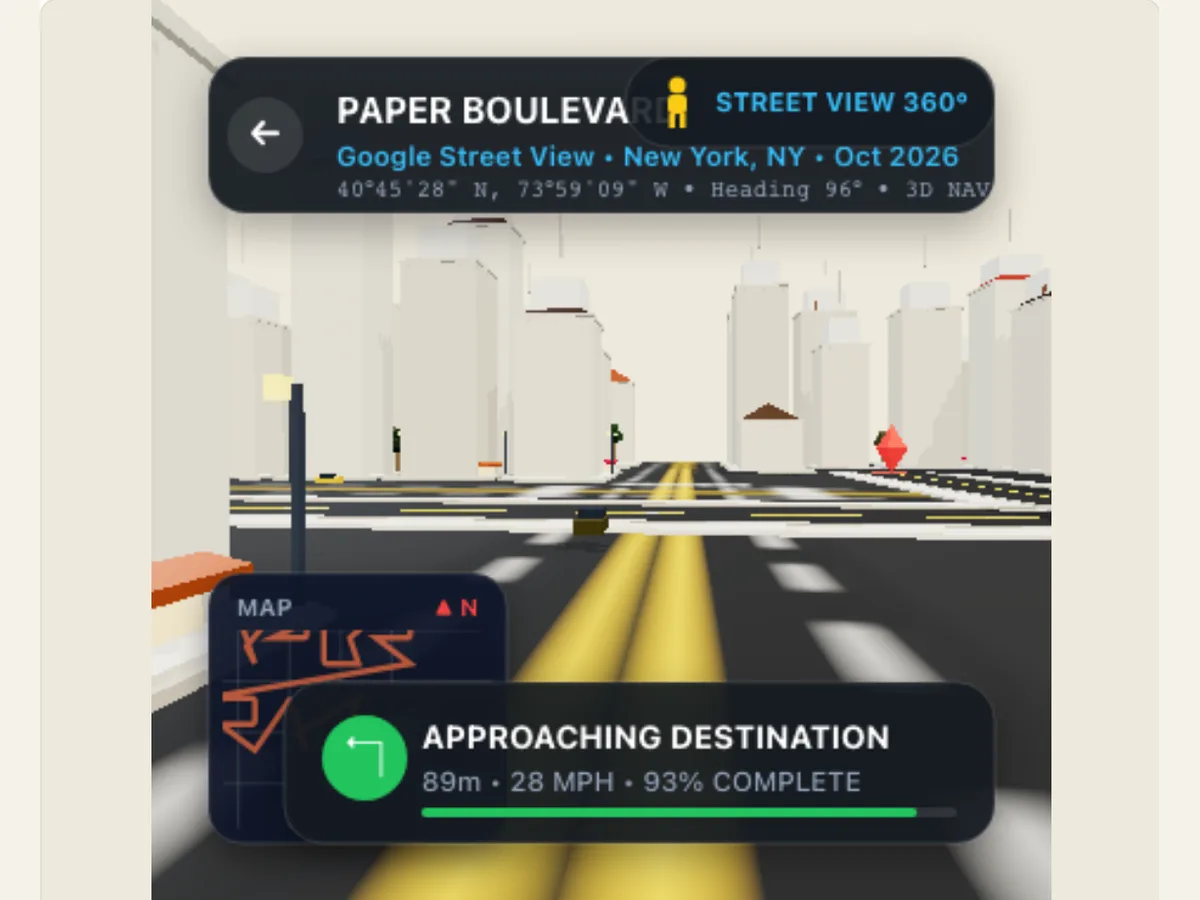
Travel through a miniature city to reveal a message
A route of a city can turn a string of letters into a place for the camera to look. The Paper City Route creates a small written statement inside of a paper town that was created. The camera then goes down streets and around the folded pieces of paper, and finally pulls back to show the larger picture. This technique can be used to show a fictional place, begin a video on travel, display a campaign based on a city, or create a short trip between two concepts in an explanation.
The environment is an artistic representation of a landscape, not a geographical map or a Google Maps directions. This is why the images generated do not reflect real roads, actual buildings, property lines, or present navigation data. If you have a location mentioned in the image's caption, make sure you emphasize this difference. This technique has been developed for visual storytelling purposes; however, if you are looking for accurate information about a specific location or to find directions, please refer to an accurate map and up-to-date location resources.
Write a route message that can be read from above
The camera can follow what you want by using Route Message which will allow you to write up to 80 characters. By writing a simple message, the camera has more space to travel and is easier to read while the camera is moving. Create a route message that works for your environment; like an imagined area, event name or short invitation. If the route message is too long, break it apart or separate the story into two different scenes so you don't fill every street with text.
I would like you to review the last sentence of your introductory paragraph as well as what happens with that same sentence when the camera moves away from the subject. The message that is readable when the camera approaches can easily be lost once the camera moves back. If you want the viewers to see all of this message, please put up a final card once the camera has finished moving back, and let the viewers look at it. This message should still have meaning to any person who sees the video after the first couple of seconds.
Scroll sideways to compare every column →
| Control | Available direction | What it changes |
|---|---|---|
| Camera | Travel, smooth zoom-out or overview | Changes how the route is followed |
| City density | Amount of surrounding city detail | Changes competition around the route |
Choose how the camera moves through the blocks
Route Camera allows for three types of camera movement: Top-down Travel, Smooth Zoom Out, and Map Overview. Each type of movement will provide different levels of detail about the geography being viewed. Top-down Travel follows the route from a high-angle perspective; Smooth Zoom Out begins with a close-up shot and then zooms out to a wider view of the entire city; Map Overview prioritizes viewing the complete generated environment. Choose which mode of camera movement is best suited for your purposes depending on if you want to emphasize the route taken or the ultimate goal of the journey. Once you have chosen a route camera, make sure that it does not create too many jump cuts or restrict the field of view too narrowly.
Zoom Strength refers to how much force the camera exerts to move closer to or further away from the focal area. The City Density range is 40-100; this setting determines how full the paper blocks and streets will appear. While a denser scene can appear to have more people in it, it could also make the route message difficult to see. It is recommended to use a moderate setting, and only adjust the setting upwards when the scene appears too empty. In general, using a smooth, controlled zoom provides a better visual representation of the path than using continuous aggressive movements.
Set the route color and generate a fresh city layout
Route Ink can be in three different colors: Terracotta, Teal, and Indigo. When choosing a Route Ink color, you want to pick one which will stand out against both the paper buildings and the road surfaces, as you don't want your path to blend into the background with each change in the color palette. Generate Another City will randomize the layout of the city using a different seed value. This feature is particularly useful if the initial layout has a very large building or a busy intersection in the wrong location, however, Generate Another City does not allow you to input a real-world street map nor does it allow you to select a specific address for a particular building.
If the route is obscured by other elements of the city, generate another city first, then increase the density of that city. Low density creates more negative space around your message. If the color of the text blends into the street, choose a contrasting ink. Treat the city as a visual environment with a specific path created by design; do not think of it as a map of an existing neighborhood. You may want to use a caption to indicate that the scene is an illustration if there is ambiguity.
Example: reveal an event name across a paper district
The path to the location of the event is shown by a brief title for the event, followed by a trip through a stylized version of a city, and then a wide-angle view of a full district made from paper, just prior to showing the actual building where the event will take place. This video serves to give motion to the announcement, yet the true location of the event is displayed on a distinct and accurate final screen. This same series of shots can also be used by a make-believe studio to establish a setting prior to having one of its characters enter into the storyline.
An explainer might use the path to show how two different topics relate, rather than how two different streets relate. The camera would move from one labeled block to another, with the narration describing the connection between those blocks. When you are writing your script, please include any real-world city names in either a caption or voice-over, and provide supporting documentation that verifies the accuracy of the city name. Your generated city has decorative streets; therefore, if you identify a recognizable place name for your generated city, you do not need to create a geographically accurate layout.
Keep movement controlled in a short video
If you push the limits on density, zoom and duration, a city scene can appear unstable. Choose the camera mode, set the density, adjust the zoom strength and determine the total duration of the shot. View the movement of the shot from beginning to end as the camera pulls back. If the camera is jittery or moves too fast, reduce the zoom strength, and make sure that you are conveying your message simply instead of using more details of the city to distract from the message.
The first option is to create a small mobile clip that will display only one route and only one final hold. The second option is to create a long portfolio sequence that will give you more time to move around the city before you are shown the full city. Check the position of the camera when it reaches its destination. If you have created a portrait video, then you may find yourself missing parts of your generated neighborhood because the camera was able to view only a portion of the screen. If you have created a landscape video, then you may be able to see more of the overview than you would have had you created a portrait video. Make sure to keep your message inside of the "safe" area in the center of the screen, and make sure that the last shot of your city does not disappear right away due to a transition.
Use the city scene as a designed transition
The city path can provide a connection from a title to an event video, establish a fictional district, or transition the audience to a specific phrase. The city path can also be used as a short change in scale between two paper effects. Generally, a single scene is more effective than repeatedly using a similar camera pull back multiple times. When there are several different paths available within the larger project, use a different city layout or color scheme but keep a consistent title treatment throughout so that every journey remains identifiable as part of the same collection.
This setting is for the animation only, it is not a working map search tool with a real-time routing feature. To view actual travel routes from one location to another, you may use Paper Flight Map to see the route visually between cities, then check out updated travel information from other sources. Origami Fold Map provides a physical itinerary, while Country Atlas provides an outline of each country. Finally, the Paper City Route guide provides guidance on creating the scene for your message.
Export the journey and check the camera in context
The export panel has several options for how you want to export your project: a PNG image, a GIF image and a video file that is supported by browsers. You have the option of using a solid color as the background of your video files, or a "green screen" if you are going to use chroma key to composite something else into the background of your video. Your video will not have an alpha channel with transparency. If you choose to export as a GIF, it will also use a solid color as its background. Look at what types of formats your browser supports when you click on the "export" button in the dialog box, and select which format will best fit with your final timeline or post.
A static PNG works well for both an event tile or a story board. A video will be required to show the moving path and camera. Import the image into your editor, and then check to make sure that when you zoom out, the final message appears where you want it. Save the project to allow adjustment of the route ink, density and generated city. If the animation is supposed to represent a real location, find a validated map source and label the route as "illustrative," rather than suggesting that the route was taken from actual roads.
Do not use generated streets as directions
Viewers might believe that the image is a map with high geographic accuracy. Do not give directions; do not identify a single building; do not make accessibility claims using the generated streets. When sending out invitations, please provide the actual location (official address) or map link via an additional, accessible card. For educational videos, please explain that the paper town is a visual metaphor of a city, not a scale model.
The user's experience with the camera is smooth, the ink used for the route is clear, and the amount of detail in each area is moderate, making the scene simple to understand. What makes the animation so useful is how visually appealing the path is, and how easily the information can be revealed. It doesn't provide geographical information. Real-world mapping tools should be utilized when trying to navigate; however, the animation can perform its function best by providing users a memorable experience while traveling through a custom-built city.