
Give the route a short message
Paper City Route provides a visual representation of text through a paper-based, miniature city. You can enter any combination of letters (A-Z), numbers, and simple punctuation into this program. When the camera moves around the city, smaller text is usually easier to read. As you change your text entry, the program will generate a different shape of the lettering and therefore a different route for the lettering to follow through the city.
This paper city is a creation of the user and not a representation of a actual city map, an address finder, or a GPS system. This tool is best used to create a stylized title or to tell a story of a journey through the city. If you wish to show a journey from one city to another as represented on geographic outlines, then you should use the paper flight map.
Scroll sideways to compare every column →
| View | Emphasis |
|---|---|
| Top-down travel | The path unfolding beneath the camera |
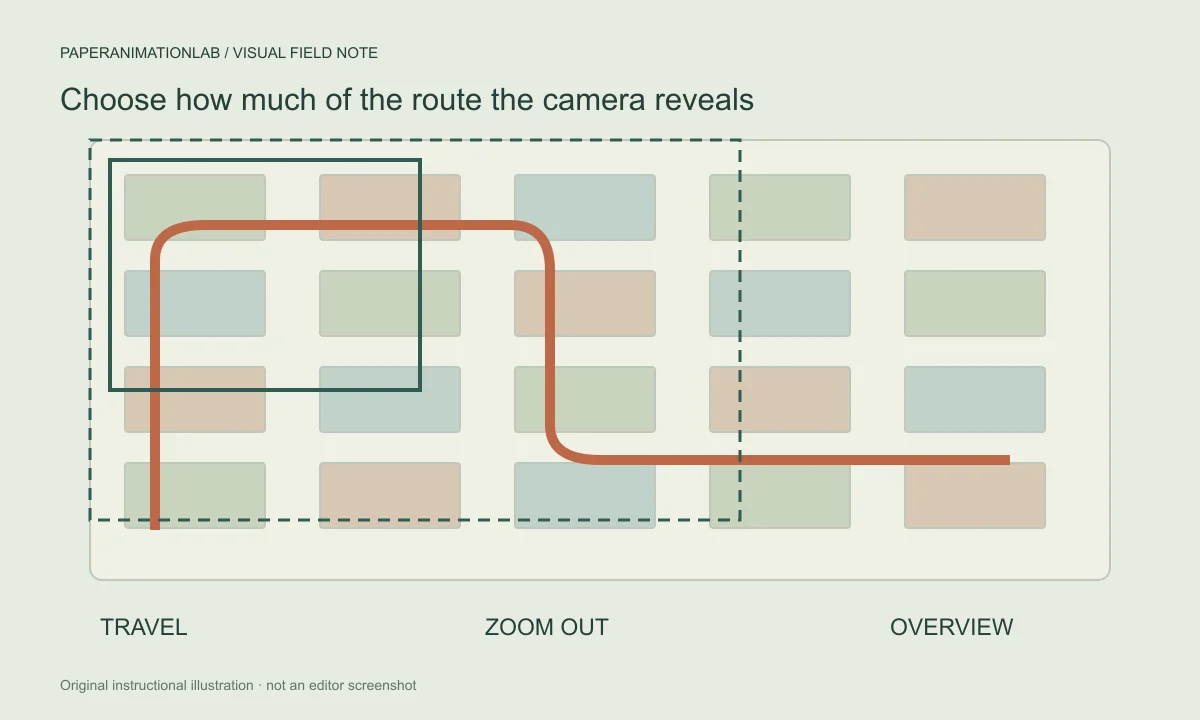
| Smooth zoom out | The relationship between close detail and the complete scene |
| Map overview | The entire message while the route draws |
Choose a camera mode for the story
Top down movement follows the route across the city. As you zoom out, the view stays in the same position, but you pull back to show more of what is going on. The map overview is used to hold everything together as the letters come in. Select the mode that best describes the direction you are moving, then change the density/color.
A smooth zoom-out is good if you want to add more context to the scene; however, do not use many zooms/scales in order to prevent jitteriness with the streets/labels. Finally, watch the entire movement of the camera at regular speed to ensure that the final destination is still visible after the map overview has settled down.
Choose how the camera follows the path
The top-down travel effect is used when you are looking at the path of your trip from an aerial perspective. Smooth zoom-out keeps the same camera angle, but zooms away to show all the lettering that has been drawn. The map overview allows the viewer to see the entire design as the path is being created. Top-down travel is best suited for scenes where the trip itself is the main focus.
The zoom-away provides more background information as the letters begin to form into a word. Zoom strength defines the beginning level of magnification. Travel speed can be changed using the duration setting. When you increase the duration, you give the camera more time to complete the travel along the route before the final message is displayed. These settings allow you to change how much of the travel route is visible and at what pace, they do not affect geographic location or actual travel speeds.
Keep the route and city readable
The number of people living in an area determines how many details will appear on the path. For example, a busy city could have a large story about the route, while a dense city would have a harder time following a short message. First determine the route, then add density only when you need to give the viewer more information about what is happening around them.
Route Ink provides three different colors: Terracotta, Teal, and Indigo. Select the color that contrasts well with both the street and the paper. Use short labels, place them far enough from the edge of the frame so they do not get cut off, and use the last image to allow the viewer to complete reading the entire route message.
Change the city without losing the route idea
The amount of white space that is left on each turn as well as the ability to scan your message will be influenced by how short you keep your lines. At the full canvas size, check the top-down preview of your work prior to making the density of your city larger or adding additional wording. When the route is being lettered, it will be the main focus point for your viewer.
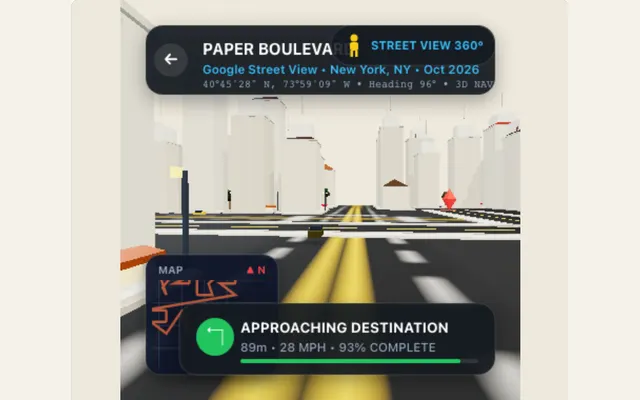
Therefore, if there are many other elements in your city, then it may be difficult to view smaller font sizes. Route Ink has three different colors (terracotta, teal, and indigo) and Generate Another City will change the configuration of the blocks surrounding the route but will not alter the message that was generated along the route. How densely packed the paper buildings and parks are will vary depending upon the city density.
Use generated cities as illustrative scenes
A different city alters how the paper buildings and parks are arranged, creating a new visual landscape; however, this arrangement is not verified as geographically correct or directional in terms of streets. The route used is treated as a stylized animation unless you independently confirm any geographic information presented to viewers.
To show a map that opens with coordinates and compass details, use Origami Fold Map. To show a paper outline of a country, use the country atlas. This city route is designed around camera movement and a pathway through a stylized city.
Save the camera choice and export
The project file stores the message, route color, camera mode, and city seed. Opening the project file will display the last layout used; this can be helpful if you want to create a new layout with different words or a different amount of time. If you generate a new city by changing the seed, you should save your project file so you can go back to the original layout.
Save a PNG as the final image from the animation, an animated GIF, or a video that works with your internet browser. When the travel sequence ends, the animation will stay on the final message until you click play again. It would be best to check the last image (the still frame) of the animation before using it as a transition in an editing program.