Origami fold map
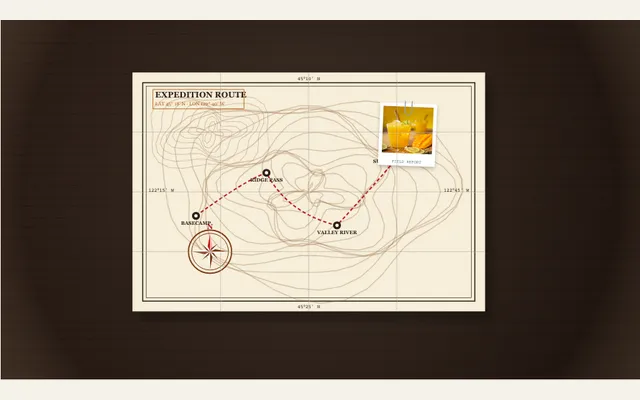
Animate an authentic pocket-sized expedition map unfolding across 16 isometric grid creases on a campaign desk with elevation contours, an ornate compass rose, and an animated ink route trail.
Try this effect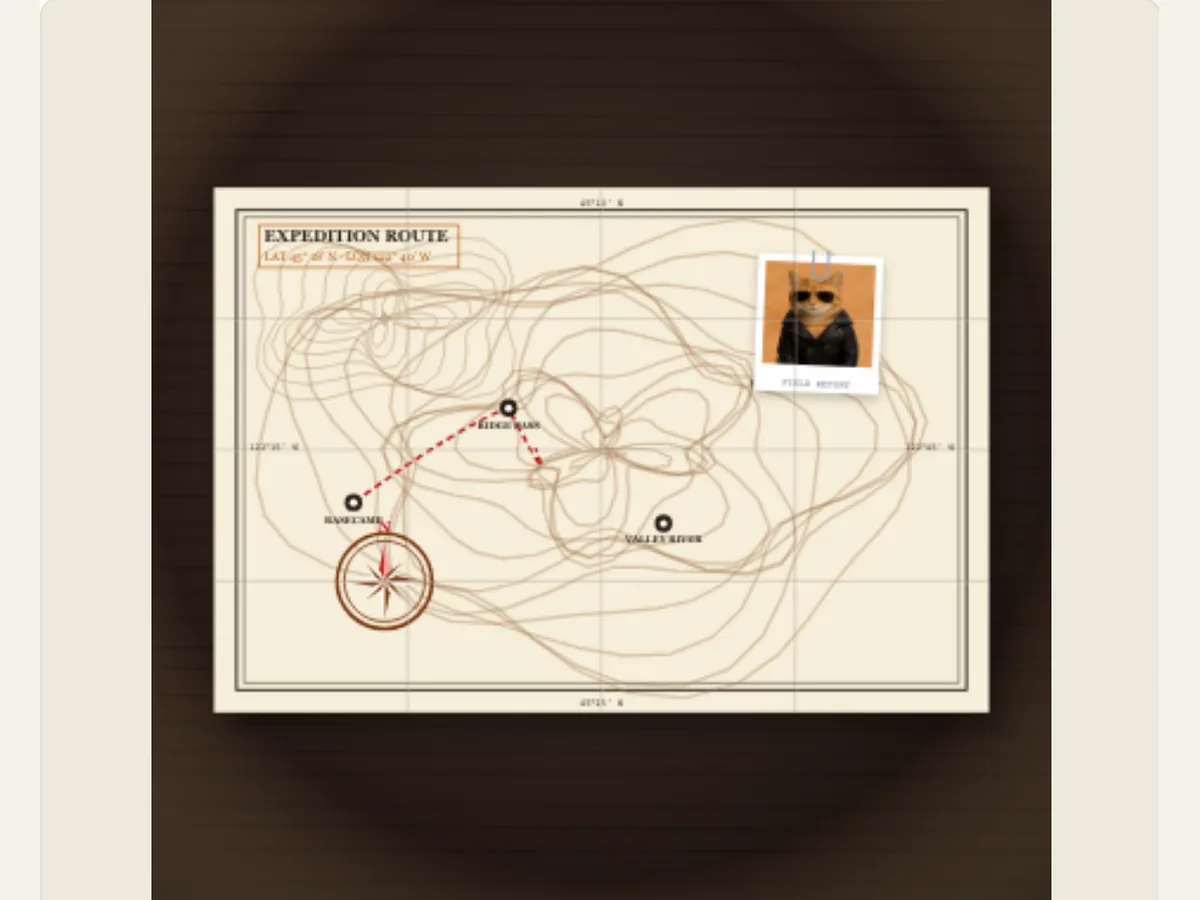
Let a folded map open into the next part of a story
The creation of a route on a map may seem more approachable to people if it begins with an actual physical item rather than being displayed on a computer monitor. Origami Fold Map produces an animation of a paper map with options to select fold types, a route display, and a label for the location you want to go to. This product can be used as a prologue to a movie about travel, as a component of an imagined adventure, as a part of a museum project, or as a way for a user to find out what path they should take to get from one point to another.
The map is a designed illustration, it is not a "live navigation service". The coordinates and name of the location used in the map sample are "editable visual copy", they are not "verified GPS data". Do not use the animation to find directions, research boundaries, or ensure safety while traveling. If the clip mentions a actual place, verify the path to get there, and the spelling of the place name, using an authoritative map source, before using the effect to visually transition to the information about the place.
Pick the paper map character first
The Expedition Map Theme provides three options for the backdrop of your routes. One option is a vintage parchment that has a sepia-toned survey appearance, another option is an alpine topography treatment which features slate-colored contour lines, and the third option is a nautical chart that displays ocean depth data. Your selection of the backdrop will establish the visual style of the scene prior to the presentation of the route. For example, if you are planning on creating a route through the mountains then the topographic treatment option would be most appropriate. However, if you are planning on developing a route that takes place along a coastline or an island then the sea chart option may be better suited. Lastly, if you are planning on developing a route for a fictional treasure hunt then the vintage parchment option would be acceptable without having to claim it represents any specific historical map.
Compare the same theme with the same title and path to assess the difference in contrast, as opposed to making multiple changes at once. At a cell phone's size, thin contours can be difficult to view, and a dark route may disappear into a busy background. The title of the map should indicate where you are going or what your trip is about. All other details around the map will remain less important. When the path is the most important part of the map, try to reduce the amount of copy on the map rather than adding more labels.
Scroll sideways to compare every column →
| Control | Available direction | What it changes |
|---|---|---|
| Map theme | Parchment, alpine or nautical | Changes the cartographic treatment |
| Title and location | Editable captions | Provides the journey context |
Match the fold pattern to the reveal
Fold Crease Grid is made up of three types of folds; a 16-panel isometric pocket-type fold, an eight-panel accordion-type expedition fold and a three-panel tri-fold surveyor. These types of folds are what divide the single flat sheet of paper as it unfolds. The number of folds used to create the pattern will affect how much detail is revealed during the opening of the map. For example, a fold that contains many folds (i.e. dense fold) will appear more complex during the unfolding process, whereas a three-panel tri-fold will provide larger areas for displaying the routes and captions before-and-after. Choose which pattern you wish to use based on the size of the final cut-out, as each fold on the map will determine how much room is available for both the routes and captions.
At the halfway mark, take a quick break from your work and verify that you have successfully opened up your unfolded map so that it appears as a single continuous piece of paper. When the wording of a coordinate caption falls on top of a fold in the paper, adjust the position of the wording or reduce the size of the caption. The editor will not convert a photograph into a mechanically accurate representation of origami; however, the editor creates a moving representation of a folding pattern. In order to present a diagram that has been verified independently, and which contains instructions for how to fold the paper, create a separate diagram and use the editor's moving representation of the folding pattern only as an initial visual aid.
Choose whether the route draws, points or stays direct
Route Trail Style has multiple options for showing movement. It can draw an animated dashed ink trail that shows the path of travel, display a direct navigational bearing line, or provide waypoint badges and pins with no connecting lines. An animated trail is useful to illustrate how someone travels. The bearing line provides an immediate link between two locations. Badges can help make sure the user's interface doesn't get cluttered with too many different decorations. Choose which treatment to use based on what the user needs to focus on, rather than the amount of options you have available.
Enter a brief title for your expedition and replace the coordinates and location with the most relevant caption for the scene. While coordinates may evoke a "cartographic" feeling, they are best used when verifying location information. If you plan to visit multiple locations during your project, determine whether your viewers will be able to easily view each stop in succession. If not, use individual map cards, or increase the amount of time devoted to each stop instead of trying to include all of the place names in the same unrolled view.
An itinerary opener with one clear destination
A travel creator could begin their weekend hiking video with the topographic theme, select the accordion fold, and create a dashed line showing a route to one trailhead. They can use a short title for their destination to establish when they start telling their story. To provide context to their audience, they can use a verified location caption. After this shot, the creator may want to include a shot of the actual landscape and present-day route information. By doing so, they will make the animated map memorable without placing on it the burden of providing all of the detail contained within an itinerary.
Students can apply the parchment-like look for a student project which includes introducing a fictional exploration, and teachers can use this technique to illustrate the change of location within a historical narrative. When the importance of a actual border or political boundary applies to the lesson, the map source needs to be cited separately and should be a reliable, up-to-date reference. While visual techniques such as using parchment-like effects do not provide insight into whether something has been legally established as a boundary or resolve disputes regarding the location of boundaries, accurate captioning and defining the scope of the animation will make it more useful for an audience.
Keep the fold and title readable during customization
An effective build begins with a theme and fold grid. Next, a route style and title are determined. After the route is displayed, determine the location caption. The remaining open panel determines what can be written. Finally, view the initial appearance, when the route first appears and when the entire frame is open. If an item falls within a crease, alter its wording or position instead of creating more motion so that the overlap is less obvious.
The project-level duration and motion settings dictate the speed. A short social clip can utilize a fast fold and single point-of-interest; while a lesson/portfolio walk through may require a longer hold time at the end. Review the video in the same aspect ratio that it is intended to be viewed, as portrait orientation provides limited horizontal space for a lengthy route caption. If the path has too much visual noise, remove unnecessary words from the caption and allow the map to tell the story.
Export the unfolded route for your edit
Export options include a static PNG, GIF, browser-compatible video and a transparent PNG sequence ZIP at 30 fps (frames per second). If you would like to overlay an image sequence with transparency over another shot in your editing program that supports numbered frames, then you can do this. Video transparency will be lost when exporting; therefore, if you plan to create a video overlay, you should use a green canvas and remove the green during editing. Although GIF output provides a single color background, it is most often used as a small preview of what your project will look like rather than being utilized as a component in a multi-layered production.
Save a still from a video for a presentation slide or social cover, and then use the video when the fold motion is being used. When you download the file, bring it into your target project and verify that the caption is still readable over top of the video that will be playing behind it. Maintain the editable project so you are able to change the destination, theme, or route wording for each future episode. In relation to other travel-related scenes, the Paper Flight Map displays a route traveled from city to city, whereas the Country Atlas displays a national outline.
Do a map fact check before publishing a real route
Route images are simple to understand as directions, even though they were created for atmospheric purposes. Before you post your actual trip plan, make sure the locations, coordinates, and routes are correct and up-to-date. The route line in this editor does not have anything to do with road closures, trails, public transit timetables, or weather conditions. Include an obvious statement or a verified companion site if the viewer will be using the clip to create their own travel plans instead of just watching the story.
When your goal is to tell a visual story, you may want to create a fictional location with a caption that does not identify its exact coordinates to help prevent misunderstandings. To use a camera as part of a journey through a miniature town created by yourself, you could use the Paper City Route. If you need to show the viewer how to fly over the Paper Flight Map, then a plane route would be more suitable. Finally, if you would like to learn about ways to move paper around in a larger scene, you should refer to the Paper Animation Guide.