Washi tape photo slap
Drop your photo with a physical paper slap, secure it with torn-edge washi tape strips, and pin it with push-pins or bronze paperclips.
Try this effect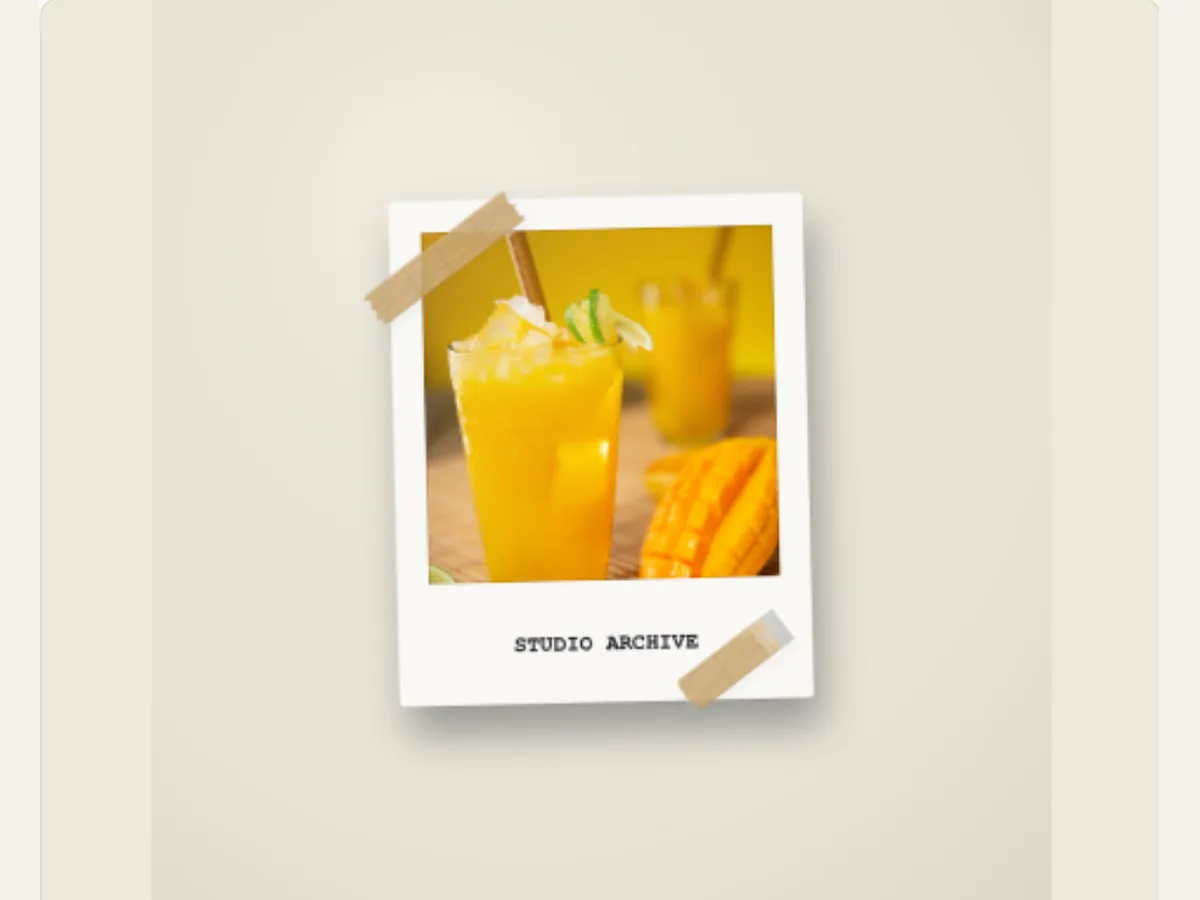
Give one photograph a place in a paper moodboard
The use of a photo can seem distant from the story being told when used on a single flat surface. A Washi Tape Photo Slap frames a photograph as if it were on a piece of paper attached to a board with Washi tape, a clip or a pin. It is most effective as part of a creative mood board, a travel memory, an introduction to a handmade product, a brief lookbook, or an update of a project that requires a tactile experience rather than a traditional slide transition.
This animation produces the appearance of a digital scrapbook rather than a photograph of a real greeting card that has been made. The animation does not produce a copy of the pattern of tape that you chose, and it does not make a copy of the tape from a certain company. Consider the patterns and the fasteners as a type of visual decoration. When the image is based upon a person, artist, or place, then you need to use an approved photograph and provide a true description for the photograph; the editor is responsible for making the card look right, but they do not confirm where the photograph was obtained.
Start with a crop that tells one small story
The Upload Photo Card will put the picture in the tape composition. It's much simpler to put a frame around a clear subject that has plenty of space around it, as opposed to a busy screen capture or a photo where the main subject matter is located at the far end. If the card should show a specific item, person or section of a landscape, then prior to uploading, crop the original photo. Make sure there is ample visual space for the tape strips and captions so as to not block out why you chose the photo.
For a collection post, each card will have one photo and the framing will remain consistent throughout the sequence. For example, if you are posting about products, a close-up product photo could be followed by a wider studio photo. If you are posting about travel, you could begin with a landscape photo and then show a detail (e.g. sign or ticket). Each card should also work well on its own since users may see the clip after it has started. Any explanations needed for the images should either be included in the post text or as a subsequent title card.
Scroll sideways to compare every column →
| Control | Available direction | What it changes |
|---|---|---|
| Photo card | Uploaded image | Sets the framed subject |
| Tape placement | Selected tape and fastener treatment | Changes the mounting style |
Select a tape style that supports the image
Washi Tape Styles include kraft masking, a very simple grid, botanical gold, holographic foil, pastel pink stripes, black electrical tape and a caution-strip treatment. These options can be either subtle and quiet, providing a frame for the image, or visually loud and punctuated. For example, a simple grid can provide a backdrop for an editorial portrait, while botanical gold might provide a nice touch for a craft or invitation. A caution strip can also be used as a fun way to warn about something in your project. It is important that the pattern used reinforces the purpose of the image and doesn't take away from it.
Preview the tape against both the light and dark parts of the image. The pale tape will fade in front of a bright sky, but the black tape may blend with the shadows. When the tape interferes with a product label, change the tape's color, or make the pattern on the tape more subtle. Do not combine a very colorful picture, a reflective strip, and a large caption, unless you want to create a cluttered scrapbook look. Most of the time, controlled contrast creates a deliberate-looking card.
Place the tape, then decide whether the card needs hardware
Tape Placement has 2 diagonal corners, 4 corner framing or a single wide header strip. The use of 2 diagonal corners is equivalent to pinning up quickly. The use of 4 corner frames provides a more complete frame. The use of a header strip provides an open space for the caption. The use of the Pin Accessory Control will add either a bronze paperclip, a red push pin or no hardware. Only utilize one form of tape placement and only the hardware that enhances the visual presentation of the scene. The addition of a clip and numerous tape strips may result in an undue amount of competing visual elements around a small card.
Single Header – If you need to make space for your caption. Corner Strips – If your image has sufficient context to be understood without an additional caption. Push-Pins – Give a centered paper card a fixed point of reference. Paperclips – Reads as a temporary note. None – If your tape keeps the composition together. Review the entire motion; the card entry could potentially overlap a portion of a caption area which appears to be free from content in the resting frame.
Use the caption to add information the image cannot
Card Captions are brief lines that can provide identification of a location, item, project, or date. They will provide additional context to the image rather than repeat the obvious. For example, a pottery studio may put "Kiln test, batch 04" beneath a completed mug. A travel card may contain the city and month of travel. A designer may write the name of a fabric or color reference. Captions that are concise and clear are easier to view as the card moves.
Longer descriptions should be placed outside the animated card. The editor's text control is most appropriate for a short caption, and should not be used for a detailed product description or a long credit paragraph. When you want to include attribution or a URL, place this in the video end frame or in the post description so that your viewers will have adequate time to read it. Before you publish, ensure that any dates or locations are correct, especially if the card could easily be confused with present-day travel or events.
Assemble a small product story without turning it into a catalogue
A maker introducing a new stationery range might first show a close-up photo of one notebook on botanical tape; then show a second card showing the paper details and lastly a final card identifying the collection. A creator sharing their travel experience would follow a similar format by using a landscape in a single frame, a subtle grid tape and a place caption. The animation for both examples provides the images with a physical-like setting while the sequence of cards tells the story.
For each weekly series, use the approved tape, placement, and caption style to create a project. You will then replace the image and text for each edition, and then preview all cards simultaneously to verify that the timing is consistent. Your series may maintain visual consistency without having to use the same photo or caption. If you want to present your subject as a "torn edge" cut out as opposed to a taped photo, consider using the Photo Paper Cut or Torn Paper Collage techniques.
Balance motion with a final hold
The editor's timing and motion settings determine when the card arrives in the scene, and for what length of time it is visible. If you are going to use a very brief hold for the card, it is likely that even a simple caption will be difficult to read. You should provide sufficient time for the user to see the location name or product identification, before cutting cleanly to the next shot. It is also recommended to preview the motion at the exact same size as the final social media post, as details that were clearly visible on a large desktop screen, may appear as small dots on a mobile device.
If you feel that your card looks too busy, try to make its paper styling simpler before adjusting how fast the animation moves. For example, if you use a four-corner frame with an accessory and a decorative caption, there won't be much blank space left on the card. Try removing either the pin or choosing only one piece of tape. Then, play the opening again. It is also helpful to take a moment to look at the last frame of the animation to see if your photo still appears to be the most important part of the card once the movement has finished. The best version will be the one in which your photo, your caption, and your tape all have separate jobs.
Download an image, preview or transparent motion layer
The exporting function allows an editor to create a single-frame PNG still, a short GIF, a video supported by web browsers, and a Transparent PNG Sequence Zip (at 30 frames per second with alpha) of the selected effect. An editor can then use the sequence on top of other footage, as long as that footage has a method to import a series of images (numbered). When an editor exports to a video format, the transparency is removed. Therefore, if an editor wants to export an effect as a video overlay, they should select the color "Green" and use a Chroma Key technique to remove the background. Similarly, when an editor creates a GIF, the background is always solid. Therefore, an editor should select the option to export as a GIF for quickly previewing their work or sharing it with others who will accept a colored canvas.
A still image can be used for a mood board, product card, or project note. A video export of your animation will allow you to import the motion of the "slap" and "settle" into a reel. After importing the file to its final location, check to ensure that both the caption and image are within the cropped area. You should also save the original editable version of the project so that you can create other colored tapes or additional cards in the future. If you need some help with creating a cleaner edge around your subject, check out Prepare an Image for a Paper Cutout. To compare this type of collage with stop motion collage, see Stop-Motion Cutout Collage.
Protect the photograph and its context
Upload only those pictures that you possess, or which you have permission to use. A decorative caption may unintentionally alter the meaning of a picture; therefore, do not include endorsements, dates or locations which are unsupported by the original source. When a picture is a "mock up," label it as a "concept" if this may impact upon a purchaser's interpretation. Paper texture and tape may give a card an "archival" feel, however, they do not indicate when, nor where, the original picture was taken.
In projects with multiple contributors, be sure to verify each person's contribution (credit) and use of images prior to final export. When a single PNG file circulates on the Internet, the accompanying text will not necessarily travel with it; therefore, it is advisable to provide attribution for the image within the graphic itself if you have sufficient space and are certain that the attribution is accurate. Additionally, maintain copies of both the original image and project files together. This will simplify revising captions and/or replacing images as required due to changes in permission agreements and/or campaign strategies.
A few ideas to start with.
Browse Motion Lab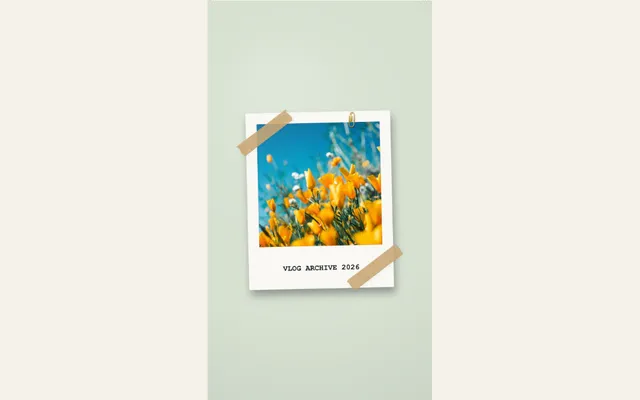
Lifestyle Vlog Polaroid
A handcrafted photo card slapped down with authentic torn-edge kraft masking tape and bronze paperclip.
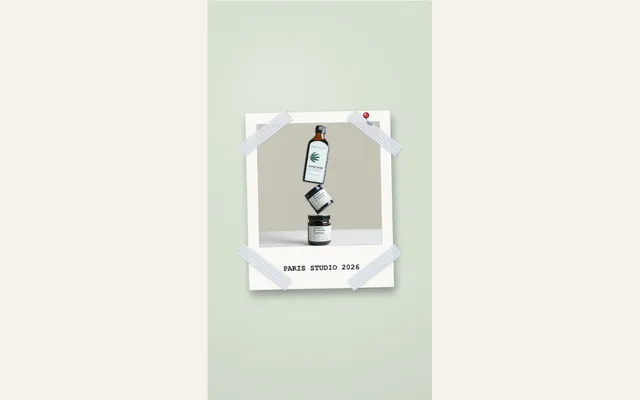
Aesthetic Moodboard Pin
A pastel moodboard photo card secured with slate grid washi tape strips and a red push-pin.
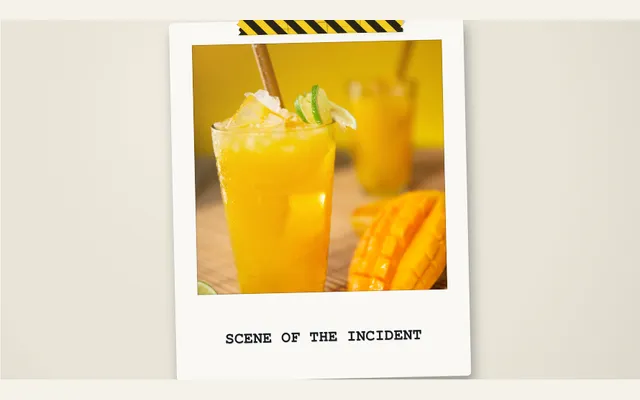
Caution Tape Incident
A bold caution-striped tape photo slap with top-single strip placement and typewriter caption.