Torn paper collage
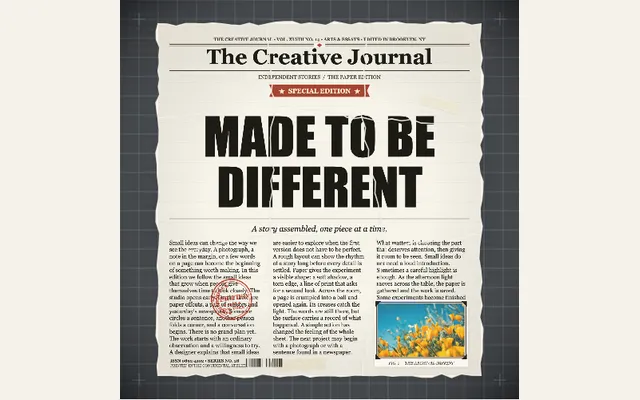
Assemble torn newspaper fragments into a complete page with a cinematic camera pullback. Try the swing-around camera, edit the headline and adjust how far the pieces travel.
Try this effect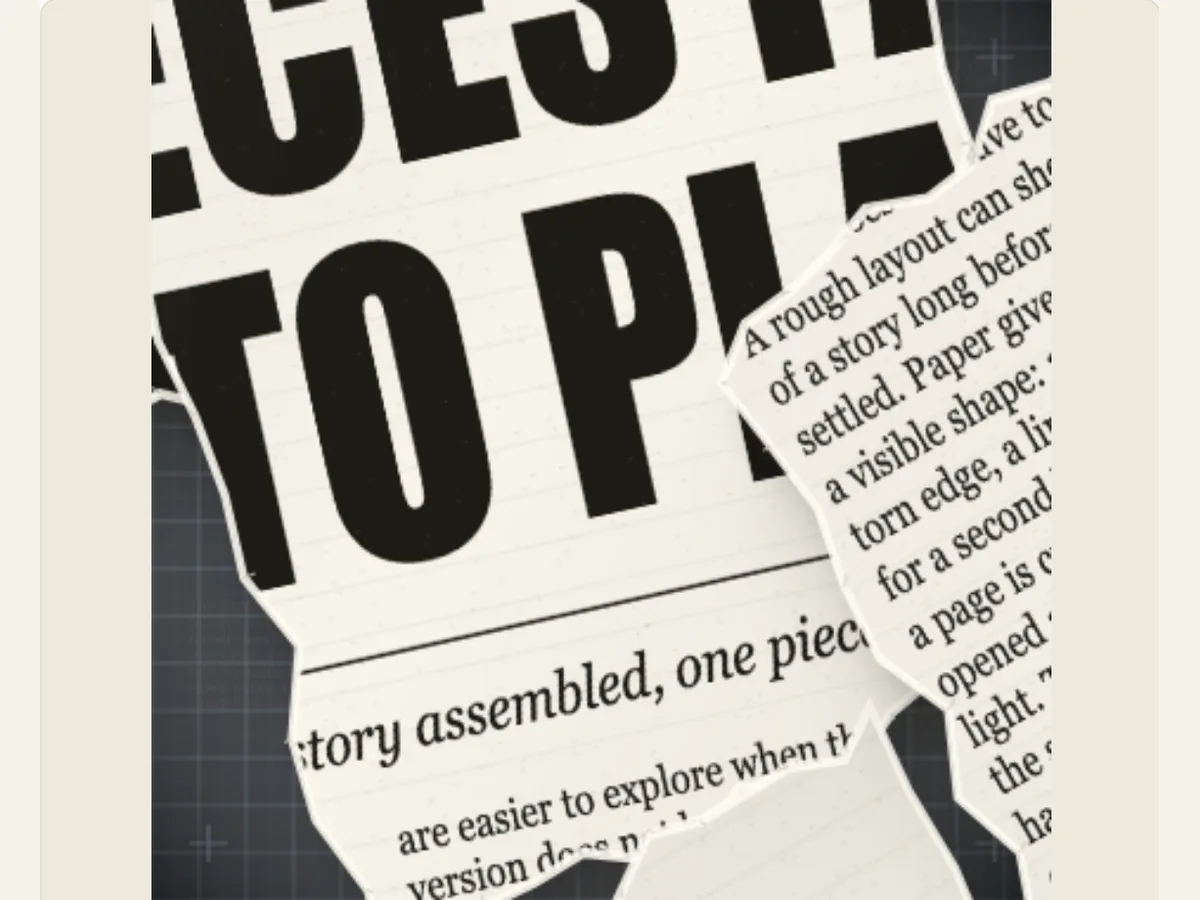
Build a headline out of moving newsprint fragments
A torn-paper collage can create the impression that a title was created by cutting and pasting snippets of paper rather than being superimposed onto a background. Torn Paper Collage creates animated newspaper clippings on both sides of a customizable headline and article content; the camera will then move away from the collage, rotate around it, lower itself to the level of the collage, capture a shot of the collage, or follow a spiral path through the collage. Torn Paper Collage would be suitable for introducing an editorial video, music sequence, fictitious file, artist's collection, or marketing campaign that requires a more textured paper appearance than a smooth transition.
A collage is a manufactured scene rather than a scanned version of an actual newspaper, nor does it provide evidence that a particular headline was in print. The copy for the article is editable and can be used as sample copy. To illustrate an actual published work, obtain a authorized photograph of the work and label the work correctly. A torn-edge border should not represent fictional words as historically reported works, or represent that a real organization produced the work.
Write a headline that remains clear after the camera moves
The collage headline must be no longer than 80 characters. Put the main thought at the top of the collage headline so that a viewer will understand the main point of the collage prior to seeing all elements of the collage. If you need to make a long sentence short, use the first half of the long sentence as the headline and the second half of the long sentence as the secondary copy. Make sure the last few words of the collage headline are readable from the pulled-back frame. A collage headline that looks good in close-up may be too small to read when the entire collage is viewed.
The article field can hold up to 4000 characters so that the entire page has more of a newspaper feel to it. That content needs to relate to the composition. It is better to use a short fictional story or relevant paragraphs as opposed to filling the canvas with unrelated text. If your readers may view the article, make sure you didn't accidentally include false factual claims and list sources for your factual materials. If the article is blurred or serves as decoration, do not show it as a direct quote from a published piece.
Scroll sideways to compare every column →
| Control | Available direction | What it changes |
|---|---|---|
| Headline | Short editable title | Sets the primary message |
| Camera move | Pull-back, swing, drop or drift | Changes the reveal perspective |
Choose a camera path that suits the way the pieces arrive
Camera options include Pull Back, Swing Around, Drop & Snap, and Spiral Drift. Pull Back will reveal more of the assembled page; Swing Around will change the angle; Drop & Snap will emphasize a decisive landing; Spiral Drift will give the pieces a more winding path. Choose one motion that supports the headline. If the message is most important, a pullback may maintain a direct reading order. If the sequence is more atmospheric, then another camera can provide a more expressive transition.
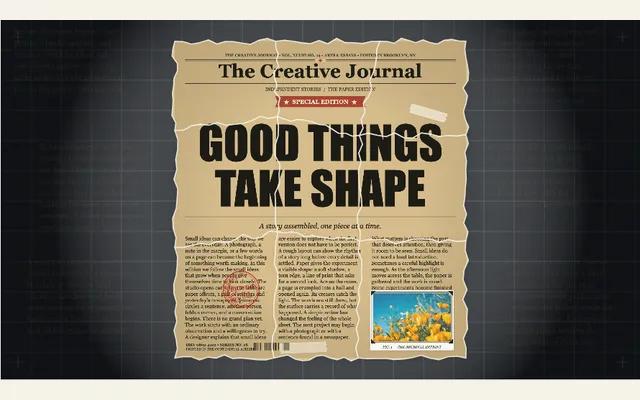
Shuffle torn pieces creates another arrangement. You should check some of your "seeds" and keep the head line and camera in one position. This may be helpful when you need to see a part of the scrap that was blocked by another piece. However, you will have to look at the new arrangement to determine whether there is any other issues. Check for pieces of scrap that cover a face, a word, or a margin that must be left uncovered. If the shuffling produces too many messy lines then try reducing the texture of the paper, or use a shorter head line so that you are not searching forever for the best random layout.
Tune paper grain and layout without crowding the page
The editor provides paper options including smooth, kraft, newsprint and crumpled, and also allows users to adjust controls for grain, edge roughness, shadow strength and image scale. These adjustments affect how much the paper appears to be handled. For example, adjusting the grain and roughness will give scraps of paper a feeling that they have been worked over, while increasing the shadow strength will provide greater separation between pieces of paper. Only adjust one of these settings if you are looking to define the edge of the paper; adjusting every setting could cause difficulty with reading copy.
Page layout and paragraph spacing may affect how the article is presented in each of the modes where these options are available. The use of compact spacing can result in a more densely packed broadsheet, whereas the use of airy spacing provides greater separation between paragraphs. Select a page layout that supports the headline and provides an unencumbered path for the camera. Experiment with different page layouts to see what works best and then verify that your chosen page layout will hold together when viewed at its intended export size.
A title sequence for an independent magazine
An independent magazine could have an opening to its digital issue using a short headline, relevant article content, and a newsprint background. The camera pulls away from the screen as pieces of paper settle, creating a transition to either the front cover or table of contents. A music project can create a similar opening using a short lyric or track title as the assembled line, with torn pieces of paper adding color and movement around it. Both types of projects will benefit from a simple focus area and a clear ending shot.
In addition, the creation of a fake front page by a fictional podcast instead of using a masthead from a actual publication can illustrate how copy and provenance are important. A collage-like transition in a museum display prior to displaying an archival image that has been credited to its original source can demonstrate why the manner in which information is presented (copy) and where it came from (provenance) are significant. The same style of newspaper presentation can be used to depict a fictional prop or an actual clipping; the audience should be able to differentiate between the two.
Adjust the pieces after setting the headline
Begin with inputting your headline and article text. After that, choose what type of paper you will be using and how the camera will move through the scene. When selecting the parts of the pieces you want to use, continue to shuffle them until you can read the words without any difficulty. If the edges of the pieces are difficult to identify, consider adjusting the grain, roughness, shadow and scale settings. Prior to setting a time limit on the total sequence, preview the entire sequence. By doing this in this order, you may find that you can easily resolve a layout problem without having to use a faster camera or add an additional effect.
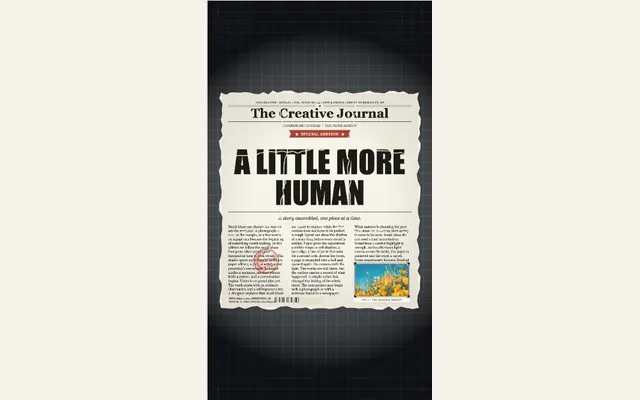
The length of your project, as well as the way you set up its motion will determine how fast the camera will reveal your composition. A simple line of text can have a rapid drop-down, whereas a magazine title may require a slower pulling back to allow for reading. If you find yourself having trouble following the text due to the camera's swinging motion, then try to select a more direct movement. Make sure to check the movement in the correct final aspect ratio, as a portrait-cropped image can cause some parts to be cut-off that were visually balanced when viewed in the wide preview.
Export the finished collage for social, film or presentation
Exporting your work will result in a PNG still image, a GIF animation, and/or a video of your Torn Paper Collage. You can select either a solid color or green screen as a backdrop for the video. The export process creates an encoded file that removes transparency from all pixels. Therefore, you must use chroma-keying on the green portion of the video in order to place it over other footage. Additionally, the GIF format also uses a solid color backdrop. The export dialog box will display all of the browser-supported export formats available on each device. Please verify what options are available prior to exporting your work.
When you want to show either static imagery (as a cover image) or dynamic imagery (as an animation/storyboard), use a still image (PNG format) and a video format for demonstrating the assembly of elements. After opening your finished rendering in your video editor program, confirm that your headline size is correct and that the paper shadows look right. Save your editable project files, so that if you decide to alter your headlines or layout at a later time, you will be able to do so. To create individual cutout letter animations, check out Cutout Letter Assemble. Stop-Motion Cutout Collage includes a photograph and layered pieces of scrap paper to create an animated collage. Finally, the Paper Animation Guide can help you determine what type of paper movement would best fit into your video.
Use newspaper styling without misrepresenting a source
The use of a masthead-like format may give your content an appearance of authority regardless of whether the content was created by you. You may use a fictional publication name as a prop, and you should not assign generated article text to an actual news organization. If you include a genuine clipping, verify where it came from, when it appeared in print, whether you have permission to reproduce it, and the context in which it was published. The effect of creating a masthead-like format will not make the information contained in the clipping accurate, nor will it replicate the look of a specific paper edition.
A final review will include checking the headline, legibility, copyright permissions, and motion of your final project at the intended size. Keep important details within a legible caption or the post itself so that a quick collage can be understood. This will allow the paper texture to enhance the title sequence and allow the audience to understand what the page represents.