Paper word trail
Circle words on a printed page and connect them with animated ink arrows. Follow actual matches in your article with a smooth camera move and editable paper styles.
Try this effect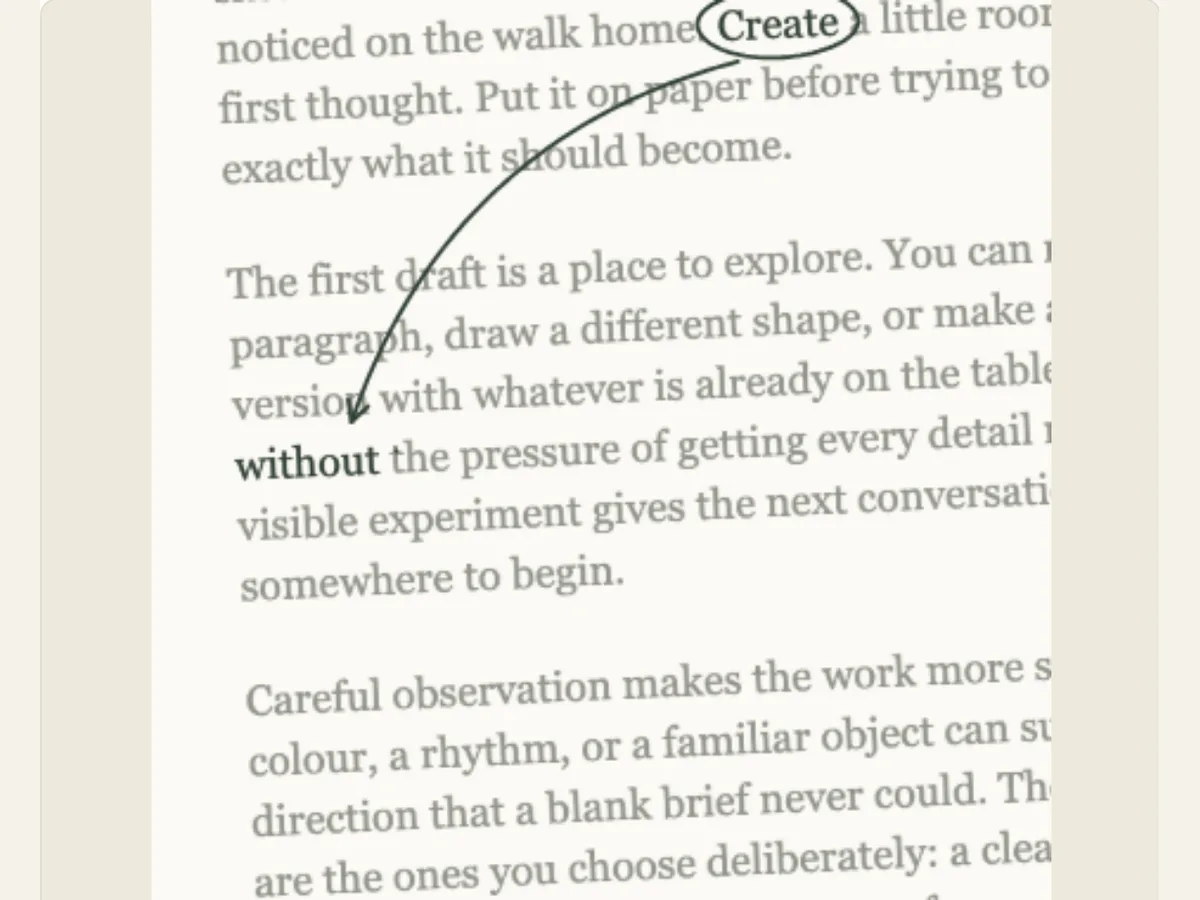
Follow a phrase through a printed-looking article
A sequence of specific words can form a short research journey on a single sheet of paper. Paper Word Trail compares the words you type to a portion of your article that you have edited and will allow you to select which ink mark you wish to draw around all of the matches found in the article while the camera pans across the page. To help make your selected words easier to see, you can choose to blur the background text. Paper Word Trail is well suited for use in explaining an editorial concept, demonstrating how a student might conduct research using fiction, or creating a video showing how an idea develops throughout a section of text.
The search tool reads the article that was inputted into the search box. It does not scan the uploaded image of the newspaper and it will not confirm the article's source. When using a direct quote, please make sure to keep the exact phrasing and reference the author correctly. The highlighted words are in the sample text and do not represent additional evidence that a statement is factual. Provide either a authorized article or a provided article with a reference to where it can be found in the attached project if your reader needs to view the original content for further examination.
Scroll sideways to compare every column →
| Control | Available direction | What it changes |
|---|---|---|
| Annotation | Circles, underlines or boxes | Changes word emphasis |
| Camera zoom | Closer or wider word following | Sets surrounding context |
Enter the words that the sample article must contain
Words to Follow allows you to enter a single sentence of no more than 80 characters. Your entry will then be compared to the text of the Printed Article, which has a maximum capacity of 4,000 characters. A report will be generated reporting how many times your phrase was located within the article, or if some of the phrases you entered were not present in the article. In the event that the entered phrase does not appear within the article, you may either modify the article text, or select another phrase. The animation cannot display a matched phrase unless it is present in the original article.
The order of the words and how they are spelled are important in preparing your sample. Before you begin moving the camera, check for correct punctuation, apostrophes, and other variations (e.g., singular vs. plural). If you plan on following three different ideas, verify that each one is mentioned in the article, and that their sequence makes sense to support your story. A shorter selection of text will provide a clearer route through the page. The "Restore Sample Article" option allows you to restore the built-in copy, which can then be used to compare your version to a working model.
Choose an ink mark that fits the text
Ink Marks may be made using circles, underlines or drawn boxes. Circles can identify a keyword for use as a clue; underlines provide a less obvious editorial emphasis; and boxes can isolate a brief phrase. Ink Colors are available in charcoal, blueprint blue and rust red. Think about the style of the page being marked up and the degree of contrast around each matching mark. A red line against a warm background will be very noticeable immediately, whereas charcoal will seem more subdued and blue will tie the mark to a technical or historical layout.
When choosing which matches to display, try not to choose a match that overlaps with other text in the column. A match serves as an indicator for you to find matches within your article. It does not ensure that each match is unique. There may be times when the camera will move to multiple locations within the article because of multiple occurrences of a match. Preview all matches and determine if you would like to display all matches in the video, or if you would like to limit the number of matches shown in the video by modifying both the article and your match selections.
Control how much of the page stays in view
The Surrounding Text Blur feature allows you to adjust how soft the copy surrounding your selection will appear. A larger blur will allow for more separation between your selected phrase and the surrounding content, while a smaller blur will provide readers with more of the original article so they can understand the general flow of the paragraph. Select the smallest amount of blur possible to keep your selected phrase legible. Although a fully blurred page may seem like an exciting effect, it can also create a loss of context which will make your search results irrelevant.
You have three options for how your Trail Style will appear. These are Classic, Notebook, and Archive. You should make your choice of Trail Style prior to adjusting the amount of blur so you may compare the contrast of the final design. If there is a large number of columns on the page, or if the type is very close together, consider reducing the amount of text being highlighted or using a stronger, yet not complete, blur. For an educational video, allow enough of the text to remain readable so as to provide context as to why the phrase is significant, then use either voiceover or captions to present the entire passage.
Turn a repeated phrase into an editorial explainer
An editor can utilize this technique to demonstrate how a term is used multiple times throughout a brief opinion piece, and determine if each utilization has the same meaning. Students can identify a couple of repeated words within a paragraph that they have written themselves and explain how their argument develops. A fictitious detective scene can be based upon a clue that is found in a fabricated newspaper article. All three of these examples utilize the movement to create a visible reading pattern, however the interpretation of that reading pattern is left up to the individual who presents the material.
For an actual article, please maintain the publication name, date, and author credit in the surrounding material; and verify authorization to use either the text or image. The resulting layout does not represent a scan of the source publication. Do not refer to this layout as a verified archival capture if it is not a direct result of being captured from that archive. When a reader wants to view the entire article, provide a link to the original source, rather than having a short blurred animation provide the total proof.
Customize one visual decision at a time
Input the chosen words, verify that the matches are correct, select a design for the pages and indicate where each should be marked. Once you've got all of your matches in the appropriate positions, adjust the amount of blurring on the screen. Finally, fine tune the camera's zoom level, movement and length of time for the project. By doing this, you'll be able to separate problems related to content from those associated with visuals. For example, if there was a missing word in the text, you could fix it by adding it back in; however, if there was an unreadable line of text, you would have to adjust the frame of reference or blur the area around it. If you wish to try out a different type of page design, then you may want to shuffle the designs. Then make sure that each match continues to be readable.
Read the animation at a size that can be followed. Reduce the amount of time that each term is displayed or increase the amount of time that each term is visible if the camera is moving too quickly across a sentence. A quick sequence can display one short phrase, while a series of sequences requires more time. The final frame of the animation should clearly state what the main idea was rather than simply disappearing once the last term is shown.
Export a readable still or a moving search
The Export panel has three options for Word Trail. It allows for a PNG Still, GIF and a Browser Supported Video. Video can have either a Solid or Green Background, however, Encoded Video will not allow for Transparent Pixels; therefore, if you require the Animation over Another Footage then you should use the Chroma Key method to remove the Green. GIF also uses a Solid Background. Before making any decisions based on a specific Codec or Delivery Format, please confirm what Browser Supported Video Choices exist within the Dialog Box.
The use of PNG files allows to capture a marked phrase on a slide and videos can preserve the camera motion during matches. Verify that the blurred area in the exported file is visible in your presentation or timeline and does not cover up the text you want to quote. Also save the editable project so you can go back and make changes if necessary. For page-to-page discovery, see Newspaper Search; Paper Magnifier will enlarge a phrase, and Paper Spotlight will reveal copy with a moving beam. There are additional steps to prepare for searching in newspapers in the newspaper search guide.
Protect context, permissions and reading access
Using the blur tool may result in the loss of qualifying statements, names or other information related to the quote you have selected. Do not employ this tool to imply that a source supports a conclusion when in reality, it does not. Provide a URL to the original source and enough context so that readers will be able to comprehend the portion of the text that you have provided. Prior to submitting text that may contain confidential information or belongs to another individual, ensure you have received authorization to do so.
Provide the main ideas from your video in either the form of captions or a transcript, so that viewers with hearing impairments can better understand what is being shown on screen. Your editor is a visual tool for creating content; it does not serve as a search engine, citation manager, or repository of sources. As long as you provide an accurate copy of the content of the video along with a valid link to where that content was originally obtained, then your animated video will allow viewers to easily identify a recurring term used throughout the video while still allowing them to refer back to the entire document.