Paper spotlight
Move an original paper projector across the frame and reveal your phrases in its light. Choose a lighting style, soften the beam and set the pace of the sequence.
Try this effect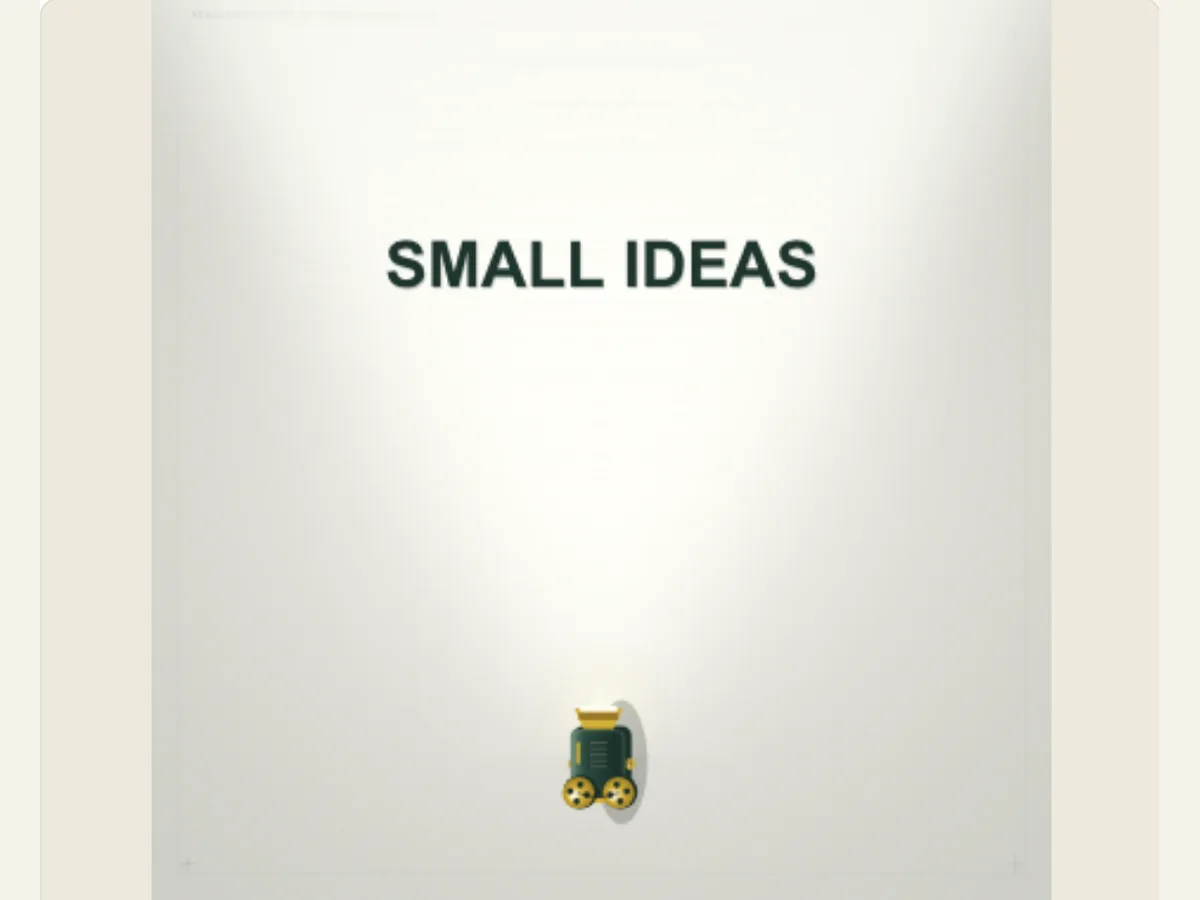
Let a beam guide attention to a short line
Using a paper-style beam of light that moves over the editable text, Paper Spotlight creates the feeling that the user has found the phrase rather than having it presented to him/her. This technique is used to shift the reader’s/viewer’s focus from the other parts of the page to the words within the beam. Paper Spotlight can be utilized to introduce a title, highlight a single concept in an explanatory video, create a sense of theater, or provide a transition between two different topics in an editorial video.
This effect highlights words typed into the editor. It will not identify or highlight words in a newspaper photo uploaded to the site. Write a brief, accurate phrase to fit the viewing area. When using a quote, provide the original source and context in either the associated video or web page. A dramatic beam may alter the tone of a quote, therefore avoid using it to imply that an actual person made a claim that they never did.
Choose the lighting language around the message
Phrases in the Light accepts a small amount of written content (up to eighty characters) to use for a single light beam. There are three lighting styles available: Studio, Noir and Paper Cut. The "Studio" option provides a very clean presentation of your message; the "Noir" option creates a darker and more dramatic reveal of your message; and the "Paper Cut" option makes your message appear to be part of a layered paper scene as the light beam passes over it. Selecting the appropriate lighting style will depend upon the content of the surrounding video footage and the length of your message, which should remain short so that the viewer can read each phrase as the light beam moves.
The first type of light (the wider treatment) allows the viewer to see a larger portion of the page at once. The second type of light (the narrower treatment) directs the viewer's attention to a smaller part of the page. If the viewer needs to read a sentence, then the wider treatment will allow the viewer to maintain their location on the page. On the other hand, if there is a single key word that you want to highlight, then the focused treatment would be best. To begin, use only one phrase and try each type of light (wide and focused) prior to expanding the amount of text. Adding too much text can either extend the sequence or compete with the brightly lit area, but adding more text will not provide any additional useful information.
Scroll sideways to compare every column →
| Control | Available direction | What it changes |
|---|---|---|
| Lighting style | Studio, Noir or Paper Cut | Sets the stage treatment |
| Duration | Complete sequence time | Changes time available to each phrase |
Use the beam as an editorial transition
A presenter may start a short lesson by having a phrase on a piece of paper that has some light shining through it. The presenter can then make sure the phrase is illuminated. A theater group can use a noir-style light to illuminate the name of a character before he/she enters a scene. A product development team can have one label of a feature in an announcement, and then the next shot will display the actual product. This animation can be the entrance into explaining why that phrase was important.
For a campaign, use one short line like the name of a collection, or the theme of an event. On a second card, include the date, location and complete call to action so viewers can easily read those. In a classroom setting, cite the source material separate from the effect so that the beam emphasizes the source, and the rest of the content provides detail and support.
Give each phrase time to emerge
Start by typing in the exact wording and selecting the type of light you would like to use. After selecting a beam width, you may view the entire movement of the beam on your screen from the dark portion of the page to the fully illuminated section. Your editor’s overall duration and movement settings will determine how fast the beam moves across your screen. For example, a short phrase may be able to travel quickly; however, a sentence will require enough time for your audience to read the text before being able to move on. If your audience misses the text, consider simplifying the line prior to adding visual elements.
Watch how far the beam goes from the phrase. If the selected words are on more than one line, a thin beam could show them in an odd sequence. Reword the text, adjust the beam width, or separate each thought into its own beat. Check again at the aspect ratio the video will be displayed in. Titles that look good on large monitors can look too small after being compressed for mobile viewing feeds.
Build a clean composition around the bright area
A spotlight alone will provide contrast to your lettering, therefore, use minimal decorative elements. A simple background allows for increased focus on the phrase, and a multi-layered paper technique can provide added texture to your project as long as you can still easily read the phrases. You should avoid having a logo or subtitle directly under the most intense beam of light unless the two are meant to overlap. When creating a multi-lined passage, create natural breaks in each line and delete any additional words that do not aid in the understanding of the message.
If you find the lighting is harsh then switch over to the wide soft beam and do not add any additional glow treatments. When the paper setting is too bright, change the style to a darker one or lower the level of detail surrounding the subject in the video. The editing program provides you with a very limited amount of controls, therefore the design process is mainly focused on establishing a clear relationship between the phrase, beam and page. Examine the frame both during motion and when it comes to rest.
Examples for a lesson, title and story beat
A writing teacher can show a verb within a sentence, prior to demonstrating how the verb will alter the tone of the paragraph. A mystery short can reveal a clue word, and immediately transition to a character reacting to that clue word. A product introduction can state "REPAIRABLE BY DESIGN" on a paper-cut beam prior to detailing the materials used to create the product in the following scene. In all instances, the highlighted phrase is specific, and the surrounding message provides the explanation for why it was highlighted.
You can introduce a speaker or chapter using this effect, without using a whole slide. Use Noir to create a tense, dramatic beat, Studio for a polished, informational video, and Paper Cut if you have a tearing or layering of paper within your visuals. Don't state that the editor found the phrase in an actual publication - you provide the content. If you want to find matches for phrases in actual newspapers, use Newspaper Search or Paper Word Trail, which will allow you to search through editable article text.
Export the reveal for a post or editing timeline
Export panel offers three different options for this effect, including a static image (.png), animated (.gif) and a video file that can be played on most modern web browsers. Exporting as a video will provide either a black/solid background or a green screen, but will not allow you to keep transparent areas. Therefore, you should use a green background to create the beam effect and then remove the green background using Chroma Keying (green screen removal) if you want the beam to appear on top of another video clip. GIFs use a solid background as well. To ensure you are choosing an option that is compatible with your browser and/or device, review the list of available export formats within the export dialog box as there may be differences in the types of encoded files supported by various browsers/devices.
A still PNG image is suitable as a title image when the words are already illuminated. Video will capture the beam's motion in either a reel or a presentation. Once you have imported the file into the editing software you plan to use, check how well the beam stands out against the background of your footage. After reviewing your edited footage, you can save the project so that you can go back and alter the text or the beam. If the image requires a lens (rather than a light source), refer to Paper Magnifier. If you wish to look for something within a layout of printed pages, refer to Newspaper Search and its accompanying newspaper search guide.
Preserve a phrase’s meaning when you isolate it
A moving beam of light will remove all surrounding context from view, even if there is a complete copy of the original text available to you in the source material. You should use either a line of text that can be used independently of other lines, or replace the lost context with another shot. Do not cut off a sentence so that it alters what the person said (their conclusion), who they were talking about (subject), or who was speaking (speaker). When using a quote from a report or article, provide a source in your final product and ensure the visual element does not suggest endorsement.
When writing for a fictional story, provide original copy for the scene, and do not include real names in the copy unless you are allowed to do so. In addition, when providing educational materials, provide a distinction between the highlighted term and the evidence provided within the lesson. This visual focus will help your students see the point of the lesson, but it should not cause them to believe the highlighted line is independently verified. Your visual focus is more effective when you accurately source the material, and provide appropriate pacing for your visual focus.