Paper magnifier
Scan your printed text with an animated magnifying glass. Enlarge the actual page inside the lens, choose a paper style and adjust magnification, lens size and speed.
Try this effect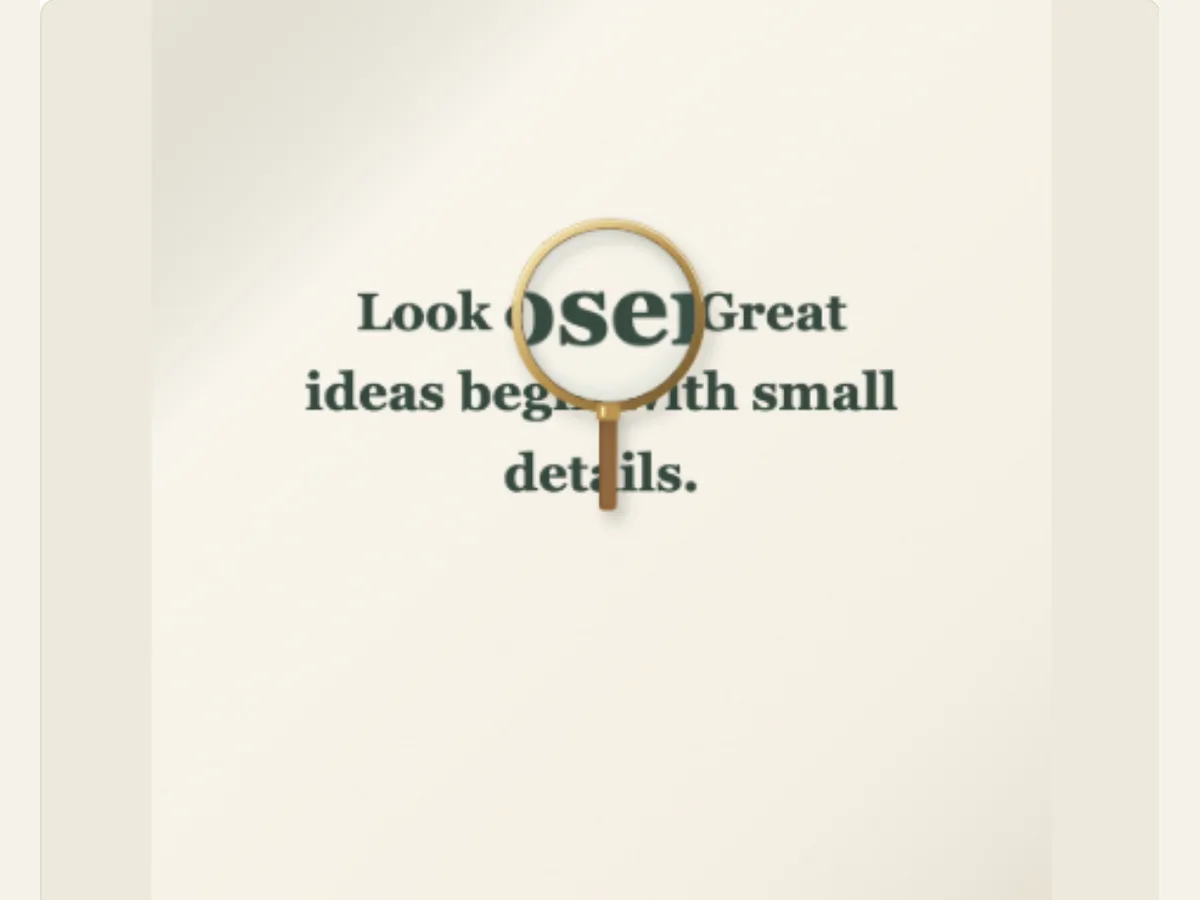
Bring one line of printed copy into focus
A page may have much more data than what a short video could provide. Paper Magnifier employs an animated lens that will magnify a user-selected line of editable text so that the user is able to pay attention to a specific phrase, clue or detail. Paper Magnifier would work well for a magazine-style title card, a fictitious research period, an in-class lecture about typography, or a transition in an editor's piece that directs the reader to read a passage from a print-like page.
The magnifying effect is used to make the text in the editor larger. It is not used to search the web for information about what was typed, identify words within an uploaded image, or determine if a quote is correct. When you find a line that is credited to someone or something (a person or publication), you should verify both the content and where it came from prior to utilizing it. Use the lens as a way to emphasize a particular part of the video or article. Additionally, provide the full citation or source of the information surrounding the video or article when accuracy is important.
Scroll sideways to compare every column →
| Control | Available direction | What it changes |
|---|---|---|
| Lens magnification | 1.25× to 3× | Sets enlargement inside the glass |
| Lens size | Adjustable viewing area | Changes how much text is visible |
Write the phrase before adjusting the lens
Text to Explore will accept a small amount of text (up to 80 characters). You can use a single phrase or short sentence as long as it fits within the lens. A longer quote may be wrapped too much, and if you enlarge it, it will look crowded. Remove any unnecessary words and keep the basic structure of the quote intact. When using a quote from an article, copy the exact phrase and make sure that all the punctuation is correct prior to setting up the movement.
The text can be used in different ways depending on what kind of document you are creating. For example, if you are making a product demonstration, the text can be a feature name; if you are making a mystery story, the text can be a hidden clue within the rest of the text. This editable text field will be the editor's "sample page content." This means that the text in this editable text field is not pulled directly from the scanned image. Therefore, if you want to highlight a certain phrase in an actual newspaper image, you should find a source image that you have permission to use and then find a way to edit or preserve the original image using other software programs, rather than assuming that this text control reads the text out of the image for you.
Select paper and lens character
The Paper & Lens system has three treatment options available for the frames used on the page: Ivory (makes pages appear "warm" and "familiar"), Modern (editorial clean), and Archive (supports an "aged" research environment). Each of these treatments changes the frame surrounding the text, but none of them change either the source or age of a real document. Before using high-powered lenses to read the text, choose a treatment option that will provide sufficient contrast for the words you want to view.
The paper should have a quiet enough look so that the lens becomes the center of attention. When you enlarge small text against a strongly textured background, the text may lose some of its detail. Therefore, try to use a simpler paper style or a shorter phrase as your first choice. A "look of an archive" can work well with either a fictional or historical-style composition; however, it should never be shown as an actual archival page unless the image and documentation supporting the claim can be verified.
Set zoom and lens size for the amount of detail
Lens magnifications range from 125% to 300%. The lens size ranges from 50 to 110. The higher the magnification, the less amount of characters you will be able to view at once. Therefore, a higher magnification works well for looking at one single word or a brief detail. Lower levels of magnification allow for viewing of whole phrases within the lens. Larger lenses provide additional reading space, however, they also provide less space for viewing other portions of the page. Smaller lenses allow for greater precision in viewing, however, smaller lenses may make fine print difficult to read.
Separate the magnification from the size. When a viewer can't read the magnified version, either adjust the size of your lens, or reduce the level of zoom prior to increasing the amount of text you provide. When your lens takes away from the surrounding context, decrease the size of your lens and shorten the passage. Preview the movement of the final display dimensions; what looks great on an editing canvas with a 300% magnification, could potentially be hard to view in a smaller social post.
Use a magnified detail as a transition or teaching moment
The lens may be used by a design teacher to help students identify an aspect of typography as they scan through a brief headline, after which they would transition to a still slide containing all the relevant information. In a scripted mystery, the lens may be used to present a fake code in the sample text and then introduce that fake code prior to the transition to the following scene. A product video may enlarge a single label on a product or a feature name on a product so that the viewer focuses on the specific element being discussed.
Keep the revelation relevant to what you want your audience to understand or find. A lens moving over random words may be visually interesting, however, it does not provide the viewer with a reason as to why the word is significant. Include a brief title or voice-over to provide context and ensure that the highlighted word corresponds to the title or voice-over. If used for research or education purposes, do not replace a citation with a generated paper background. Instead, include a link to the source or give credit in the correct location of your project.
Build the scene around the lens’s reading window
Type in the sentence, select a design for the page and then determine how large the magnification will be and what size the lens will be. View what part of the page the lens is going over and if the words you want to read are in that region. Since this field is narrow, a manual line break or a rewording of your selected text can help the text look better within the space provided. If you intend to use the animation to draw attention to something specific, then keep all other labels outside of the area that is being viewed through the lens.
The overall movement and duration of the editor's adjustment of the amount of time that a viewer will have to watch a search. A small word may be shown quickly, while a short sentence may require a slower travel and a last hold. View the clip without stopping and then determine if you could read the line in the first viewing. If not, then reduce the text or change your lens settings prior to shortening the sequence.
Export the magnification for a video or still graphic
The download options offer a still PNG, a animated GIF, a compatible web browser video and a 30 FPS Transparent PNG sequence ZIP. When importing an image sequence into compatible editing applications, you will be able to maintain transparency on your lens. If you choose to output a video format, the transparency will be flattened. You will need to select a green background and key it out if you would like to have a video overlay. The GIF output is flattened against a solid color as well.
A PNG can make an effective slide or thumbnail if the lens was able to settle on the primary phrase. Use either a video or a sequence to represent the search motion in a transition. At the maximum resolution verify that the compressed version of the original source text is readable. Also save your editable project file so you can adjust the scale of the lens or alter the phrase at a later time. When searching for phrases within a newspaper format, consider using either Newspaper Search or Newspaper Page Scan; Paper Spotlight utilizes light to emphasize copy.
Keep the highlighted phrase in its proper context
Magnification may alter the way in which a statement is understood if it takes away the sentence surrounding the quotation or the author of the quotation. When the quotation is used in full, provide sufficient surrounding text to allow readers to understand what the author meant by the quotation. Using the animation to create an edited line of text so that it appears to have come from a real source that did not contain it is misleading. When writing fiction, create original lines of text to avoid creating the impression that you are quoting lines of text from a real source.
If you teach using an actual document, let students know where you obtained the document, and tell them what you changed by enlarging some parts of the document and omitting others. Make sure that all personal data is removed from the sample that you share publicly. The main goal of the lens is to increase readability of the text, not to be authentic. When a simple sentence is used to describe a portion of the text, a student will have enough time to read the text in its entirety, and there is a citation explaining where the text came from, students may find a detail in the text that they had previously missed. However, students who require further explanation can access that information through other means.