Newspaper page scan
Build a fast newspaper page scan animation with a layered stack of varied article layouts. Blur the surrounding print, then resolve on your selected word or sentence with an adjustable marker, page count and scan speed.
Try this effect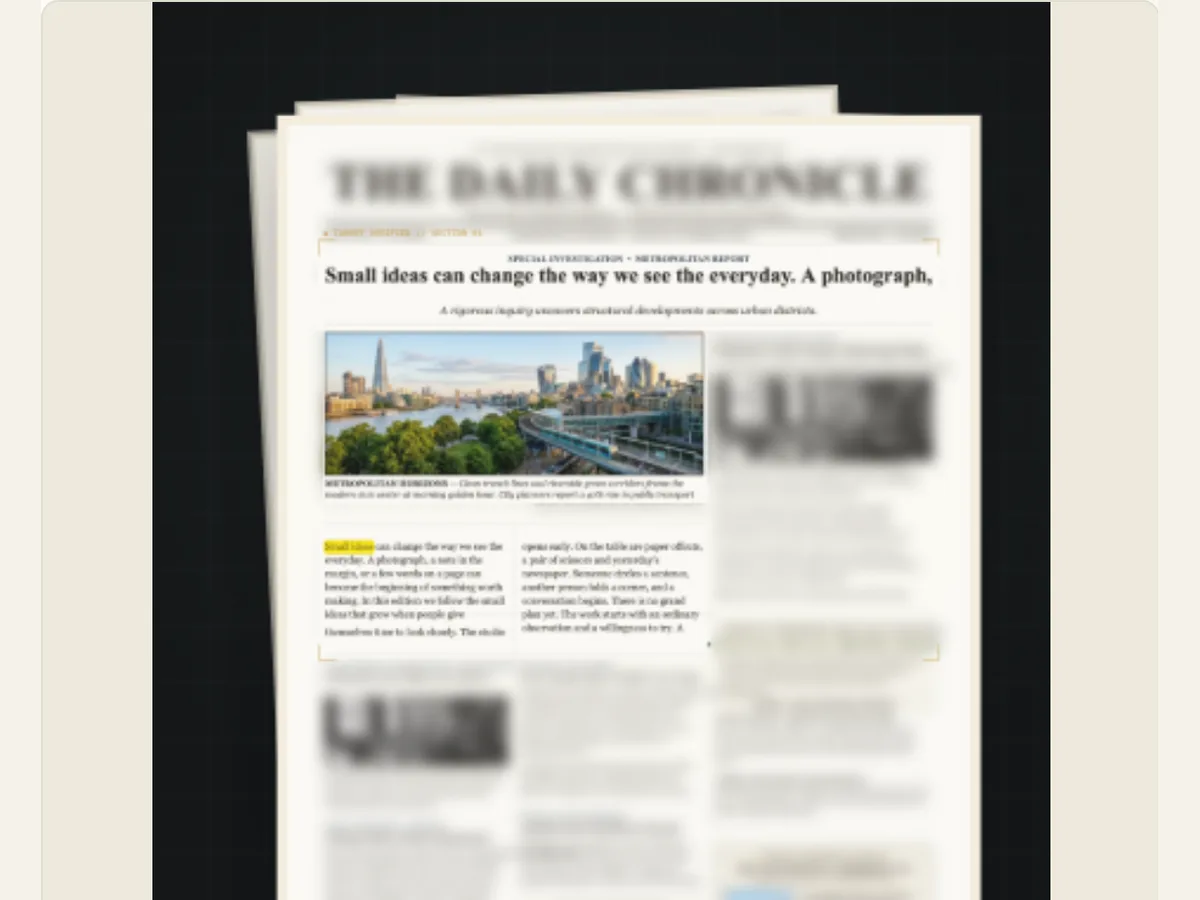
Make a rapid page scan land on a specific phrase
A fast scan is most effective when the narrative requires an element of search, yet does not allow for prolonged examination of each page. The Newspaper Page Scan will take a user through a variety of editorial designs, blur out the adjacent content, and focus in on a sentence or phrase that was located within the editorial design provided by the user. This scan can serve as a "thriller beat," a short introduction to a research explanation, a classroom demonstration, or as a transitional scan from a large page view to a single line of text.
The scan only works with editable text in the project. It cannot go online, and it cannot "read" text in a photo. This is not an OCR program, an archive of newspapers, nor a fact check. The layout of the pages is created editorials and not exact duplicates of individual issues of the publication. For any word(s) that were taken from an outside source, provide the citation for the outside source and confirm the reliability of the source, then only use material which you are authorized to republish.
Scroll sideways to compare every column →
| Control | Available direction | What it changes |
|---|---|---|
| Match location | A selected occurrence | Sets the final passage |
| Page scan speed | Slower or faster browsing | Changes scan pace |
Test the search before choosing how fast to scan
Enter the target word or sentence, then verify that the Match Indicator locates it within the article. The Match Location Control determines which instance of a phrase will be highlighted if the phrase appears multiple times. If no results appear, review the article's text and punctuation prior to altering the camera speed. A scan can only identify words that exist within the editable text; therefore, a missing phrase represents a content issue, not a camera adjustment.
The article field allows for as many as four thousand characters. A concise passage will be much easier to read than a large amount of text when reviewing how a match appears within different page layouts. Select an instance of the match which includes enough context about the surrounding text to provide a complete understanding of what the story is about. The chosen location is a visual destination, and it does not guarantee that the wording is accurate nor does it guarantee that the source is trustworthy.
Set the page count and scan speed
The number of pages to scan is between two and six. A two-page scan will lead to the reveal quickly while a six-page scan provides a more comprehensive search experience that requires additional viewing time. Select the number of pages according to the speed of your video and the level of complexity associated with your discovery. Your use of a multi-page stack may provide suspense when the audience wants to view a single phrase; however, it can also delay the delivery of the information that the audience is seeking.
The speed at which the page scans ranges from 0.25 to 2.0 times of normal speed using the preset options and also has an adjustable slider for users who want to set their own scanning speed. The fastest speed can create the feeling that the page is being visually scanned, while the slower speeds will allow the user to see how the layout of the page changes. Users should be able to see their search results long enough to read them regardless of whether or not they performed a quick search. Additionally, users may find that holding onto the last words of each sentence provides a better transition from one page to another than having each page scan at the same rate.
Choose a focus treatment for the final scan frame
Background blur is used to reduce the amount of attention that is paid to the text around it. A marker color may be yellow, green, pink, cyan, or orange. Headline-focus options put the subject matter in the top, middle, or lower portion of the page. Focus style includes marker, spotlight, cutout lift, and locked match cut. A cutout can lift words from the page; a spotlight highlights a small section; and a marker provides a direct editorial highlight.
Apply blur only when selecting a focus option. A high degree of blur will help to reduce visual noise during rapid movement, however, a large amount of blur may also take away much of the surrounding context required to comprehend the quote. When the quoted material is an entire sentence, apply a method that permits viewing as many words as possible. Review the image both during scanning and once the scanning process has been completed. This is due to the fact that transitions between display methods can temporarily affect contrast levels near the subject area.
Make the pages feel varied without losing continuity
The design of the page is offered as a mix of traditional newspapers, paperbound books, hardcover books, magazine articles and small journals. There are three types of paragraph spacing that may be selected from: compact, evenly spaced, or with some white space between paragraphs. If you have several pages designed in different styles, it will provide your scanned material with less repetition than if you chose only one style for all of your scanned materials. A "Shuffle Page Designs" feature will create yet another option for you to choose from when selecting how you would like to display your scanned materials. Test out several options while maintaining the same text and scanned material at the same scan rate.
Avoid referencing actual newspaper editions unless you are using a verified reference and will be accurately portraying that publication. If you want the visual to look like a scanned document, indicate this to your readers as appropriate so they do not think they are looking at historical scans. Varying your page designs is good practice as long as it allows for better readability of the information presented; however, frequent, sudden changes in design can cause readers to lose their place or believe the subject has moved around randomly.
Use a scan for suspense, then give the viewer the answer
A scanning shot would allow a reader to go through an arbitrary number of fictional pages until they reach the page with the critical clue that alters the course of the story. A speaker could visually identify a key word using a quick scanning shot and then provide a fixed title card explaining the word. A media literacy lesson may show students where to find a word in a written passage and then ask them to interpret the context of that word based upon the surrounding sentences. In all three instances, the scanning shot establishes a temporary visual exploration of the material, whereas the following shot provides an interpretation of what was found during the visual exploration.
The focus of the article should be on generating highlights based upon what you have submitted. When writing about an actual problem, do not allow the reader to assume guilt or certainty regarding a situation prior to your providing evidence. Be sure to include the original source, the author(s), and the date of publication as part of the description or within the following section of the document. Use neutral language if the information is unverified. Use a quickly produced visual to provide an easy transition for readers, while keeping the integrity of the facts intact so that they are not presented in a distorted manner.
Refine the sequence in three passes
To begin with, find the desired phrase in the article and click on it. Then, determine how many pages will be scanned, what format the pages should be, and at what speed the scan will occur. Lastly, adjust the amount of blurring that occurs during scanning, select the location of the markers that indicate each scanned area, and position the camera to focus on each scanned area. Before continuing, preview the entire scan using the correct aspect ratio. This process allows you to determine whether issues are related to the layout of the document being scanned, or if they are caused by the timing of the scan. If a phrase becomes hidden behind other text, change either the page layout or the location of the target area, prior to increasing the level of blurring that occurs during scanning, or increasing the rate of scanning.
The quick check will show if the target was scanned too early, too late, or was scanned too little. If you missed the target, adjust the page number down, slow the scan speed down, or extend the amount of time that you wait at the end of the scan. If your scan seems slow, try using a faster preset and scanning a smaller section. What you choose to use as the optimal scan settings depends on whether you want the audience to experience searching for something or whether you want them to be able to read what is written around the search.
Export the scan for a deck or video edit
The Export Dialog allows you to select either a PNG Still, GIF or Browser Supported Video for this effect. Video Output may be created with a Solid Background, or Green to create a Chroma-Key Composite; Alpha Transparency is Flattened into the file. GIF also creates a Solid Canvas. Prior to creating a Delivery Requirement, check what Formats are Supported by Your Browser because Codec Support is Different Across Environments.
Use the still image to show what you have chosen to highlight in the article on your slide. If you need to quickly move through many articles, use video. When you open the final product in the editor, make sure that the selected text remains readable as it is compressed or scaled. Save your work, so when you make changes to the article you can update the selection to reflect those changes. For a slower multi-page discovery with an adjustable headline pause, visit Newspaper Research; Newspaper Search focuses on one supplied article, and Paper Page Turn emphasizes page movement.
Avoid turning a visual scan into a false source claim
Newspaper layout implies the use of published reporting. Use fake mastheads and content as story props, and don't make it appear as though the printed page was pulled from a factual archive. If a scan was created using genuine writing, keep track of where you got your source material and confirm that all quotes used are accurate within their respective contexts. When a highlighted phrase is used, it can lose its qualifier or alter its meaning if the rest of the text around it is illegible.
Provide a link, reference and accessible text for relevant, reliable factual information outside of the animation. The effect causes the appearance of a phrase within the users' inputted text; however, it does not confirm the age of the article, who wrote it or how trustworthy it is. Having clearly defined sources allows the rapid movement to transition into a verifiable explanation rather than substitute as an explanation.