Comment reel
Animate Twitter/X, Instagram or YouTube comment cards. Highlight a full phrase or reveal one word at a time, with editable profiles, backgrounds and timing.
Try this effect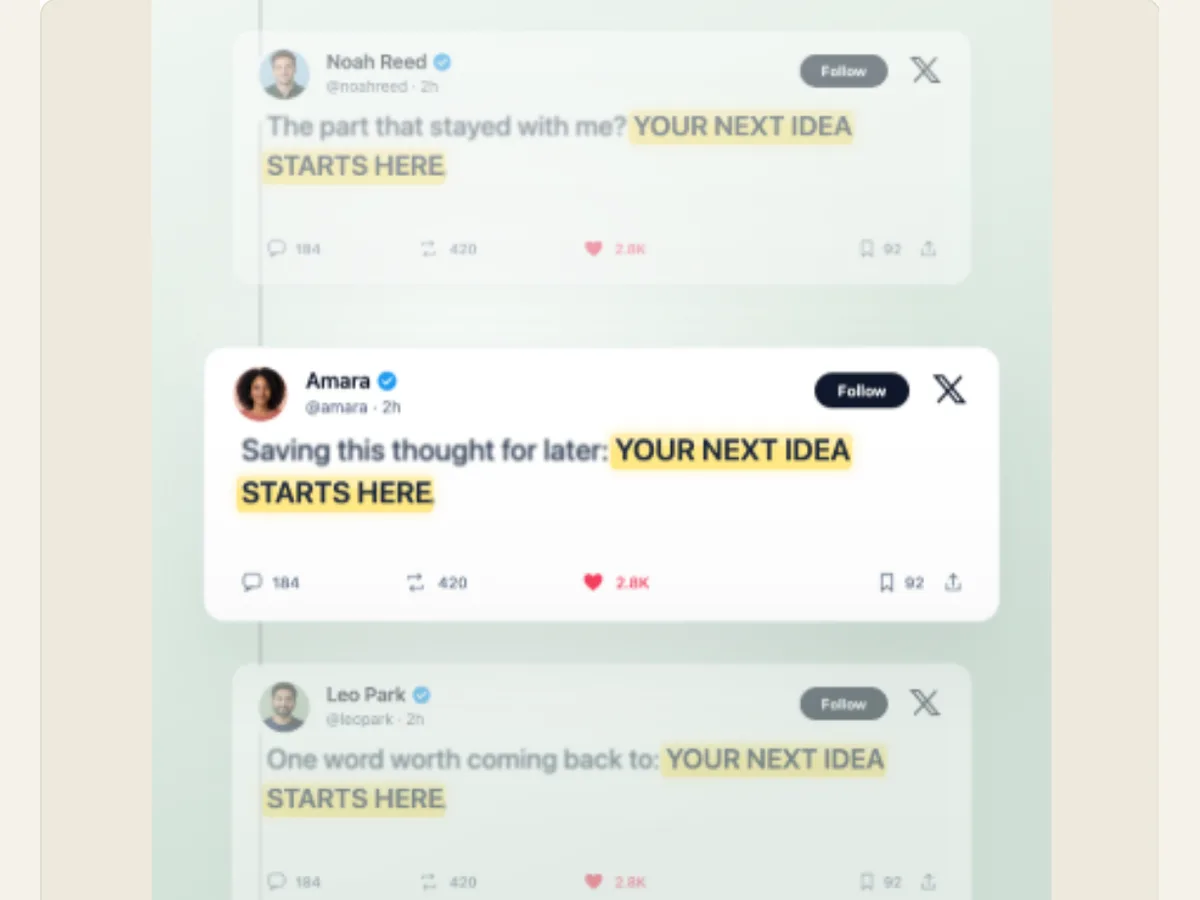
Turn a short line into a sequence of comment cards
A comment montage shows the journey of a comment throughout a conversation rather than showing a full social feed. Comment Reel is used to build sample cards (editable) from X, Instagram, and/or YouTube. Users have options for: highlighting phrases/words, using profile images, transition styles, pacing, and backdrops. These cards may be utilized for: a fake campaign idea, a social video mockup, a creator’s scripted narrative sequence, or an internal presentation on how a particular message could be received.
The card is only a sample that can be made in the editor. This does not link to social media profiles, import real comments, verify usernames, nor display actual user engagement. Do not use the sample cards to represent true endorsements or reactions from users. If you are showing off a concept, then use fake names and fake examples of what people might say. Or, if you would like to use real comments and pictures of people, then make sure you ask them for their permission first.
Choose the platform layout and card language
The platform provides options for Twitter/X, Instagram, and YouTube. Each provides the reel with a different visual cue, so pick the layout that best fits the story you are telling. You have the choice of Card Style using Paper Cards, Ink Cards, or a Minimal Thread. Paper Treatments can make the reel appear hand-made, Ink Cards can provide a more high contrast look, and Minimal Threads will allow for more room to write. Backdrop can use a soft studio gradient or the Project Background.
The change of platform selection only affects the look of the card, not where the content created will be posted. A card designed to appear like a post from a particular social media site does not represent an actual post, and it does not imply that the creator of the card has posted anything on that platform. If the video clip being produced is a mock-up to present to a client, then name the card "Concept" and do not include any platform specific labels that you are not authorized to use. When the focus of your project is the message you want to convey, rather than a particular service, using a neutral card style may be a more appropriate option.
Scroll sideways to compare every column →
| Choice | Alternatives | Difference on screen |
|---|---|---|
| Platform | X, Instagram or YouTube | Changes card styling |
| Highlight mode | Full phrase or one word at a time | Changes sentence delivery |
Write the sentence and select what gets emphasized
The maximum amount of characters for your sentence is 80. The highlight feature may display a complete phrase within each comment or individually reveal one word. Your surrounding comment templates establish the supporting text for the phrase, and your Commenter Names provide the names of commenters. Write concise comments that are different from the headline instead of simply duplicating it. Short comments assist users in reading the most important words prior to the entry of the subsequent card when there is high speed in the animation.
Word Highlight is available in either a warm yellow, sage green or soft pink color. You should select a color that will remain readable when applied to the card you are designing. While background blur can help draw attention away from other parts of the screen and focus users' attention on the card they are viewing; however, excessive blurring could prevent users from seeing relevant information. When referencing a statement made by a company about one of its products or as part of a public statement, be sure to use accurate wording. Please do not create the appearance that a made-up customer review is actual feedback from a real customer.
Use profile photos responsibly
The editor provides example profile pictures, which allow you to upload several of your own profile pictures as .png, .jpg or .webp files. A single, verified collection of images used for profile pictures can make a fictional dialogue appear to be visual continuity. You can also go back to the sample profile picture after you've tested out uploading. Only associate each picture with the displayed name if there is a valid reason and you have authorization to do so; a picture next to a statement can lead the reader to assume the person pictured stated the words.
When using a concept video, create your own names and/or obtain the permission of licensed stock models and/or other people who consent to have their image used. Do not post a photograph of someone else as if they were endorsing an offer or saying something they didn't say. Keep the profile crop recognizable at mobile screen size and make sure the photo doesn't draw attention away from the phrase you want to highlight. If there is no need for a visual identity, then either consistently use the same sample set or select a card type that will allow the text to be the primary focus.
Pick a transition and reading pace that suit the line
Motion transitions provide different options for moving from one card to another. These include Quick Scroll, Word Lock, 3D Deck Flip, 3D Cover Flow, Spring Bounce, Stagger Pop, Side Slide and Matched Zoom. Reading Pace has three levels of speed – Relaxed, Quick and Rapid. A deck flip or cover flow provides the cards with a greater sense of three-dimensional movement. Quick scroll and side slide allow for a shorter transition sequence. When selecting a motion transition and reading pace, select those that provide ample time to read the comments as opposed to maximizing the amount of motion.
After changing either the sentence or number of comments templates you will be able to preview the full reel. The pace of your reel is determined by both the text you use and how many entries there are. However, if you have used a very long phrase then you may still need to use a slower pacing. On the other hand, if you want to create a fast-paced sequence (such as in a montage) then you could potentially use a faster pacing. An explainer video would generally allow the viewer more time to understand what you're explaining, so you might consider using a slower pacing. If you feel like your cards are crowded, then you might try reducing some of the copy around them or simplifying the transitions prior to speeding back up.
Example: a clearly labeled campaign mockup
A creative team developing a product launch may create fictional customer comments to inquire about product color, size, and availability. The team can select the Instagram layout, minimalist thread style, a single-phrase highlight, and rapid pace, followed by adding licensed sample photos. A caption describes the sequence as a visual representation, and the last card contains the real launch information. This mock-up allows the creative team to evaluate pacing without suggesting that customers have already provided feedback.
A creator may create a sequence of tutorials using artificial profiles to illustrate the difference between a full phrase highlight and single word at a time reveals. Both of these are examples where the sample content is an image. When the team decides to include genuine user feedback, they will need to gather the actual comments from users, verify the identity of each user who has provided feedback, obtain their consent for their comments to be included in the product, and maintain the original comment wording. However, the editor will not import or authenticate any of those posts.
Keep one message in control of the screen
A good reel will have one primary sentence, followed by each of your cards. Begin by selecting the platform and card type, type out your primary sentence, then go back and change commenter names, profile pictures and other surrounding comment content. Next, select the mode for highlighting and the color for the highlight prior to selecting the transition. Be on the lookout for duplicate words, clipped lines and photos that do not appear to be associated with the displayed names. If the sequence is difficult to follow, consider reducing the total number of comment entries or using a simpler motion style.
If you apply all three effects (background blur, card design and transitions) with high settings at the same time, it can make it difficult to determine what element should be the focus. To avoid this problem, make adjustments to each effect separately; then review the complete sequence again. Finally, verify the video's actual aspect ratio and screen size. Even though the viewer may have part of the platform's layout partially covered by their phone's control interface, the highlighted text must still be clearly visible.
Export the reel for a timeline or social preview
The Export Panel provides options to create PNG, GIF and a video that is supported by browsers for Comment Reel. Video may have either a solid color background or a green background. Transparency is flattened, therefore use chroma key to remove the green if you require an overlay. GIF also has a solid color background. The Dialog Box reports what types of video formats the browser is capable of producing. Therefore, review these options prior to providing editors or clients with a specific codec.
A still PNG can be used to display a single comment from a social media feed as part of a storyboard or presentation. If the comments will appear sequentially, flip over, or move down the page then video is a better option. When reviewing the downloaded clip in the actual editing software, make sure that the profile image, user name, and highlighted portion of each comment are still legible after being scaled. Once you have saved your work, you will be able to make changes to the timing and/or the content of the comments. To gain an understanding of how to use these types of comments in other areas of your business, see Social Comment Animations and check licensing requirements for using third-party platform logos/images.
Make the distinction between sample and social proof explicit
A realistic interface will provide your illustrative comments with an appearance that they are actual customers responding. Label any concept work appropriately. Do not use generated comments to represent reviews, testimonials or endorsements. Confirm that you have permission from the individual represented in the video, and that the comment is exactly what was said, prior to posting. Disclaimers located in the description of a post do not usually follow a video file. Therefore, provide clear context within the frame of the mockup if it may be misunderstood without further explanation.
The purpose of the animation is to tell a story, show what an interface design would look like, or create organized collections of approved content. The animation is not meant to be used for sharing on social media sites, generating analytical reports, or providing recommendations for products/services. Providing the viewer with accurate context will help make the asset more suitable for sharing and more believable to the audience. To provide a text based title consider using Cutout Letter Assemble; to create a handmade collage introduction to the reel consider using Stop-Motion Cutout Collage.