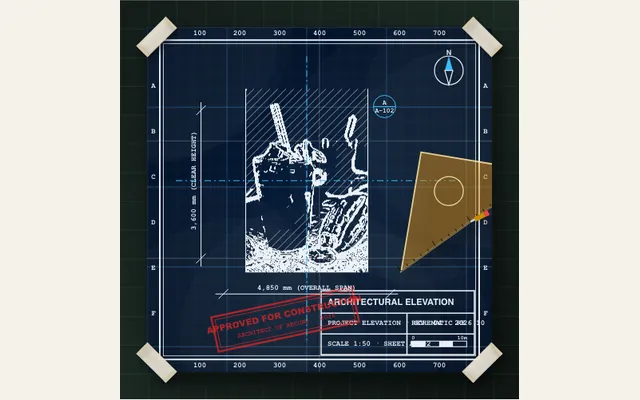
Architect's cyanotype blueprint
Animate an authentic Prussian blue cyanotype blueprint with rapid white ink drafting lines, millimeter coordinate grids, dimension callouts, and sliding amber drafting triangles.
Try this effect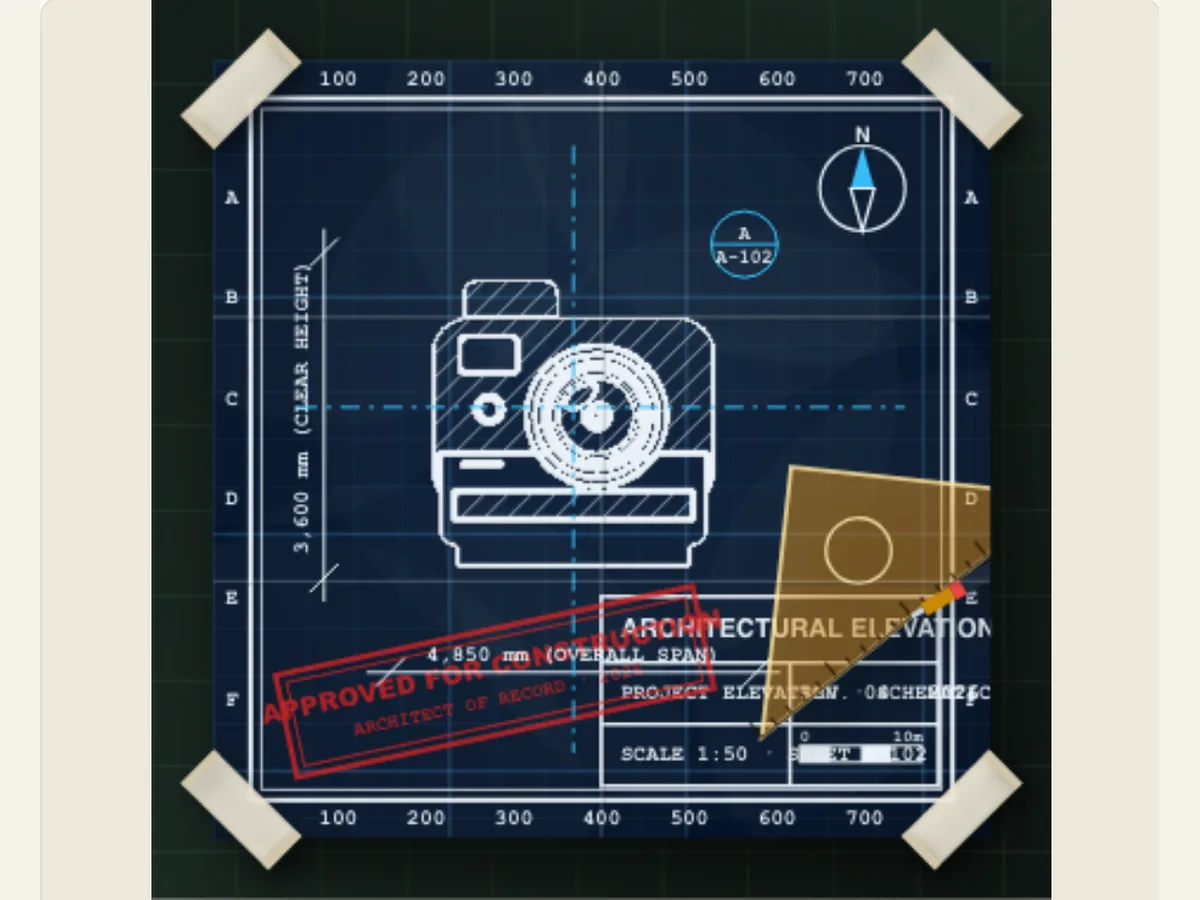
Present a design concept as a moving drawing sheet
A single image can illustrate what a structure or product appears to be, however, it does not necessarily depict how the concept came about. Architect's Cyanotype Blueprint provides an uploaded subject a "drafting board" look with a specified color scheme, coordinate grid and drawing tool. Use this as a title sequence for a design presentation, as a studio portfolio clip, or as a transitional piece between an architectural sketch and a completed visualization.
The final product is a non-measured drawing, which may be called "stylized." Grid labels, scale text and approval marks are visual aspects of the drawing and will not verify the drawing's geometry nor will it meet the requirements for a building-code review. To use this as a construction document for making a purchase/construction decision, you need to provide a drawing prepared by an approved designer. This type of drawing can illustrate a concept, however the technical information must be derived from the verified plans of the project.
Choose the sheet palette before adding drafting marks
The Blueprint Palette offers a variety of ways to create contrast between the image being created and the lines used to define it. Examples of these alternative methods include: a deep Prussian cyanotype using white ink; a diazo sepia on aged drafting vellum; an architectural white paper using blue ink; a vintage graph paper using crimson ink; and a dark CAD workstation palette. If you choose to use one of these alternative methods, remember that they each provide their own unique level of contrast. For example, if you use a light-colored subject on a white paper, the subject will likely disappear into the background. However, if you are working with a dark cyanotype on a smaller screen, it can make viewing fine white marks difficult.
Choose the best treatment for your image by comparing it to several different palettes prior to switching grids. Select a treatment that will allow you to see the drawing lines of the image separately from the overall shape of the image, if the image contains narrow borders. The white or blue paper option can appear similar to other images without being mistaken for a true cyanotype. Palettes of sepia and amber can represent an archival study, while anthracite can help keep a product concept from looking too flashy.
Scroll sideways to compare every column →
| Control | Available direction | What it changes |
|---|---|---|
| Blueprint palette | Cyanotype, sepia, white, graph or CAD | Sets paper-to-line contrast |
| Image and title | Editable source content | Defines the subject of the drawing |
Use elevation and grid to describe the kind of idea
The schematic elevation style provides the user with an option of creating their CAD vector lines in conjunction with cross-hatching, a photo-cyanotype contact process and a multi-level facade elevation. There are three types of coordinate grids that are available to the user; these include a millimeter graph paper, an isometric triangle grid, or a polar radial layout. All of the grid types offer the user visual cues which will help them to interpret what they see in terms of the way in which the drawing was produced: graph lines allow the user to think of the drawing as being measured; isometric lines provide a sense of volume and assembly; and radial marks give the user a feeling that the center point of the drawing is the main focus of study.
The choices made above do not provide an additional level of dimensionality to the uploaded image. The scale caption "SCALE 1:50 - SHEET A-102," is just a text value used as an example of what can be entered by users. This value was entered into the system using user input and is therefore editable. It should be noted that this value was not read from the image. If there are any specific measurements provided in your client deck, make sure to save them in your project's original document so you can double check the accuracy of each value. In the event that the image being displayed is solely for a conceptual purpose (visual), then please enter either a project name or sheet label in place of the sample caption so there is no confusion as to whether the image represents a certified plan.
Stage a ruler, compass or pen as the scene’s visual anchor
Drafting Instrument will show one of four different types of tools; an amber drafting triangle, a twin leg brass compass, an architectural scale ruler and a technical drawing pen. Choose the tool which is relevant to what you are working on: a triangle can frame a facade, a compass can sit close to a radial study and a pen can support a line drawing treatment. Remember that the instrument does not replace dimensional annotations; it is just a piece of the animated set dressing.
The use of the archival paper folding and crease-wear option allows for the introduction of apparent sheet wear. The addition of the approval-stamp option will introduce a red construction-style marking. Folds can cause an otherwise polished presentation to appear as if it was a well-handled study. However, folds can potentially overlap areas of the document that require legibility, such as a title or fine lines. An approval stamp would be beneficial in a fictional studio storyboard; however, an approval stamp would not indicate that a permit or approval has been granted for the design if no such grant exists.
A studio walkthrough for a small renovation concept
The first image in the social post might be the first step in a video illustrating the process of designing a kitchen. This image would show what the completed space will look like. The paper used for this step would have blue ink on white paper, and it would be on an isometric grid. This step would also include a short title that identifies the space being designed, and a caption that describes the image as a concept sheet. Finally, there may be either a pen or a triangle in close proximity to the image to provide a "working-studio" framing device. After the initial social post, there can be additional steps (such as showing the actual before-and-after photos) along with a text-based description of the proposed materials.
The product development group may choose to create a product image by placing the rendered product image on a Prussian Blue background, using a technical diagrammatic approach to represent the product's function, and including a basic size reference without generating fake measurements. This type of presentation allows for consistency from the initial concept phase to the final launch image. Regardless of which method is utilized, only use approved photos/rendered images, and ensure that all factual performance, size or regulatory compliance claims are documented in the associated documentation, so that they can be verified.
Tune the composition in a sequence that protects legibility
First upload the blueprint subject, then select the palette and elevation. After you've loaded your main image, select the coordinate grid and instruments. Only add folds or approval stamps when they will help the overall appearance. Finally, create a title and scale caption. By using this sequence of steps, you can avoid having to adjust your typography based on a potentially different palette at a later date, and it will be easier for you to determine if the selected instrument is obscuring the image.
The project-level timing of a scene can be affected by the movement and duration controls. A more detailed elevation should be given more time than a simple logo or silhouette. When making any timing adjustments to the scene, check the full reveal each time. Make sure that when the motion is stopped, a viewer can still read the title. An easy way to determine how well the video will look on a smaller screen is to stop the video at the actual display size and make sure that the subject, grid, and captions remain visually distinct.
Export a concept sequence without calling it a technical drawing
This export panel contains an image still (PNG), an animated GIF, a video file that can be played on a computer or web browser, and a transparent PNG sequence in a zip file. Each frame of the sequence will be 30 frames per second and will include transparency (alpha channel). Editors who can work with image sequences can then take the individual frames of the sequence and place them on top of other shots. The transparency in the video file is lost when it is exported. Therefore, if you wish to export a video overlay, you must use a green canvas and a chroma key. Animated GIFs also do not have transparent backgrounds. Animated GIFs are best used for a quick preview rather than a complex editing project.
A PNG can be used as a portfolio tile or as a presentation cover, whereas a video will keep the grid and motion in a reel or walkthrough alive. Once imported into your editing software, you should compare the color and edge quality of the imported image with those found on your actual timeline. To allow your team members to make future updates to the title, caption, or subject matter of the project, save the project as an editable version. In order to obtain precise construction information, refer to properly written and reviewed plan documents along with this visual overview.
Avoid false precision in captions and client handoffs
The natural implication of blueprint images is that they are being used for measurement and review. This means that you need to be very careful with what you write. The use of a decorative grid does not constitute a survey. Additionally, the image will not confirm any specifications regarding dimensioning, materials, boundary lines, or code requirements. When possible, use terms like "visual study" or "design concept" to create realistic expectations for the reader. If a label on a sheet, a grid, or a stamp could be perceived as a official record of the project, then either modify the description of the item or disable it prior to printing/posting.
The final product will look best if you use its visual elements to make only one main point about your project. Choose a short title, create a sufficient amount of contrast around your drawing, and do not put all of your technical cues into a single frame. When using a map as the focus of your design, consider either the Origami Fold Map or the Country Atlas. A Paper City Route allows you to take viewers through a scene, and the Export Format Guide provides options for compositing routes.