Thermal receipt roll
Animate an authentic thermal paper receipt extruding frame-by-frame with a serrated tear edge, 3D bottom curl, procedural barcode, and customizable live item tallies.
Try this effect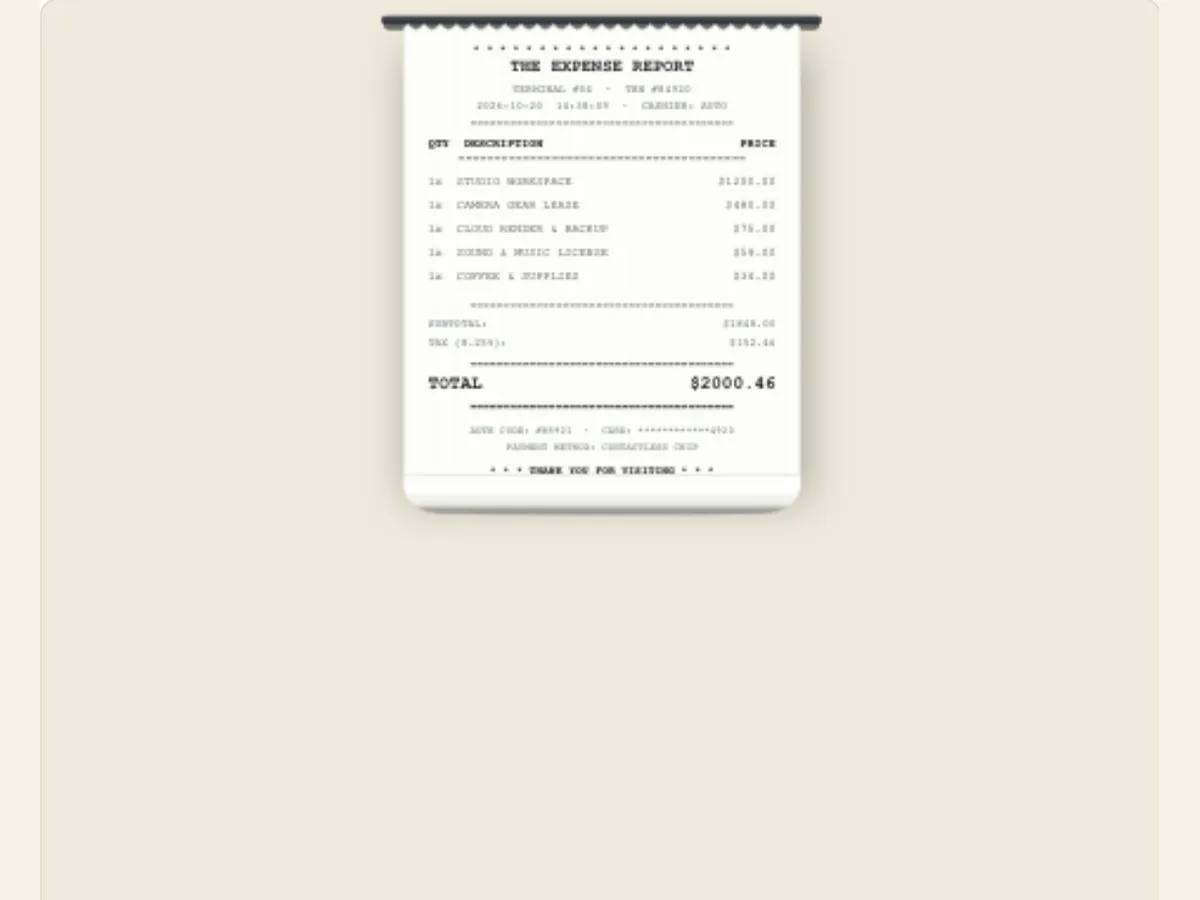
Make a list of details unfold as a receipt
A receipt is a good method for displaying many line items without making a video into a spreadsheet. The Thermal Receipt Roll allows users to display a narrow piece of paper as it feeds into the screen. Users can then edit the store name/report title, expense items, currency, treatment of the paper and a procedural barcode. This feature can be used to create a fictitious store setting, break down a budget creatively, make a prop receipt for a short film, or provide a brief summary of items included in a product package.
This generated slip is an artistic image, not a point of sale record, tax invoice or evidence of payment. It should not be used as a representative of an actual transaction or reimbursement without verifying that the information provided is correct and authorized. The barcode is procedural artwork and cannot be scanned to confirm a purchase. If the scene depicts actual expenses, make sure to verify all numbers and labels in addition to the animation, and indicate if the resulting image represents a summary or merely an illustrative prop.
Give the slip a title and keep the numbers auditable
The Store / Report Title provides the heading at the top of the receipt. The Itemized Expenses section allows you to enter items in a 'item name' - 'cost' format. Please put each item on its own line and ensure that the cost matches up with the item description. It is best to have a short list of expenses to make it easy for customers to review while the receipt is printing. When presenting a monthly studio budget, organize similar expenses together and create a clear date or time frame for the budget within the Store / Report Title instead of attempting to present the entire financial history.
The user can select the appropriate currency from among the four choices (dollar, euro, pound, and yen). When selecting the appropriate currency symbol based on the data and the intended audience, check for consistency with decimal separators and local numbering conventions in the text. Simply having the symbol for the currency will not indicate what kind of dollar currency it refers to nor does it convert the value of the amount. If the viewer may be confused about the currency being used, the time frame, or the type of estimate being presented, provide an explanatory caption in the accompanying video. It is more important to have accurate source data than to add decorative elements to receipts.
Scroll sideways to compare every column →
| Control | Available direction | What it changes |
|---|---|---|
| Itemized expenses | One name and price per line | Builds the receipt content |
| Currency and barcode | Selected currency and visibility | Changes supporting receipt details |
Choose a paper stock and feed motion for the story
Paper Stock offers thermal white, a wrinkled cash register till roll, and a vintage yellow gas-station look. Feed Motor Speed allows you to feed the paper in short, separate increments at approximately twelve frames per second, or with a smoother motion at about thirty frames per second. The incremental option is similar to a stop-motion property, while the smoother option feels more like a contemporary printer. Determine if the motion of the paper should appear to be made by hand, fast-moving, or relaxed so that the audience can view the list.
The procedural barcode on the print can be turned on or off. Turn on when it will contribute to the visual representation of a store receipt, and turn off when the receipt is a clean expense card where the added marks take away from the amount. Since the barcode is only for decoration purposes, don't indicate that the barcode has an actual order number that can be scanned. Test the outcome at its final size; thin receipt text may become hard to read after the clip is reduced.
A transparent recap for a creative project
The creator can also use this format for a fun, creative list of materials used in a handmade product. This way, the reader gets to see the 'behind the scenes' of the creative process. This type of list is often used as part of a product description on sites such as Etsy. It can give the buyer an idea of how much effort was put into creating the product. It can also help the buyer understand why the price of the product is what it is. A small video studio may summarize a production budget using a fake project title and a few actual cost examples. This receipt will show each cost individually, as if it were a prop from behind-the-scenes. After showing each cost, the editor can cut to the actual breakdown or link to the complete budget.
The stock and speed for a fictitious film could be used to create a late night gas station or shop scene. Also, the names of the items would help tell the story. On the other hand, do not use fake amounts when you are reporting on real businesses. If you must use estimates, clearly label them as estimates. When possible, obtain authorization for the number of units reported, and save a copy of the original source document. This method makes it easier for viewers to understand what you're presenting, and prevents you from presenting a marketing illustration as accounting evidence.
Trim the copy before changing the layout
Start with the title and a few lines of data. Choose the type of paper you would like to print on, select how the printer feeds the paper and determine if a bar code should be present in the scene. When the number of items in the list becomes excessive, create two receipts or display the largest categories first. Adding additional text to a thin strip may require more effort from the user to read all of the information contained within the editor, even though each item is technically contained in the editor.
Check out the entire feed, especially the last entry and total if there is an option in your copy. The editor will not add up, summarize, or verify what you put into the fields; it is simply text that you entered. One good way to check your work before submitting it is to make sure that each value matches up with the source document and that the line breaks haven't altered how those values are matched. If you are creating a "narrative prop" based on a receipt, create fictitious details for the receipt, and let the reader know that the setting for this receipt is made-up, and not based upon an actual person's buying habits.
Use duration to give each item a chance to register
The global speed and movement of the editor's control of the pace of the receipt will be shaped by the chosen feed mode. A small slip with three items can be viewed at a fast rate; however, a longer list requires more time for viewing when you expect your viewers to view all of the items on the list. View the animation at least once with no interruptions and identify which items you missed. If the list is difficult to follow, first shorten the copy, and then if the copy continues to require a slower rate of viewing, increase the duration.
Landscape video provides some space for a receipt next to the person or product; however, portrait layout will allow the strip to be taller. Make sure the title and key amount remain within the cropped area. A smooth feed may serve as an excellent explanation over lay; whereas, a stepped feed can be a conscious decision based on the style of an animated short. Before you approve the typography, verify that you are previewing the exported frame size rather than just the larger editing canvas.
Download a still or place the receipt in a video timeline
The export panel provides you with several options to export your project: a PNG still image, a GIF file, a browser-supported video file and a Transparent PNG sequence ZIP file containing 30 frames per second of alpha data. A numbered sequence will allow you to maintain transparency of your project if you import it into an editing program that allows importing of image sequences. When exporting to a video format, any transparent canvas will be flattened; if you require a video overlay, use a green background and then use chroma key to remove the green background. Exporting to a GIF format will also flatten any transparent canvas; therefore, exporting to a GIF is most suitable when a solid background can be used.
Export as PNG if the receipt will eventually be a title card or post graphic; export as video to provide motion in the feed. Once exported, open the output in your editing software to make sure all of the smaller price items are legible when placed over other video footage. Save your project with the exported file so you can update an item, paper stock or feed style at a later date. See Newspaper Search for another page-based information reveal; use Investigative Dossier for a case file; and refer to the export guide for image-sequence and chroma-key options.
Keep financial context clear
A receipt layout has the ability to give the appearance of "officialness" to false or estimated figures. When presenting a sample budget and a transaction record, separate them. Also, use a general design rather than a specific store's logo or other identifying information (unless you have permission). If the project shows a real cost breakdown, verify each figure and include explanatory information such as taxes, currency used, and the date of the transaction. Lastly, the animated barcode is purely decorative; it does not represent that you can find a record of an actual purchase using that barcode.
When this feature is used, it should be to help viewers understand a compact list better, as opposed to providing them with a replacement for the information provided by an accessible written form of the information. All of the key figures included in the video must also appear in either the caption or in the text that accompanies the video so that all viewers, including those who may need to pause the video, zoom in on the video, or utilize a screen reader to view the video, will have access to the same information. Remember, a rendered video is not a ledger. Therefore, you should always create a source spreadsheet or report that can be used for verification purposes, and then create a visual summary using the animation and label it honestly.
A few ideas to start with.
Browse Motion Lab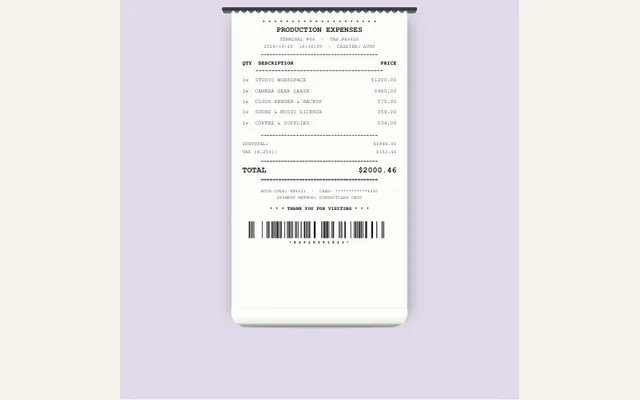
The Expense Breakdown
An authentic thermal paper till roll extruding downward with itemized costs, 3D bottom curl and live tallying.
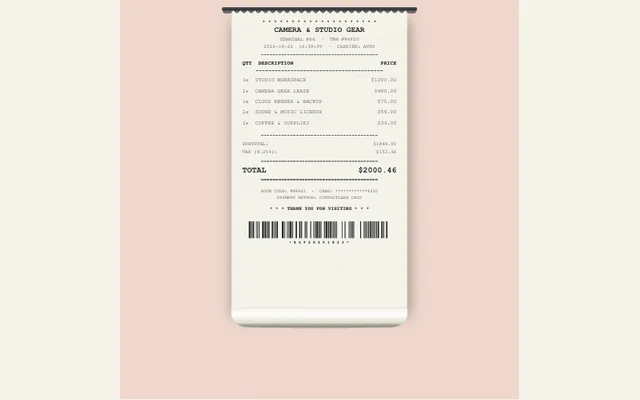
Tech Price Comparison
A crinkled store receipt roll comparing camera gear and editing workstation prices for tech creators.
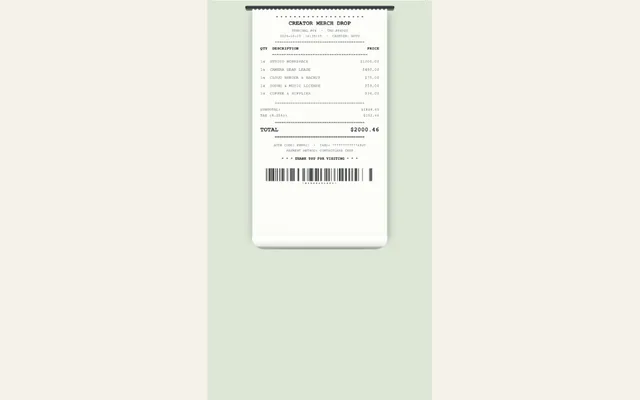
Creator Merch Drop
A clean thermal register till feed tracking merch drops, unit pricing and scannable barcode.