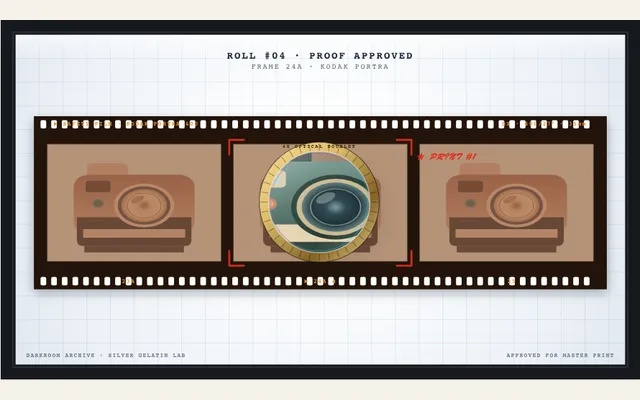
Film lightbox & optical loupe
Animate a backlit photographer's frosted acrylic lightbox with authentic 35mm film negative strips, frame sprockets, and a sliding brass optical loupe inverting the negative into a vivid positive color photograph.
Try this effect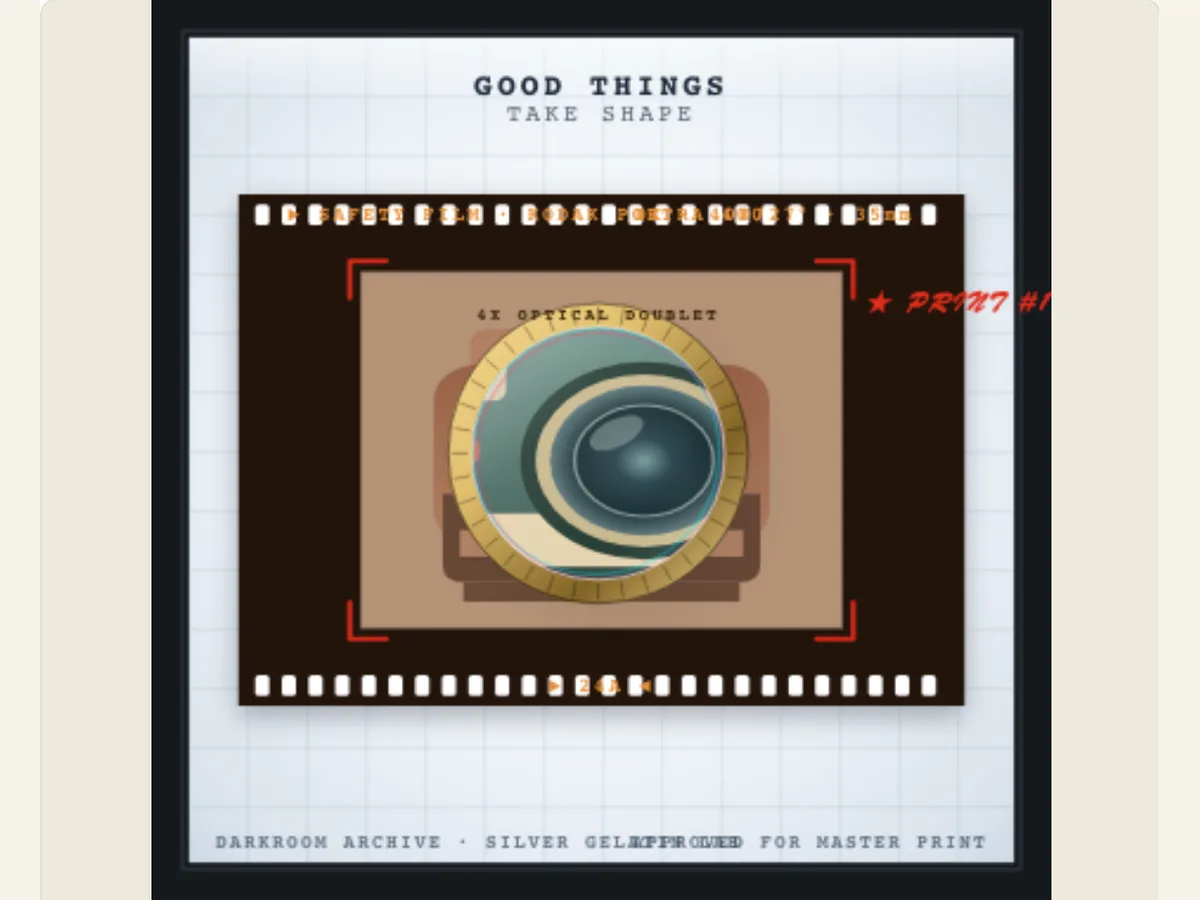
Make a photo feel like a frame found on a light table
A contact sheet allows a photographer to visualize their story, by sitting numerous frames together until they are separated by a loupe. Film Lightbox & Optical Loupe creates this experience in an animation of paper and photography. When an image is uploaded it is displayed in the film format that has been selected. The lens will move over the image and apply whatever viewing effect was chosen, whether it be a negative to positive effect or a clean archival-blue treatment.
An original digital illustration based on the films and darkroom tools used in traditional photography is presented here. This illustration does not scan a real negative, measure exposure, nor does it replicate the color response of any specific camera. It can be used to present a photography portfolio, a step-by-step editing breakdown, a product launch, or a scene that deals with images and image making, and the chosen film stock should be treated as a visual palette instead of as a representation of how the image was produced.
Select a film layout that fits the photograph
Film format provides you with a 35mm sprocket strip, a 120 medium format frame and a mounted color slide. A sequence of portrait or landscape frames can be accommodated by the strip layout; the 120 option provides a more square-shaped presentation of the image, while the slide mount reads as a single selected frame. Before you edit either the title or the frame code, choose which type of crop best supports your subject.
Film Emulsion Stocks offer warm Portra-style color, tungsten cinema looks, silver gelatin black & white or reversal slide palettes. The film stock affects how the image looks and does not change the source file or its metadata. If you want to replicate a specific film stock exactly, you should color grade your source file in a separate image or video editor and then place the film stock as a border around the image/video.
Scroll sideways to compare every column →
| Choice | Alternatives | Difference on screen |
|---|---|---|
| Film format | 35mm strip, 120 frame or mounted slide | Changes the photographic presentation |
| Title and code | Editable frame information | Labels the selected image |
Move the loupe without losing the frame
The "Optical Loupe Finish" option alters the material of the lens assembly to either turned brass, black anodized metal or satin silver. "Loupe Inversion Effect" determines how the image looks through the lens, i.e., whether you see a negative with reversed colors (negative-to-positive color inversion), a larger version of a negative or a cyanotype-style blue. The selected treatment will be applied only to the area covered by the lens, therefore pre-visualize at which point the lens will cross the central part of your picture.
If you have a very long title, it will divert people's focus from your image. You can use Contact Sheet Proof Title to alter the first line, and Frame Code / Number will allow you to assign a small label to each frame. You can also turn on or off the red wax grease-pencil crop marks. If the scene is meant to appear as if it were being reviewed by editors, turn on the red wax grease-pencil crop marks; if the scene has visible borders or labels, turn off the red wax grease-pencil crop marks.
Give frame labels a purpose
Documentary channels will often refer to the chosen image as "TAKE 07," use black and white stock, a silver magnifying glass, and then display the negative image prior to turning into a positive image. Travel photographers will often mount their images on slides, utilize warm-toned stock, and include a brief proof title that indicates where the image was captured. Both approaches demonstrate similar movement, however, they tell different stories with the use of labels and treatment.
If the animation was made as a design prototype, keep all identifiers either made up or user-provided. The frame number created by the software for the scene should not be considered as a "camera roll", "exposure" or "production record" entry. In the case of an animation being produced to accompany a live action shoot, substitute your sample code with information from your note taking during the shoot and verify spellings prior to exporting.
Prepare a strong source photo for the lens
The camera will need to clearly show how much it has moved in order to emphasize the movement. You should use a photo with an obvious focus area, sufficient detail to allow for a close-up and a crop that works well with your chosen film format. If you choose to shoot a wide landscape within a square format, you could lose some of the edges of your image; therefore, you need to see what the crop will look like prior to selecting either the loupe path or title.
If you intend to utilize a cutout instead of a full photograph, make sure to create a transparent file prior to usage. The Lightbox effect will not eliminate a complicated background, nor will it correct focus. Creating a clean source file also provides an easier method for comparing the standard frame with the transformed view through the lens (this is the primary visual indicator in this animation).
Adjust the palette and frame text as one composition
Select your film format, followed by selecting your emulsion and the finish of your loupe. Only after you have positioned the photograph so that it is properly aligned within your layout can you enter the frame code and proof title. If the crop marks are distracting from the photograph, remove them; if the lens has lost contrast, try another finish or inverting the image instead of continuing to label the image.
The amount of time the loupe travels depends on both the duration of the animation and the overall movement speed. Longer durations are needed if the viewer has to examine the image, while shorter proof titles can be used to increase the pacing of the video. To ensure that the transformed image is identifiable even when viewed on a smaller screen (with a smaller lens), watch the entire animation on your mobile device.
Download a lightbox still or layered video asset
The export menu allows you to save your project in several different formats including: • PNG frame • GIF • Browser-supported video format • Transparent PNG sequence for this effect. The sequence will be saved into a ZIP file containing numbered PNG images that download at 30 frames per second (FPS) and have an alpha channel. This type of sequence can then be imported into an editing program and placed over other video or image layers. If your editor doesn't allow importing image sequences, you should use a green background for your project and export it as either a video or GIF. Once the video or GIF has been exported, you can then apply chroma keying to remove the green background. Please note that when you export a transparent canvas as a video or GIF, the transparency is removed.
Export the project as well as the rendered clip to allow for changes to the picture, stock, or title without having to start over. If you require a still proof of a specific frame, pause on that frame. To verify that the image position and lens contrast are correct in comparison to the final edit, play the clip once after it has been imported. Since the Export Menu displays the limits for each export option, make sure to choose an option that your web browser supports instead of assuming all devices encode the same type of video.
Separate the animation’s film mood from photo facts
Film labels and frame markers can create a certain mood in editing, but unless you include the correct information about how the film was captured, they will not accurately represent what took place at the time of shooting. The selected emulsion palette is a visual option in this scene and does not tell us the camera model, lens used, or chemical processes involved in making your photograph. When using this clip for client presentations or behind-the-scenes stories, make sure to use those terms accurately.
When the image is documentary, preserve its source and caption in the surrounding edit. The animation may introduce the frame, but it does not represent the shown code as an authenticated archive record, nor does it suggest the lens scanned in a calibrated manner. To describe these facts, use a real production note; let the digital lightbox carry the visual transition.
Let the photograph remain the reason for the shot
The use of the loupe will be best when it identifies one specific aspect (i.e., a person’s facial expression; the finish on a manufactured item; an individual item within the photo). When you include many labels and grease pencil marks, the purpose of the loupe may be lost. You should first begin with the photo itself and the way in which the magnification takes place. Once you have identified how the photo will be magnified, you should then select only those labels which provide insight into why this particular frame was chosen.