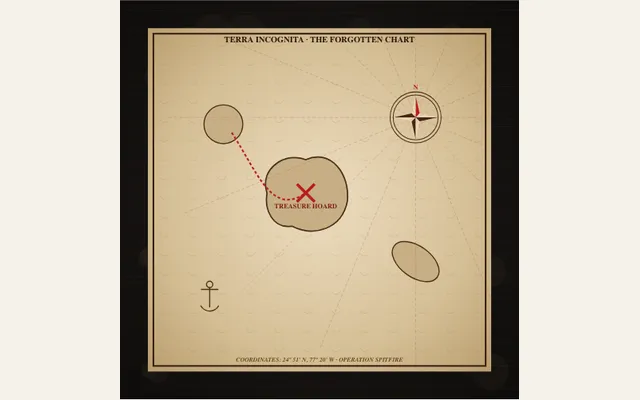
Singed ember burn reveal
Animate antique parchment and classified dispatches burning away with incandescent glowing plasma embers, charred carbon rims, drifting ash sparks, and rising smoke to reveal an ancient treasure map or secret cipher.
Try this effect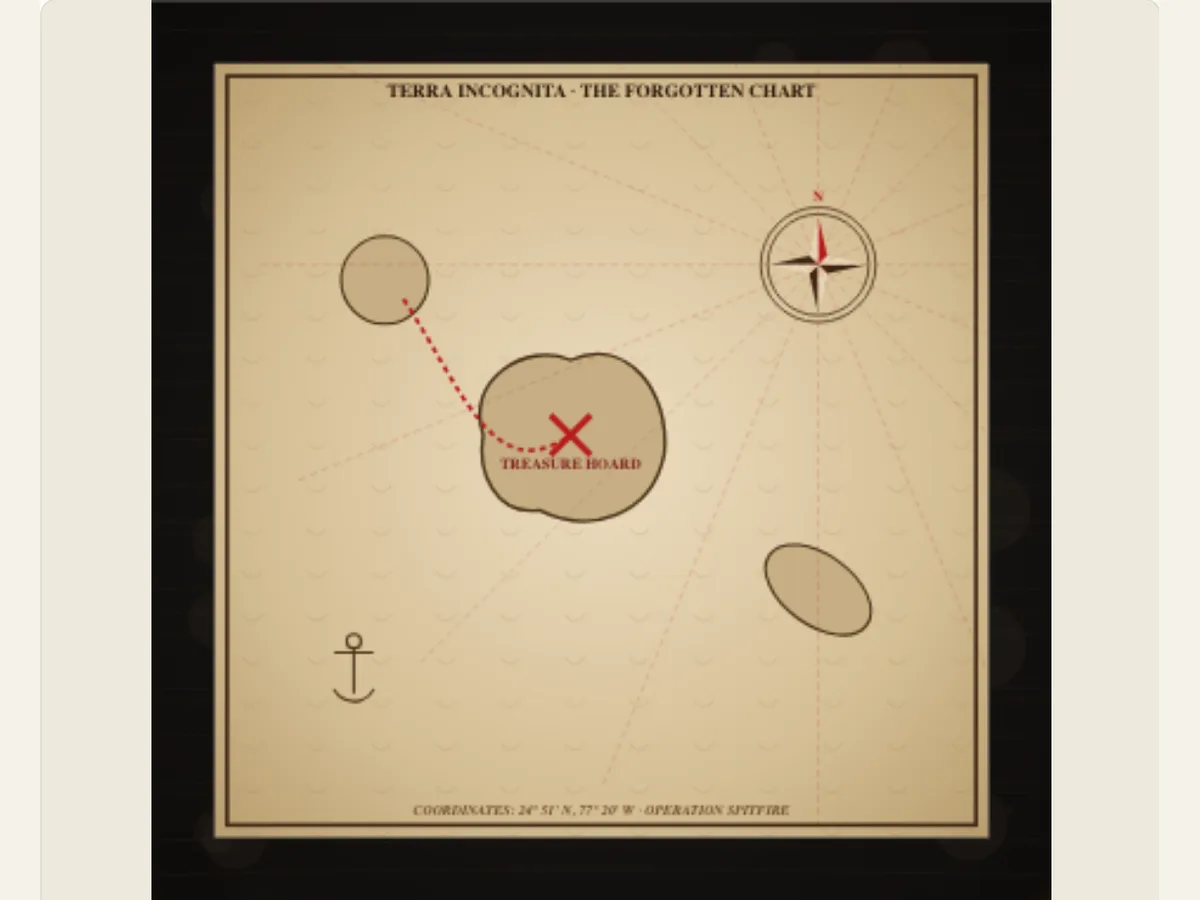
Reveal what is underneath a printed sheet
Burning-paper transitions allow for introducing a secret, a memory, or a map, but do not show the full scene simultaneously. Singed Ember Burn positions a selected document design over a reveal layer; it then opens up a moving border through the upper sheet. As the upper sheet is pulled back, the underlying image or artwork will appear through the opening, while the burning edge provides the visual movement.
This is a graphic representation created within a web browser, not footage of paper burning. This type of effect can be used for a variety of purposes such as creating a fantasy map reveal, presenting a trailer title, creating a transition between chapters in a book, etc. Do not use this as an illustration of how to safely demonstrate the effects of fire or as proof that an actual document has been destroyed. The use of smoke, ash and embers in this scene is intended to enhance the visual presentation of the scene.
Choose the reveal path to match the story beat
Burn combustion pattern provides you four ways to move the pattern. The four methods are radial ember hole that will grow out from the center, corner flame peel that will travel diagonally from one corner, linear fire wave that will travel up, and dual edge convergence which will have two fronts going towards the center. The use of a central opening will help bring focus to just one image. On the other hand, the use of an edge sweep is much simpler to line up with a scene change at either side of the frame.
When you make the first readable part of your motion graphics visible, you can change the direction you take. Decide which part of your motion graphics needs to be seen first. For example, if a title or face is required to appear before anything else, select a path that will bring the viewer to that area first. The default intensity and clip duration will determine how much time passes until the viewer sees the rest of the motion graphics. Instead of previewing only one frame of the final opening, view the entire motion graphics.
Scroll sideways to compare every column →
| Control | Available direction | What it changes |
|---|---|---|
| Burn pattern | Radial, corner, linear or dual edge | Sets where the reveal travels |
| Image | Your uploaded reveal | Changes what the paper uncovers |
Pair the top sheet with the material below it
Top Burning Paper Type will convert the paper into aged, old-world vellum, a high-secret military communication, or an old photo. Revealed Underlying Content provides a way to show a treasure map, a deciphered message, or a user-provided image. These two options create the setting for the story: the dispatch over the photo can be interpreted as a detective-type story, whereas the vellum over the map can be seen as an adventurous uncovering.
The use of Upload Reveal Photo allows you to place an image below the paper. Select a source that has a clearly defined single subject and is high quality enough to fit within the space provided by the opening. Adjust the subject's size and/or placement if it is located near the edge of the frame, prior to applying a more dramatic effect on the edges. To create a scene that focuses primarily on typography, limit the amount of text in both the document header and code so that they are still readable once the opening extends beyond them.
Keep the ember edge from covering the discovery
Incandescent Ember Glow is capable of using a molten ember, scorched amber, or smoldering crimson treatment. Burn Intensity regulates how strong the transition will be and how it looks around the edges. A strong glow may be suitable for a short-term reveal; however, a softer amber rim typically provides greater opportunity for the image to be the main focus. If the edge of the glow competes with fine text or bright areas within the photo, reduce the intensity.
Document header title and secret code/coordinates allows you to change the display of the top line of the page. Titles such as "ARCHIVE 04" give a scene identification as a document, while giving the impression of authenticity rather than being fake. When the content is a design sample, use fictional wording. Incorporate the number or coordinate string into the story rather than using it as decoration.
Example: open a case file onto a location image
For a short story based on a mystery, select the classified dispatch as the cover for the story and a photograph taken at night of a street as the reveal for the story. Select a fictional location for the code line. Select Dual Edge Convergence and select a moderate intensity for it. The motion starts by having a readable header. Then, the motion expands outward from the center of the image until there is enough of the image visible so that you can see what will happen next in the story.
The same controls can be used for a travel teaser with an aged vellum layer over a map image and a corner peel revealing the destination. The controls will not verify coordinates or produce geographic data; however, you can either provide your own map and code, or select them from the available options. If the information provided in the detail is intended to assist in planning an actual trip, verify the labels and locations on another map service prior to publication.
Adjust the timing after the reveal layer reads clearly
Overall, the Duration setting determines the amount of time that a transition takes. You will want to begin your motion at a rate that is easy to follow and then elongate the clip if you feel that the audience requires more time to view the header prior to the opening sequence or examine the image after exposure. Elongating the clip does not provide more documentary details about the image; however, it does slow down the entirety of the sequence.
You will find a moment of closed page, a moment of initial reveal, and a moment of final exposed frame. These three times can help catch titles that disappear too quickly, or images that appear too slowly. If there is a cut from one video scene to another, allow the complete reveal to be on screen for enough time so that the edit makes sense; then adjust the length of the hold in your timeline if you require a shorter ending.
Export the burn as an overlay or standalone transition
The closed document or the last frame can be saved as a static PNG. This export option has several other types of files: GIFs, videos supported by browsers and Transparent PNG sequences for this effect. When importing the numbered sequence at 30 frames per second into an editor that allows you to import image sequences and maintain alpha, if you wish to export as a video file, it is recommended to use a green background for chroma key as video exports compress transparent layers.
Before you begin to test different ways to use the burn path or create your own document design, save the project file. Saving will allow you to keep your photo, header and effect settings intact so that you can make further changes later. When you export your video into an editing program, check to see if the ember edge appears to have changed due to compression and/or keying. If the ember edge appears to be too "hard" against the rest of the video, consider using a different background treatment or reducing the intensity of the ember before exporting again.
Leave enough of the image visible to make the reveal matter
A burned-out area in your image will ultimately fill up most of the frame if it remains there for an extended period of time. When you open the paper, you should immediately recognize some sort of shape, color, or title in the area below. Start with a simple heading and then allow the photograph or map you chose to dominate the remainder of the sequence. This type of sequence works best when the following cut occurs within the photograph/map itself and not on another effect.
If the last layer is looking too light, check the original uploaded image itself prior to altering the ember hue. The reveal treatment will not adjust exposure or eliminate details present in the source, and excessive edge illumination may result in decreased contrast around a lightly-colored object. Many times, adjusting the original source image or choosing an alternative crop will provide a better solution to the problem than increasing burn intensity.