Newspaper text cut
Keep an editable word or phrase sharp inside a paper-cut highlight while blurred editorial pages change quickly behind it. Choose the pace, marker color, blur, and mixed page designs, then export the finished sequence.
Try this effect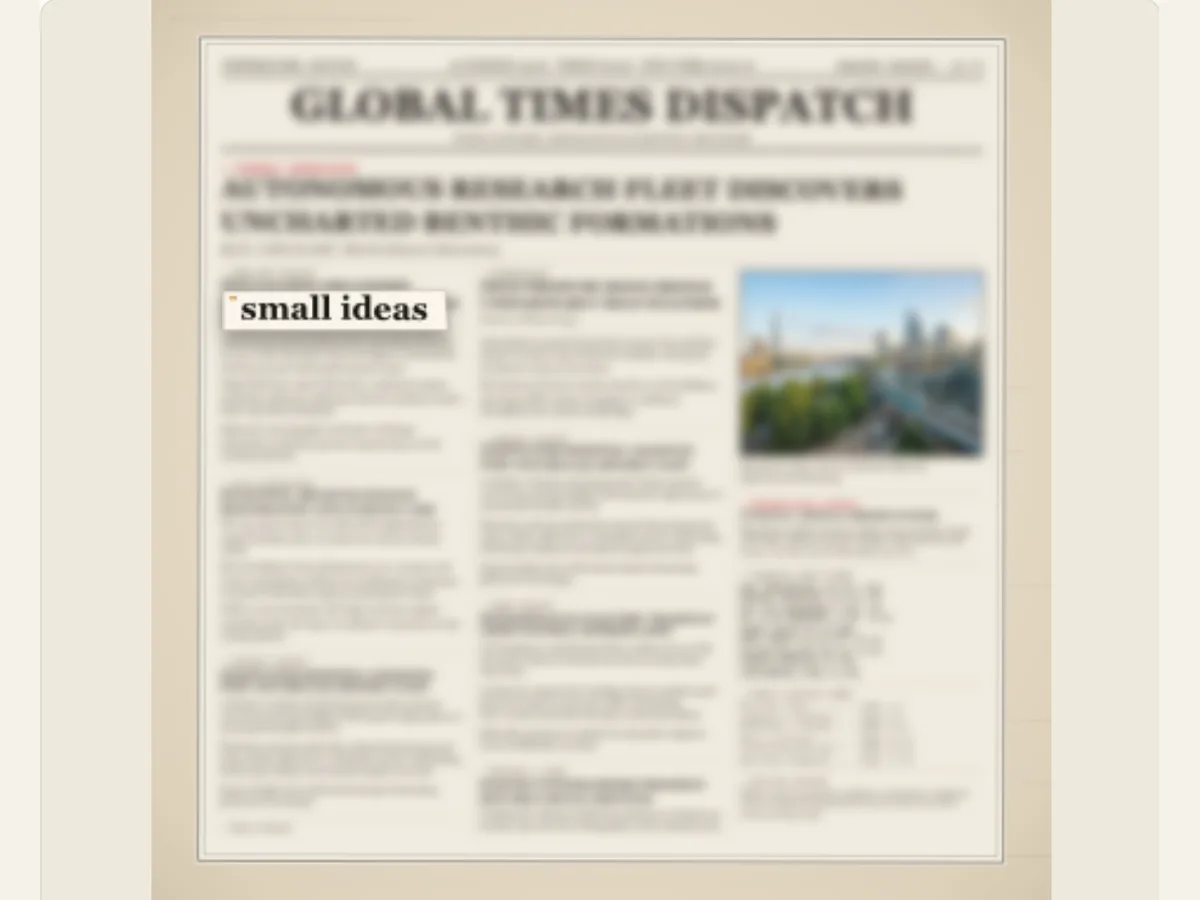
Keep the selected words in focus while pages change
The text cut provides a visual reference point that will remain stationary while you make changes to your paper layout. The Newspaper Text Cut allows you to select a word or short phrase and place it in the center of the page. You may then use this word/phrase to transition from one broadsheet design to another. The surrounding printing can be blurred slightly to draw attention to the selected word/phrase. This is particularly helpful when creating an editorial title, a concept trailer, a rapid chapter transition, or a word/phrase that you wish to have clearly visible across multiple paper cuts.
The background layout is a sample of what the design would look like if it were printed in a newspaper. This motion will not find a newspaper article with your search term. The text was created by the person who submitted this motion. To locate a passage where your search term appears, you should use Newspaper Search or Newspaper Research. Be sure to explain how the effects are different from each other so that viewers understand that a "fixed center" title is not an actual quote from a real newspaper.
Choose a short phrase that can survive several cuts
The text can be formatted as follows: The user enters either a single word or a brief statement in the phrase box. It is possible to have a small statement appear in the center of the display and remain easy to read during several different design modifications (2-6). However, if the user enters a long statement, it may cause problems with the cutout area, or cause the text to break apart in a weird way when displayed on a smaller screen. First enter the statement into the phrase box, then view it in the final aspect ratio. If the statement appears to be too wide for the display, modify the wording of the statement, or create separate titles instead of reducing the size of the statement until there is no longer any emphasis placed upon it.
The generated page copy is independent from the fixed phrase; however, it is used to provide the changing newspaper background. Sample text may be used for fictional or licensed articles and should not use the masthead of a real newspaper unless the article is being reproduced accurately from an authorized source. If the phrase is a quote, make sure the wording is correct and include the author’s name (attribution) in a separate location so the user will be able to see who said it.
Scroll sideways to compare every column →
| Choice | Alternatives | Difference on screen |
|---|---|---|
| Cut treatment | Selected paper treatment | Changes the transition surface |
| Sequence count | Two to six designs | Sets the number of changes |
Set the number of cuts and their pace
The Number of Cuts Made in a Sequence is From Two To Six. If You Want Your Title Card To Look Compact, Then Use the Smallest Number. If You Want the Viewer To Experience Many Different Fonts and Page Layouts, Then Use the Largest Number. There are Several Presets Available For Cut Pace, Including: Measured, Steady, Quick, Fast and Rapid, and Custom Ranges. A Quick Cut Can Be Timed With a Music Beat or Short Teaser. A Measured Cut Will Give More Time For the Reader To Take In a Longer Phrase.
The length of the entire sequence of images is determined by the "Overall Duration" setting. You should preview your whole sequence, not just evaluate each transition individually. If it begins to get confusing to read, you can slow down the speed of the cuts, make them less frequent, or shorten what you are saying. The objective here is to maintain a sense of movement in the face of change. When each individual page is moving as fast as possible, then the differences in design can be viewed as "noise" rather than an intentional cut into the paper.
Choose an edge treatment and background emphasis
Cut Style provides four options for altering the way a focal phrase appears on a page: Torn Paper, Chisel Marker, Classified Redaction and Archival Tape. Each of these treatments creates a different relationship between the focal phrase and the page. Torn Paper creates an emphasis on paper. Chisel Marker has an editorial appearance. Classified Redaction implies a line is being hidden. Archival Tape creates a "pinned note" effect for the phrase. The Background Blur option and the marker-color selection option determine how much contrast there will be between the focal phrase and the moving broadsheets.
Use the most subtle type of effect that will allow the words to be clearly seen. An extremely blurred effect may help to draw attention to the message, however, it may also eliminate some of the background information that would be helpful to understand the message. A bright colored highlighter can be used on one word, however, a complete sentence may require more empty space on either side of the sentence. While making cuts and holding each cut in place, look at the phrase being highlighted. If you find yourself having to use a much heavier blur on the entire image to make the center of the image appear lighter, then you should consider changing the cut treatment as opposed to applying a heavier blur to the entire image.
Vary page structure while protecting the central line
Page design is able to be created using various layout styles such as mixed layouts, classic newspaper, paper books, hard cover, editorial features, and compact journals. Paragraph spacing allows for a compact, balanced, or airy layout, and the shuffle function provides a different layout of the same content. When creating mixed layouts, successive cuts may appear significantly different; however, if you maintain a single style throughout your work then the successive cuts will likely appear less erratic. To determine which layout provides the most open space in the middle, compare each of the layouts with the exact same wording.
Page variations are created editorial designs and do not represent genuine newspaper archives, nor do they suggest that a genuine newspaper article had the specified phrase. When you write about a real event, utilize only factual mastheads, dates and attributions if they are based on a credible source. Cuts in the text will create the appearance of a title being printed; however, this does not convert the title into a verified cutting.
Example: a short headline across a campaign sequence
A museum may utilize a phrase like "Objects Tell Stories" on multiple paper designs prior to transitioning to an exhibit photo. An independent magazine may carry over an issue theme by altering page design layouts to create a brief launch bumper. A filmmaker may use a stationary title to bridge archival looking graphics and the first live action shot. All three examples rely on a phrase which is comprehensible regardless of how much of the surrounding page changes.
Factual content should include source names and dates within a consistent caption or end-card. Otherwise, a phrase used as a clip may appear as if it was quoted from a publication. If the design is purely illustrative, you can utilize sample copy and a fictional masthead. Both methods will help create an attractive visual representation while maintaining a clear separation between the illustrative language of the design and true journalistic reporting.
Build, preview and refine the cut
Choose the amount of cuts and then select a type of cut. Next change the blur, change the color of the marker, and change the layout of the page. Move around the cuts on the page, and check if they hit the center of the page. Lastly, adjust the speed of the cuts, and the length of time that the cuts remain on the screen. Adjusting only one set of controls at a time will help you fine-tune the effects of your cuts: adjusting the language of your cut helps make it easier to read; adjusting the layout of your page creates more diversity among the backgrounds of your cuts; and adjusting the speed of your cuts allows you to control how long each cut remains on the screen.
Small screen test. What was clear and legible when previewed on your computer, might appear jumbled when viewed in a vertical video for social media. Make sure to place the most essential words of each phrase in the center of the screen, and create some spacing between those words and the edges of the screen where platforms will display their own UI. In addition, give people enough time to read what is written in the very last shot before transitioning to the next shot. If you are using the effect as a transition device, make sure you align the final frame of the effect with the first frame of the new scene, rather than having the effect cut-off at random.
Export a paper cut for compositing
The export panel includes a still PNG, an animated GIF, a video format supported by browsers and a sequence of transparent PNGs zipped up at 30 frames per second (fps) that includes transparency (alpha) for the current effect. These PNG sequences can be imported into a compatible editing software as a transparent layer. When exporting video, the transparency will be flattened. Therefore, if you are unable to use an image sequence, select a green background color and remove the green with chroma key. Similarly, GIFs are exported with a solid background, making them more appropriate for a single-frame preview as opposed to being used on a layered timeline.
A still PNG allows you to capture the last word on the last page. A video or image sequence will preserve each cut. To verify that your cuts are centered when you change the size of the canvas, view the file in the editor you used. When saving your work, make sure that you do so with an eye towards being able to change the cut style, article layout, or timing at a later date. To find a phrase which matches the exact words a user has typed into a newspaper article, open Newspaper Research or Newspaper Search; the dedicated Text Match Cut keeps the phrase stable by design.
Describe the animation accurately
A fixed phrase through changing newspaper designs is a visual cut-out, not a search result. Don't state that the editor found the line in a source article or verified a cutting. Use original or licensed words and backdrops and reference a quotation when it was taken from another author. When a user requires a genuine text search experience, point them to the page search tools rather than suggesting that the system has searched outside documents.
Provide access to the message in a way that allows people to understand the message even when you use fast cuts. Check the exported video at the size you want it to be viewed at. If you think the words are flashing too rapidly then slow down the pace. Make sure that your copy is clear, that there is a long enough hold on the screen after the last word is spoken, and that you have attributed your source correctly. These three elements will allow the paper cut to function as a title or as a transition while avoiding any confusion regarding what it is supposed to do.